
Table of Contents
Overview
Creating a Payroll Entry
Selecting Employees for the Payroll Run
Importing Unpaid Tech Hours to the Payroll Run
Preparing A Payroll Run
Completing a Payroll Run
Overview
This article explains how to run payroll in VUE. Complete the following steps after you have configured your:
Company Information in Payroll
Employee Information in Payroll
Payroll Automatic Entries
Unpaid Technician Labor Reports
Creating a Payroll Entry
Navigate to Payroll > Payroll Process > Enter/Edit Payroll Entries.
Note: multiple Payroll runs may be open at the same time.
Sort/select an existing Payroll run from the primary grid or click New to open the Payroll Run New window.
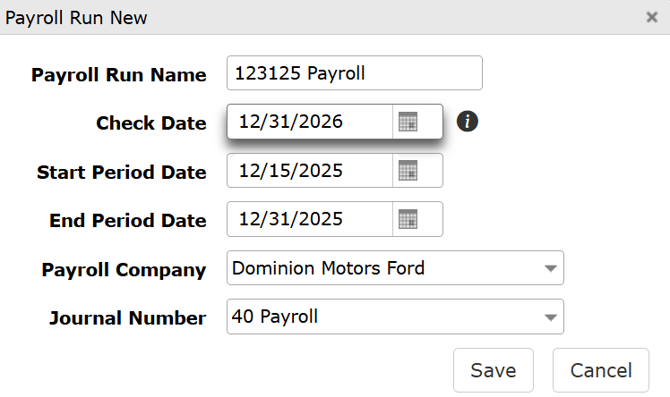
Enter a Payroll Run Name.
Select a Check Date from the calendar icon. Generally, this is the date the check will be delivered to employees.
Select a Start Period Date, which is the first day included in the pay cycle.
Select an End Period Date, which is the last day included in the pay cycle.
Select the Payroll Company from the dropdown (if applicable).
Select a Journal Number from the dropdown. (This dropdown list is created in Accounting > Maintenance > Journal Maintenance.)
Click Save to open the run in the Enter/Edit Payroll Entries screen.
Selecting Employees for the Payroll Run

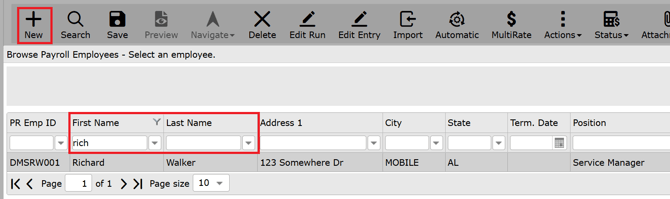
Use the Action Ribbon to add employees to include in the run.
Clicking New allows you to manually select employees to add to the run.
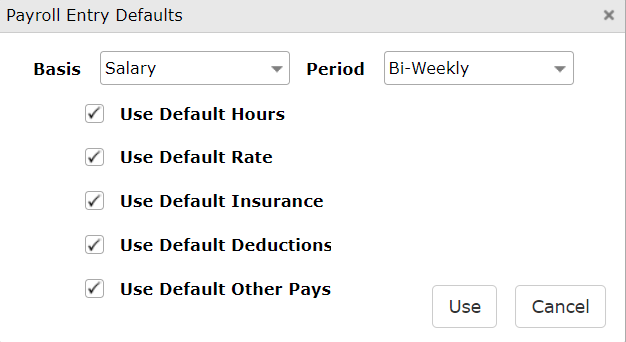
- Review and confirm the settings in the Payroll Entry Defaults, and click Use.
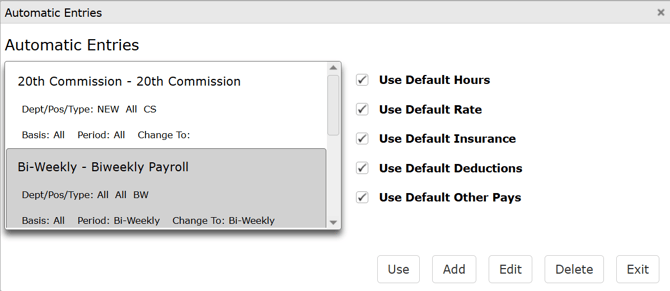
Automatic opens the Automatic Entries window to confirm which entries you want to use in the run.
- Highlight the entry type.
- Select each Use Default filter you wish to apply.
- All employees who match the selections will be added to the run.
- You may also Add, Edit, or Delete automatic entries in this window.
- Click Use to apply your selections to the run.
Clicking Delete removes entries:
- If employee entries have been added to the run, mark the line of the employees to be deleted from the run, and click Delete.
- A prompt asks if you want to delete this entry. Answer Yes to delete all marked entries from the payroll run.
- If no employee lines are in the grid, a prompt asks if you want to delete this payroll run.
Clicking Edit Run opens the Payroll Run Edit window again to modify the Run Name, Dates, Company, or Journal Number.
Edit Entry is active once an employee entry is added to the run, and its checkbox is marked. Clicking Edit Entry re-opens the Payroll Entry Defaults window to allow editing the Basis or the Period.
Note: To edit grayed-out entries, the employee must be deleted from the run and re-added to make adjustments.
Clicking Save saves the changes made to the run thus far.*
*An asterisk is added to each row that has been edited. It is removed when the change has been saved.
Importing Unpaid Tech Hours to the Payroll Run
Note: To Import Unpaid Tech Hours for payroll, the Unpaid Tech Report will need to be run and completed. Please review the Unpaid Technician Labor Report for more information.
Clicking Import opens the Import Entries window.
TimeKron and TimeClock Plus import settings (dealer-defined) are available on separate tabs within the Import Entries window.
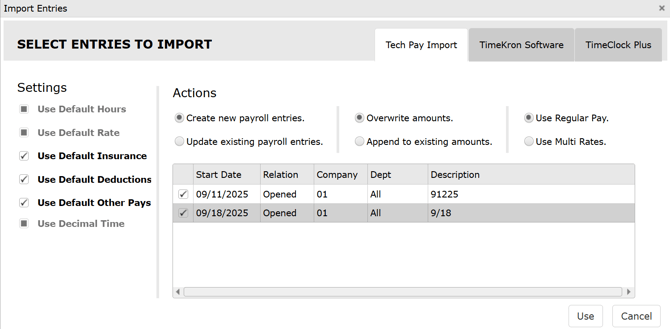
- The Settings section of the Tech Pay Import tab shows the default selections for the run. Hours and rates will be grayed out when Tech Pay uses the Unpaid Tech Labor report to determine hours and rates from the ROs.

- The Actions section includes either/or selections:
- Create new payroll entries – Add entries to the run that are in the Tech Pay run. An attempt to duplicate an entry results in a warning. Only one entry per employee is allowed.
OR
- Update existing payroll entries – Applies Tech Pay to entries that are already in the run. This action does not add or update employee entries that are not already in the grid.
___________________________________________________________________________________________
- Overwrite amounts – Uses the Unpaid Tech Labor report to overwrite current Payroll run amounts.
OR
- Append to existing amounts – Adds Unpaid Tech Labor report amounts to the current payroll run amounts.
___________________________________________________________________________________________
- Use Regular Pay – Applies hours and rates from the Unpaid Tech Labor report.
OR
- Use Multi Rates – Overwrites payroll run amounts from the Unpaid Tech Labor report with Multi Rate amounts.
Click Use to import the selected entries into the grid.
Note: Once Imported, no changes are allowed to the Unpaid Technician Labor report. The status changes to Closed, and the report screen shows IMPORTED TO PAYROLL in red.
Preparing A Payroll Run
Once the grid is populated with the employee entries, the hours and rates may be reviewed and updated in the grid.
Note: if the Read Only checkbox is marked in the Company Information (Payroll > Maintenance > Company Information > Basic tab), rates will be non-editable.
The hyperlink from the employee First Name column opens the employee Payroll record in a separate tab.
Note: Changes made to the employee record here will NOT be included in the current payroll run. They will be included in subsequent payroll runs. To apply changes made to the employee record, delete the employee from the run, and add them back in.

The sub-header itemizes the Run Dates and Current Status.
The yellow circle shows the number of entries currently in the run.
Check All and Uncheck All buttons select or deselect all entries in the run.
Miscellaneous Deductions and Other Pay buttons limit the view to only these columns for review and/or editing.

The lower portion of the screen has horizontal rows with expandable carets duplicating each of the column headers above. Each caret expands to uncover the detailed amounts for review and/or editing.
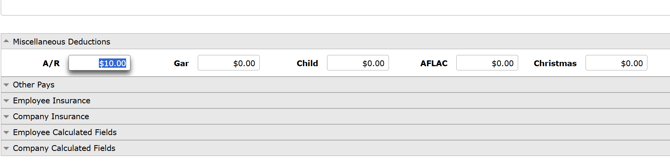
Additionally, you will find carets for Employee Insurance, Company Insurance, Employee Calculated Fields, and Company Calculated Fields. Each are fed from the Company and Employee information defaults. Editing these fields will change the status to Overridden for that entry.
The bottom of the screen shows dynamic totals for the check of the employee that is currently highlighted.

Click Save in the Action Ribbon.
Completing a Payroll Run
Once all changes to the run are saved:
Hover over the Actions button in the Action Ribbon.
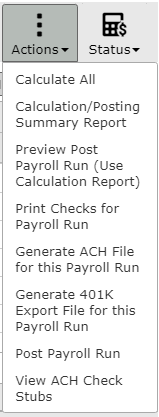
Perform each of the actions in the dropdown, in order from top to bottom.
- Click Calculate All – Changes Status to Calculated.
- Click Calculation/Posting Summary Report – The report opens on a new tab and includes:
- A detailed payroll calculation report by employee.
- An Accounting posting summary by GL account.
- Errors are summarized at the end of the report. Edits may be made to the Run. Recalculate and run the report again to confirm all errors are addressed. Review and repeat until all errors have been addressed. On the Totals page, confirm that the Posting Balance and the Calculated Balance are $0.00. Review the FICA, FUTA, SUI and ACH totals.
- Preview Post Payroll Run – Compare the Preview Post Transactions to the Calculations/ Summary report. The transactions must match.
- Mark individual entries, or use the Check All button to mark all.

- Hover over the Status button in the Action Ribbon, and select Finalize Status.
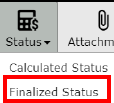
- Click Save in the Action Ribbon.
- Print Checks for Payroll Run – You will be prompted if the employee run status is not yet Finalized. Recalculate, finalize and print checks again.
- If you are sure you want to print the checks for this run, click Yes when prompted.
Note: Once checks are printed, the status changes to Completed, and no additional edits can be made to the Payroll run.
- Click Generate ACH File for this Payroll Run – Downloads a NACHA file to your PC. Save to your PC.
- Log into your bank’s website to upload the NACHA file according to their procedure.
- If applicable, click Generate 401k Export File for this Payroll Run – Downloads an .xls file to your PC.
- Log into your 401k provider’s website to upload the file.
- Click Post Payroll Run. When you are ready to post the payroll run, click Yes when prompted.
NOTE: The Check Date may be different from the Post Date recorded in the Accounting Journals screen.
NOTE: You may view ACH check stubs by clicking the last item under the Actions button before posting.
- A Posting Success window will open and display the company number and batch number, along with a list of all affected accounts and controls.
Note: Save or print the Posting Success details for your records before closing the window.
- Click View ACH Check Stubs to review.