---
title: Employee Information (Payroll)
description: .
---
[Skip to content](https://help.dominiondms.com/en/knowledge/employee-information-payroll#main-content)
[Create a Support Ticket](https://help.dominiondms.com/en/knowledge/kb-tickets/new?hsLang=en) [View Your Tickets](https://help.dominiondms.com/tickets-view?hsLang=en)
[](https://vue.dominiondms.com/)
- [VUE Login](https://vue.dominiondms.com/)
Open main navigation
Close main navigation
- [VUE Login](https://vue.dominiondms.com/)
- [Create a Support Ticket](https://help.dominiondms.com/en/knowledge/kb-tickets/new)
- [View Your Tickets](https://help.dominiondms.com/tickets-view)
Welcome to the Dominion DMS Help Center
- There are no suggestions because the search field is empty.
1. [Dominion DMS Help Center](https://help.dominiondms.com/en/knowledge?hsLang=en)
2. [Payroll](https://help.dominiondms.com/en/knowledge/payroll?hsLang=en)
3. [Maintenance \> Employee Information](https://help.dominiondms.com/en/knowledge/payroll?hsLang=en#maintenance-employee-information)
December 23, 2025
# Employee Information (Payroll)
## A guide to Maintaining Employee Information for VUE Payroll
---
### **Table of Contents**
### [**Overview**](https://help.dominiondms.com/en/knowledge/employee-information-payroll#overview)
### [**Basic Tab**](https://help.dominiondms.com/en/knowledge/employee-information-payroll#basic)
### [**Additional Information**](https://help.dominiondms.com/en/knowledge/employee-information-payroll#additonal)
### [**Account Setup**](https://help.dominiondms.com/en/knowledge/employee-information-payroll#acctsetup)
### [**Insurance / Retirement Vacation / Sick**](https://help.dominiondms.com/en/knowledge/employee-information-payroll#ins)
### [**Misc Other Pay**](https://help.dominiondms.com/en/knowledge/employee-information-payroll#misc)
### [**ACH Setup**](https://help.dominiondms.com/en/knowledge/employee-information-payroll#ach)
### [**ACA Setup**](https://help.dominiondms.com/en/knowledge/employee-information-payroll#aca)
---
### **Overview**
Maintain and update your Employee Information in VUE Payroll to ensure your payroll runs are correct.
Navigate to Payroll\>Maintenance\> Employee Information.
Select an employee from the primary grid.
Navigate through the tabs to adjust information as needed.
*NOTE: The best practice is to create an Employee record in the Accounting module (**Accounting\>Maintenance\>Employees**) before establishing a new Payroll record. As you create a new Employee in Accounting, you will receive prompts to create a Customer and Payroll record for the employee. Click yes to the prompts. A Payroll record for the new employee will be created, which you can edit using the steps below.*
---
### **Basic Tab**
For a New payroll entry, click the **Link to Employee** button to marry the Payroll Employee record
to the Accounting Employee record (ie: Accounting \> Maintenance \>Employee).

Input the remaining Payroll Employee fields (e.g., address, SSN, Department, Position, Full/Part Time, Hourly Rate).
*Hint: Clicking Save will flag all system-required fields.*
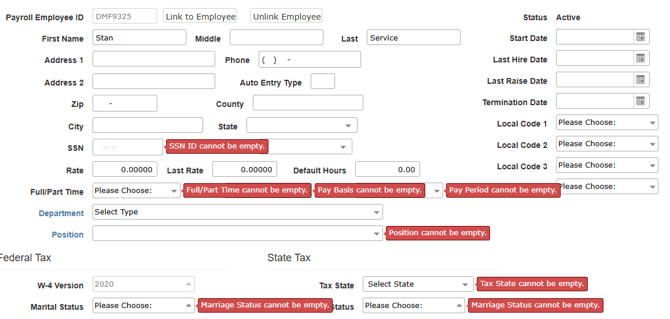
Enter the **Auto Entry Type** as needed ([see the document for Auto Entry Type setup](https://help.dominiondms.com/en/knowledge/payroll-automatic-entry/-edit?hsLang=en)).
**Default Hours** must be at least 1 for Salaried employees (not 0 and not 40).
F**ederal Tax block** - Fill out as employee has specified on his/her W-4.
**State Tax block**- Fill out as employee has specified from his/her state tax form.
Click **Save** in the Action Ribbon.
Status is *ACTIVE* until it has been changed in the Accounting Employee record.
*NOTE: Termination date will not change the Status in the Accounting Employee record. You must change Status in Accounting \> Maintenance \> Employees to Inactive to lock an employee out of VUE.*
*NOTE: When an employee has left the dealership, **do not** add the Termination Date until **after** you have run the last payroll for the employee.*
Click **Save** in the Action Ribbon.
---
### **Additional Information**
Serves only to store information on the employee for reporting and dealer information purposes.
General information on the employee, spouse, Emergency Contact and Driver License information can be retained.
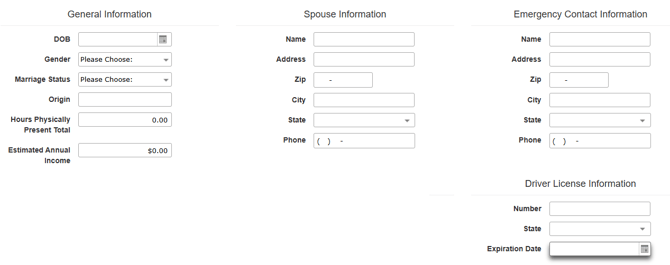
The 401K Export section below is to denote specific information for 401K (if offered), Union information (if applicable), and HCE code.
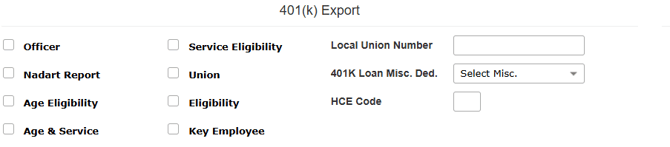
*Note: HCE code comes from the IRS and is code assigned if the employee is highly compensated or owns 5%+ of the company. [Review the IRS site for more information.](https://www.investopedia.com/terms/h/highly-compensated-employee.asp)*
Click **Save** in the Action Ribbon.
---
### **Account Setup**
Select a **Company Department Break Out** field to apply an employee’s gross earnings to the correct department.
If the employee will split his/her time between multiple departments (e.g., Parts and Service), select an additional Department from the dropdown.
Input the percentage per department to apply to this employee’s gross earnings. Percentage total for all departments must total to 100%.

If the employee is a service tech, mark the WIP Checkbox in the upper right to include this employee in WIP reports (including the Unpaid Labor Report).

**Company Employee Break Out Override**
*Note: Be aware that editing this section will overwrite the defaults set in Company Information.*
Use to override employee Regular Pay, Overtime Pay, Vacation Pay, Sick Time Pay and Holiday Pay GL posting accounts if they need to differ from the configurations in Payroll\> Company Information and the Account Set Up\>Company Position Default Settings.
If the user will not differ from the defaults set in Company Information, leave this blank.
If your dealership has multiple rooftops and the employee has access to and does work from multiple companies in your account , Employee Break Out allows you to choose a Company from the dropdown, assign an Account Number, and a percentage. Repeat for each company, this employee will receive their pay. Each column must total to 100%.
If the user will not work in multiple companies or your dealership does not have multiple companies, leave this blank.
*Note: When calculating payroll, the GL account selection hierarchy looks for an account in #1, then #2, #3, #4 below.*
*1) Company Employee Break Out Override (Payroll \> Maintenance \> Employee Information Account Setup tab \> Company Department Break Out Override section)*
*2) Company Position Default Accounts (Payroll \> Maintenance \> Company Information \> Account Setup tab \> Company Position Default Accounts tab)*
*3) Company Department Accounts (Payroll \> Maintenance \> Company Information \> Account Setup \> Company Department Accounts tab)*
*4) Payroll Company Default Accounts (Payroll \> Maintenance \> Company Information \> Account Setup tab \> Payroll Company Default Accounts tab)*
Click **Save** in the Action Ribbon
---
### **Insurance / Retirement Vacation / Sick**
Mark the **401k Eligible checkbox** if applicable to this employee.
Mark the 4**01k Company Match Eligible** checkbox if applicable to this employee.
Mark the **401k Company Match Can Exceed Employee Contribution** checkbox if applicable to this employee.

**Qualified 401K Plan** section - Input contributions percentages or amounts (401k Eligible checkbox must be marked).

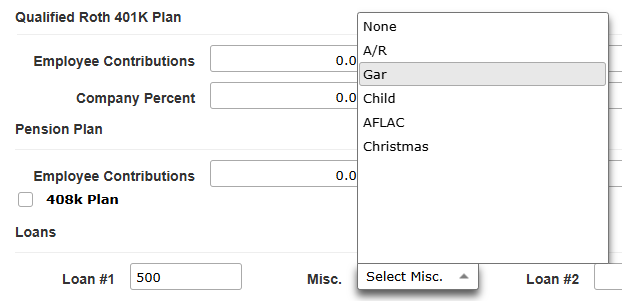
**Qualified ROTH 401k Plan** section - Input contributions percentages or amounts.
**Pension Plan** section - Input contributions percentages.
Mark **408 Plan** if applicable.
**Loans** section - Input a loan amount and select a Misc. label from the dropdown.
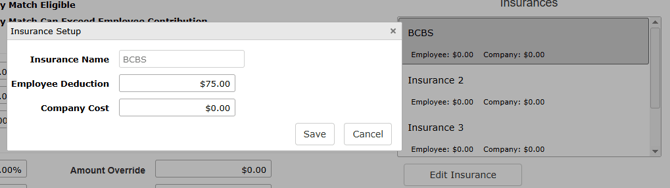
**Insurances** block - Highlight an Insurance and click Edit Insurance. Input Employee Deduction. Click **Save**.
**Vacation/ Sick/ Holiday Accrual** block - Manually adjust Vacation, Sick, and Holiday hours. Input the number of hours granted for each period. Input the current Vacation, Sick and Holiday hours in the Balance fields. The Balance field will update when each Payroll Run is completed.

*Note: Some dealerships may be set up with Advanced Paid Leave. [Please review this document for more information](https://help.dominiondms.com/en/knowledge/paid-leave-payroll?hsLang=en).*
**FUTA / SUI and Others** section - FUTA and SUI amounts are non-editable on the Employee Information screen. Mark all exempt items that apply for this employee.
Click **Save** in the Action Ribbon.
---
### **Misc Other Pay**
**Deductions**
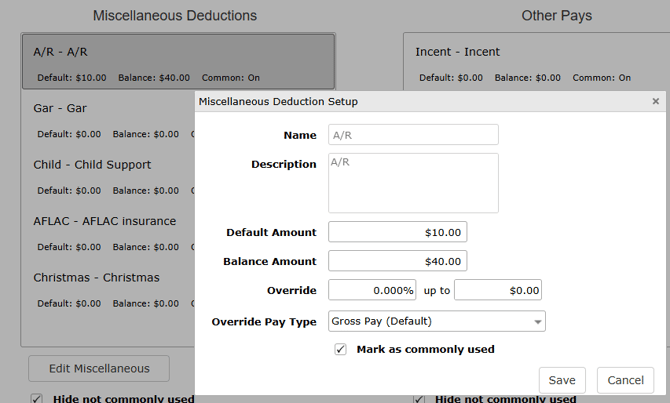
Select a *Deduction* and click **Edit Miscellaneous**.
Add **Default Amount** for deduction each pay period.
Add **Balance Amount** (total amount owed).
Or select to add an Override percentage up to a certain amount.
Select **Override Pay Type** from menu.
Click **Save**.
**Other Pays**
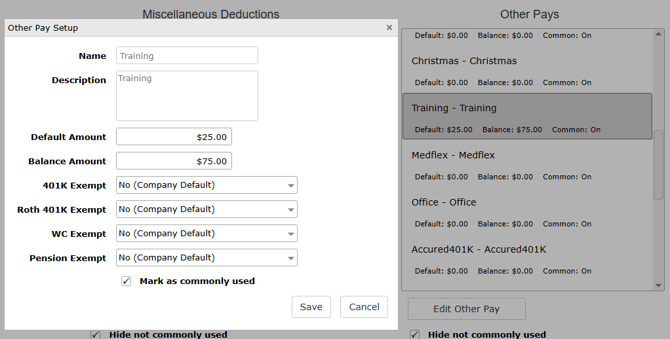
Select an *Other Pay* and click **Edit Other Pay**.
Add **Default Amount** for compensation each pay period.
Indicate if the pay is **401K Exempt**, **Roth 401K Exempt**, **WC Exempt** or **Pension Plan Exempt**.
Click **Save**.
Click **Save** in the Action Ribbon.
---
### **ACH Setup**
The Direct Deposit checkbox will be marked if the Company Information is set to default to Direct Deposit.
You may individualize for this employee for up to 2 Banks.
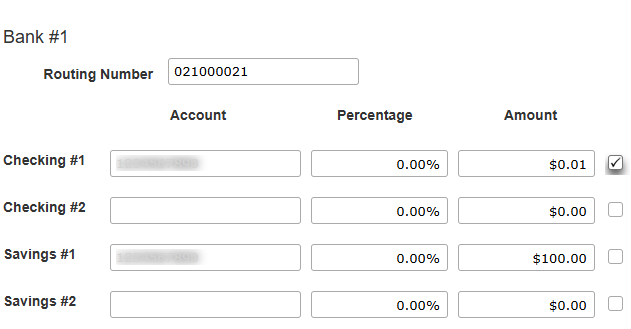
Input the employee’s bank Routing Number (VUE will verify this a correctly formatted Routing Number at input).
Input the employee’s checking account number and net pay.
- Enter either the % or $ amounts to deposit.
Input the employee’s savings account number and net pay.
- Enter either the % or $ amounts to deposit.
The Percentages must total to 100%; otherwise, the dollar amounts will be used.
Check the block beside the default account.
| Percentages must total 100% or zero (or 0%). Percentages will be used if the $ amount is zero; otherwise, the $ amounts will be used. Any leftover net pay will go into the first valid account. In the following order: 1.Bank #1 Checking #1 2.Bank #1 Savings #1 3.Bank #1 Checking #2 4.Bank #1 Savings #2 5.Bank #2 Checking #1 6.Bank #2 Savings #1 7.Bank #2 Checking #2 8.Bank #2 Savings #2 When allocating leftover net pay, an account is considered valid if it has: a routing number, an account number, and an amount of more than $0.00. |
| --- |
Note: If the employee wants most of the pay in one account and only a certain amount in another account - e.g.,$100 in savings and everything else in checking - input 100 in the Savings block and .01 in Checking.
Click **Save** in the Action Ribbon,
---
### **ACA Setup**
All fields in the 1095-B tab default to the settings configured in the Company Information screen.
Use the 1095-C and Covered Individuals tabs to edit the employee information as needed to personalize each employee for end-of-year ACA reporting (if required).
---
[Have a suggestion? Let's hear it.](https://help.dominiondms.com/en/knowledge/suggestion-box?hs_preview=PtALkkGg-165311057568&hsLang=en)
- [Client Support Options](https://help.dominiondms.com/en/knowledge/client-support-options?hsLang=en)
- [Accounting](https://help.dominiondms.com/en/knowledge/accounting?hsLang=en#main-content)
- [General Topics](https://help.dominiondms.com/en/knowledge/accounting?hsLang=en#general-topics)
- [General Ledger - Journals](https://help.dominiondms.com/en/knowledge/accounting?hsLang=en#general-ledger-journals)
- [General Ledger - Schedules](https://help.dominiondms.com/en/knowledge/accounting?hsLang=en#general-ledger-schedules)
- [Cash and Bank \> View Check Register](https://help.dominiondms.com/en/knowledge/accounting?hsLang=en#cash-and-bank-view-check-register)
- [General Ledger \> General Ledger](https://help.dominiondms.com/en/knowledge/accounting?hsLang=en#general-ledger-general-ledger)
- [Monthly \> Financial Statement](https://help.dominiondms.com/en/knowledge/accounting?hsLang=en#monthly-financial-statement)
- [General Ledger \> Post Vehicle Sales](https://help.dominiondms.com/en/knowledge/accounting?hsLang=en#general-ledger-post-vehicle-sales)
- [Accounts Payable \>Vendors](https://help.dominiondms.com/en/knowledge/accounting?hsLang=en#accounts-payable-vendors)
- [Maintenance \> Parts Account Codes](https://help.dominiondms.com/en/knowledge/accounting?hsLang=en#maintenance-parts-account-codes)
- [Maintenance \> Journal Maintenance](https://help.dominiondms.com/en/knowledge/accounting?hsLang=en#maintenance-journal-maintenance)
- [Monthly \> Post Automatic Entries](https://help.dominiondms.com/en/knowledge/accounting?hsLang=en#monthly-post-automatic-entries)
- [Miscellaneous \> Customer Merge](https://help.dominiondms.com/en/knowledge/accounting?hsLang=en#miscellaneous-customer-merge)
- [General Ledger \> Schedule Reconciliation](https://help.dominiondms.com/en/knowledge/accounting?hsLang=en#general-ledger-schedule-reconciliation)
- [Cash and Bank \> Check Register Report](https://help.dominiondms.com/en/knowledge/accounting?hsLang=en#cash-and-bank-check-register-report)
- [Accounts Payable \> Purchase Orders](https://help.dominiondms.com/en/knowledge/accounting?hsLang=en#accounts-payable-purchase-orders)
- [Accounts Receivable \> Customers](https://help.dominiondms.com/en/knowledge/accounting?hsLang=en#accounts-receivable-customers)
- [Cash and Bank \> Reconcile Checking Accounts](https://help.dominiondms.com/en/knowledge/accounting?hsLang=en#cash-and-bank-reconcile-checking-accounts)
- [Maintenance \> Service Account Codes](https://help.dominiondms.com/en/knowledge/accounting?hsLang=en#maintenance-service-account-codes)
- [Maintenance \> Financial Statement Maintenance](https://help.dominiondms.com/en/knowledge/accounting?hsLang=en#maintenance-financial-statement-maintenance)
- [Miscellaneous \> Title Tracking](https://help.dominiondms.com/en/knowledge/accounting?hsLang=en#miscellaneous-title-tracking)
- [Maintenance \> Daily Report Maintenance](https://help.dominiondms.com/en/knowledge/accounting?hsLang=en#maintenance-daily-report-maintenance)
- [General Ledger \> Manual GL Posting](https://help.dominiondms.com/en/knowledge/accounting?hsLang=en#general-ledger-manual-gl-posting)
- [Maintenance \> Employees](https://help.dominiondms.com/en/knowledge/accounting?hsLang=en#maintenance-employees)
- [Maintenance \> Payment Types](https://help.dominiondms.com/en/knowledge/accounting?hsLang=en#maintenance-payment-types)
- [Maintenance \> Schedule Maintenance](https://help.dominiondms.com/en/knowledge/accounting?hsLang=en#maintenance-schedule-maintenance)
- [Monthly \> Open/Close Periods](https://help.dominiondms.com/en/knowledge/accounting?hsLang=en#monthly-open-close-periods)
- [Maintenance \> Bank and Checking Maintenance](https://help.dominiondms.com/en/knowledge/accounting?hsLang=en#maintenance-bank-and-checking-maintenance)
- [Maintenance \> Roles](https://help.dominiondms.com/en/knowledge/accounting?hsLang=en#maintenance-roles)
- [Cash and Bank \> Manual Checks](https://help.dominiondms.com/en/knowledge/accounting?hsLang=en#cash-and-bank-manual-checks)
- [Accounts Receivable \> Receipt Book](https://help.dominiondms.com/en/knowledge/accounting?hsLang=en#accounts-receivable-receipt-book)
- [Maintenance \> Vehicle Sales Maintenance](https://help.dominiondms.com/en/knowledge/accounting?hsLang=en#maintenance-vehicle-sales-maintenance)
- [Accounts Payable \> Accounts Payable](https://help.dominiondms.com/en/knowledge/accounting?hsLang=en#accounts-payable-accounts-payable)
- [Maintenance \> Default Settings](https://help.dominiondms.com/en/knowledge/accounting?hsLang=en#maintenance-default-settings)
- [Monthly \> Statistical Data](https://help.dominiondms.com/en/knowledge/accounting?hsLang=en#monthly-statistical-data)
- [Miscellaneous \> Accessories Due](https://help.dominiondms.com/en/knowledge/accounting?hsLang=en#miscellaneous-accessories-due)
- [Accounts Receivable \> Calculate Finance Charges](https://help.dominiondms.com/en/knowledge/accounting?hsLang=en#accounts-receivable-calculate-finance-charges)
- [Reports \> Schedule Reports](https://help.dominiondms.com/en/knowledge/accounting?hsLang=en#reports-schedule-reports)
- [Monthly \> Reporting Account Setup](https://help.dominiondms.com/en/knowledge/accounting?hsLang=en#monthly-reporting-account-setup)
- [Miscellaneous \> Reopen Parts & Service Tickets](https://help.dominiondms.com/en/knowledge/accounting?hsLang=en#miscellaneous-reopen-parts-service-tickets)
- [Maintenance \> Automatic Entry Maintenance](https://help.dominiondms.com/en/knowledge/accounting?hsLang=en#maintenance-automatic-entry-maintenance)
- [Accounts Receivable \> Statements](https://help.dominiondms.com/en/knowledge/accounting?hsLang=en#accounts-receivable-statements)
- [Cash and Bank \> 1099s](https://help.dominiondms.com/en/knowledge/accounting?hsLang=en#cash-and-bank-1099s)
- [Reports - Chart of Accounts](https://help.dominiondms.com/en/knowledge/accounting?hsLang=en#reports-chart-of-accounts)
- [Accounts Receivable \> Aged Analysis Report](https://help.dominiondms.com/en/knowledge/accounting?hsLang=en#accounts-receivable-aged-analysis-report)
- [Reports \> Trial Balance](https://help.dominiondms.com/en/knowledge/accounting?hsLang=en#reports-trial-balance)
- [Reports \> Trend Analysis](https://help.dominiondms.com/en/knowledge/accounting?hsLang=en#reports-trend-analysis)
- [Reports \> Stock/Schedule Comparison](https://help.dominiondms.com/en/knowledge/accounting?hsLang=en#reports-stock-schedule-comparison)
- [Reports \> Journal Reports](https://help.dominiondms.com/en/knowledge/accounting?hsLang=en#reports-journal-reports)
- [Reports \> General Ledger](https://help.dominiondms.com/en/knowledge/accounting?hsLang=en#reports-general-ledger)
- [Reports \> Customer List](https://help.dominiondms.com/en/knowledge/accounting?hsLang=en#reports-customer-list)
- [Reports \> Employee](https://help.dominiondms.com/en/knowledge/accounting?hsLang=en#reports-employee)
- [Reports \> RO Invoice Location](https://help.dominiondms.com/en/knowledge/accounting?hsLang=en#reports-ro-invoice-location)
- [Reports \> Floorplan Rebate](https://help.dominiondms.com/en/knowledge/accounting?hsLang=en#reports-floorplan-rebate)
- [Reports \> Floorplan Report](https://help.dominiondms.com/en/knowledge/accounting?hsLang=en#reports-floorplan-report)
- [Reports \> Vendor List](https://help.dominiondms.com/en/knowledge/accounting?hsLang=en#reports-vendor-list)
- [End of Year](https://help.dominiondms.com/en/knowledge/accounting?hsLang=en#end-of-year)
- [Parts](https://help.dominiondms.com/en/knowledge/parts?hsLang=en#main-content)
- [Counter - Parts Inventory](https://help.dominiondms.com/en/knowledge/parts?hsLang=en#counter-parts-inventory)
- [Counter - Parts Desk](https://help.dominiondms.com/en/knowledge/parts?hsLang=en#counter-parts-desk)
- [Physical Inventory \> Physical Inventory](https://help.dominiondms.com/en/knowledge/parts?hsLang=en#physical-inventory-physical-inventory)
- [Management \> Parts Returns](https://help.dominiondms.com/en/knowledge/parts?hsLang=en#management-parts-returns)
- [Management \> Parts Orders](https://help.dominiondms.com/en/knowledge/parts?hsLang=en#management-parts-orders)
- [Management \> Purchase Orders](https://help.dominiondms.com/en/knowledge/parts?hsLang=en#management-purchase-orders)
- [Maintenance \> Order Sources](https://help.dominiondms.com/en/knowledge/parts?hsLang=en#maintenance-order-sources)
- [Management \> Parts Inventory Update](https://help.dominiondms.com/en/knowledge/parts?hsLang=en#management-parts-inventory-update)
- [Cashier \> Receipt Book](https://help.dominiondms.com/en/knowledge/parts?hsLang=en#cashier-receipt-book)
- [Cashier \> Parts Invoices](https://help.dominiondms.com/en/knowledge/parts?hsLang=en#cashier-parts-invoices)
- [Counter \> Parts Request Roster](https://help.dominiondms.com/en/knowledge/parts?hsLang=en#counter-parts-request-roster)
- [Miscellaneous \> All Vehicles](https://help.dominiondms.com/en/knowledge/parts?hsLang=en#miscellaneous-all-vehicles)
- [Maintenance \> Fees](https://help.dominiondms.com/en/knowledge/parts?hsLang=en#maintenance-fees)
- [Maintenance \> Price Codes](https://help.dominiondms.com/en/knowledge/parts?hsLang=en#maintenance-price-codes)
- [Counter \> Parts Invoices](https://help.dominiondms.com/en/knowledge/parts?hsLang=en#counter-parts-invoices)
- [Miscellaneous \> Vendors](https://help.dominiondms.com/en/knowledge/parts?hsLang=en#miscellaneous-vendors)
- [Counter \> Back Counter](https://help.dominiondms.com/en/knowledge/parts?hsLang=en#counter-back-counter)
- [Miscellaneous \> Customers](https://help.dominiondms.com/en/knowledge/parts?hsLang=en#miscellaneous-customers)
- [Counter \> Special Orders](https://help.dominiondms.com/en/knowledge/parts?hsLang=en#counter-special-orders)
- [Maintenance \> Order Groups](https://help.dominiondms.com/en/knowledge/parts?hsLang=en#maintenance-order-groups)
- [Maintenance \> Parts Inventory Parts Type](https://help.dominiondms.com/en/knowledge/parts?hsLang=en#maintenance-parts-inventory-parts-type)
- [Cashier \> Daily Close](https://help.dominiondms.com/en/knowledge/parts?hsLang=en#cashier-daily-close)
- [Maintenance \> Header Fees](https://help.dominiondms.com/en/knowledge/parts?hsLang=en#maintenance-header-fees)
- [Management \> Parts Phasing](https://help.dominiondms.com/en/knowledge/parts?hsLang=en#management-parts-phasing)
- [Reports \> Sales](https://help.dominiondms.com/en/knowledge/parts?hsLang=en#reports-sales)
- [Management \> Inventory Management Tool](https://help.dominiondms.com/en/knowledge/parts?hsLang=en#management-inventory-management-tool)
- [Reports \> Special Order](https://help.dominiondms.com/en/knowledge/parts?hsLang=en#reports-special-order)
- [Cashier Receipts Report](https://help.dominiondms.com/en/knowledge/parts?hsLang=en#cashier-receipts-report)
- [Reports \> Inventory](https://help.dominiondms.com/en/knowledge/parts?hsLang=en#reports-inventory)
- [Parts \> Reports](https://help.dominiondms.com/en/knowledge/parts?hsLang=en#parts-reports)
- [Service](https://help.dominiondms.com/en/knowledge/service?hsLang=en#main-content)
- [Maintenance \> Op Codes](https://help.dominiondms.com/en/knowledge/service?hsLang=en#maintenance-op-codes)
- [Advisor \> Repair Orders](https://help.dominiondms.com/en/knowledge/service?hsLang=en#advisor-repair-orders)
- [Maintenance \> Fees](https://help.dominiondms.com/en/knowledge/service?hsLang=en#maintenance-fees)
- [Reports \> Payroll \> Unpaid Technician Labor Report](https://help.dominiondms.com/en/knowledge/service?hsLang=en#reports-payroll-unpaid-technician-labor-report)
- [Advisor \> Appointment Schedule](https://help.dominiondms.com/en/knowledge/service?hsLang=en#advisor-appointment-schedule)
- [Advisor \> Appointments](https://help.dominiondms.com/en/knowledge/service?hsLang=en#advisor-appointments)
- [Maintenance \> Skill Sets](https://help.dominiondms.com/en/knowledge/service?hsLang=en#maintenance-skill-sets)
- [Technician \> Technician System](https://help.dominiondms.com/en/knowledge/service?hsLang=en#technician-technician-system)
- [Advisor \> Special Orders](https://help.dominiondms.com/en/knowledge/service?hsLang=en#advisor-special-orders)
- [Cashier \> Receipt Book](https://help.dominiondms.com/en/knowledge/service?hsLang=en#cashier-receipt-book)
- [Miscellaneous \> Customers](https://help.dominiondms.com/en/knowledge/service?hsLang=en#miscellaneous-customers)
- [Maintenance \> Header Fees](https://help.dominiondms.com/en/knowledge/service?hsLang=en#maintenance-header-fees)
- [Miscellaneous \> All Vehicles](https://help.dominiondms.com/en/knowledge/service?hsLang=en#miscellaneous-all-vehicles)
- [Advisor \> Appointment Calendar](https://help.dominiondms.com/en/knowledge/service?hsLang=en#advisor-appointment-calendar)
- [Advisor \> Purchase Orders](https://help.dominiondms.com/en/knowledge/service?hsLang=en#advisor-purchase-orders)
- [Advisor \> Route Sheet](https://help.dominiondms.com/en/knowledge/service?hsLang=en#advisor-route-sheet)
- [Miscellaneous \> Vendors](https://help.dominiondms.com/en/knowledge/service?hsLang=en#miscellaneous-vendors)
- [Maintenance \> Labor Rates](https://help.dominiondms.com/en/knowledge/service?hsLang=en#maintenance-labor-rates)
- [Advisor \> Parts Inventory](https://help.dominiondms.com/en/knowledge/service?hsLang=en#advisor-parts-inventory)
- [Reports \> Sales](https://help.dominiondms.com/en/knowledge/service?hsLang=en#reports-sales)
- [Reports \> Audit](https://help.dominiondms.com/en/knowledge/service?hsLang=en#reports-audit)
- [Maintenance \> Rate Levels](https://help.dominiondms.com/en/knowledge/service?hsLang=en#maintenance-rate-levels)
- [Maintenance \> Service Dispatch Configuration](https://help.dominiondms.com/en/knowledge/service?hsLang=en#maintenance-service-dispatch-configuration)
- [Maintenance \> Service Configurations](https://help.dominiondms.com/en/knowledge/service?hsLang=en#maintenance-service-configurations)
- [Maintenance \> Tech Management](https://help.dominiondms.com/en/knowledge/service?hsLang=en#maintenance-tech-management)
- [Maintenance \> Employees](https://help.dominiondms.com/en/knowledge/service?hsLang=en#maintenance-employees)
- [Reports](https://help.dominiondms.com/en/knowledge/service?hsLang=en#reports)
- [Reports \> Appointment](https://help.dominiondms.com/en/knowledge/service?hsLang=en#reports-appointment)
- [Dominion Dealer University](https://help.dominiondms.com/en/knowledge/dominion-dealer-university?hsLang=en)
- [Sales and F&I](https://help.dominiondms.com/en/knowledge/sales-and-fi?hsLang=en#main-content)
- [F&I \> Sales Desk](https://help.dominiondms.com/en/knowledge/sales-and-fi?hsLang=en#fi-sales-desk)
- [Miscellaneous \> Purchase Orders](https://help.dominiondms.com/en/knowledge/sales-and-fi?hsLang=en#miscellaneous-purchase-orders)
- [Reports \> Sales](https://help.dominiondms.com/en/knowledge/sales-and-fi?hsLang=en#reports-sales)
- [Vehicles \> Vehicle Inventory](https://help.dominiondms.com/en/knowledge/sales-and-fi?hsLang=en#vehicles-vehicle-inventory)
- [Maintenance \> Miscellaneous](https://help.dominiondms.com/en/knowledge/sales-and-fi?hsLang=en#maintenance-miscellaneous)
- [F&I \> Deals](https://help.dominiondms.com/en/knowledge/sales-and-fi?hsLang=en#fi-deals)
- [Maintenance \> Vehicles](https://help.dominiondms.com/en/knowledge/sales-and-fi?hsLang=en#maintenance-vehicles)
- [Vehicles \> All Vehicles](https://help.dominiondms.com/en/knowledge/sales-and-fi?hsLang=en#vehicles-all-vehicles)
- [F&I \> Prospects](https://help.dominiondms.com/en/knowledge/sales-and-fi?hsLang=en#fi-prospects)
- [F&I \> Outside Sales](https://help.dominiondms.com/en/knowledge/sales-and-fi?hsLang=en#fi-outside-sales)
- [Maintenance \> Sales](https://help.dominiondms.com/en/knowledge/sales-and-fi?hsLang=en#maintenance-sales)
- [Miscellaneous \> Vendors](https://help.dominiondms.com/en/knowledge/sales-and-fi?hsLang=en#miscellaneous-vendors)
- [Miscellaneous \> Customers](https://help.dominiondms.com/en/knowledge/sales-and-fi?hsLang=en#miscellaneous-customers)
- [Miscellaneous \> Receipt Book](https://help.dominiondms.com/en/knowledge/sales-and-fi?hsLang=en#miscellaneous-receipt-book)
- [Reports \> Commission](https://help.dominiondms.com/en/knowledge/sales-and-fi?hsLang=en#reports-commission)
- [Sales \> Reports](https://help.dominiondms.com/en/knowledge/sales-and-fi?hsLang=en#sales-reports)
- [Reports \> F&I](https://help.dominiondms.com/en/knowledge/sales-and-fi?hsLang=en#reports-fi)
- [Payroll](https://help.dominiondms.com/en/knowledge/payroll?hsLang=en#main-content)
- [Maintenance \> Company Information](https://help.dominiondms.com/en/knowledge/payroll?hsLang=en#maintenance-company-information)
- [Payroll Process \> Void Payroll Checks](https://help.dominiondms.com/en/knowledge/payroll?hsLang=en#payroll-process-void-payroll-checks)
- [Payroll Process \> Enter/Edit Payroll Entries](https://help.dominiondms.com/en/knowledge/payroll?hsLang=en#payroll-process-enter-edit-payroll-entries)
- [Reports \> Quarterly Reports](https://help.dominiondms.com/en/knowledge/payroll?hsLang=en#reports-quarterly-reports)
- [Maintenance \> Employee Information](https://help.dominiondms.com/en/knowledge/payroll?hsLang=en#maintenance-employee-information)
- [Payroll \> Reports](https://help.dominiondms.com/en/knowledge/payroll?hsLang=en#payroll-reports)
- [Maintenance \> Archive Current Year](https://help.dominiondms.com/en/knowledge/payroll?hsLang=en#maintenance-archive-current-year)
- [Payroll \> Processing](https://help.dominiondms.com/en/knowledge/payroll?hsLang=en#payroll-processing)
- [OEM DCS](https://help.dominiondms.com/en/knowledge/oem-dcs?hsLang=en#main-content)
- [GM](https://help.dominiondms.com/en/knowledge/oem-dcs?hsLang=en#gm)
- [Ford](https://help.dominiondms.com/en/knowledge/oem-dcs?hsLang=en#ford)
- [General Topics](https://help.dominiondms.com/en/knowledge/general-topics?hsLang=en#main-content)
- [Print](https://help.dominiondms.com/en/knowledge/general-topics?hsLang=en#print)
- [VUE](https://help.dominiondms.com/en/knowledge/general-topics?hsLang=en#vue)
- [VUE Training & User Guides](https://help.dominiondms.com/en/knowledge/vue-training-user-guides?hsLang=en#main-content)
- [User Guides](https://help.dominiondms.com/en/knowledge/vue-training-user-guides?hsLang=en#user-guides)
- [Podcasts and VideoCasts](https://help.dominiondms.com/en/knowledge/podcasts-and-videocasts?hsLang=en#main-content)
- [Service Management](https://help.dominiondms.com/en/knowledge/podcasts-and-videocasts?hsLang=en#service-management)
- [Collision Center/ Body Shop](https://help.dominiondms.com/en/knowledge/podcasts-and-videocasts?hsLang=en#collision-center-body-shop)
- [CRM](https://help.dominiondms.com/en/knowledge/podcasts-and-videocasts?hsLang=en#crm)
- [Document Management](https://help.dominiondms.com/en/knowledge/podcasts-and-videocasts?hsLang=en#document-management)
- [Vehicle Inventory Management](https://help.dominiondms.com/en/knowledge/podcasts-and-videocasts?hsLang=en#vehicle-inventory-management)
- [Accounting Processes](https://help.dominiondms.com/en/knowledge/podcasts-and-videocasts?hsLang=en#accounting-processes)
- [F&I Deal Process](https://help.dominiondms.com/en/knowledge/podcasts-and-videocasts?hsLang=en#fi-deal-process)
- [Payroll](https://help.dominiondms.com/en/knowledge/podcasts-and-videocasts?hsLang=en#payroll)
- [Retail and Fleet Management](https://help.dominiondms.com/en/knowledge/podcasts-and-videocasts?hsLang=en#retail-and-fleet-management)
- [Digital Retail](https://help.dominiondms.com/en/knowledge/podcasts-and-videocasts?hsLang=en#digital-retail)
- [Credit Bureaus](https://help.dominiondms.com/en/knowledge/podcasts-and-videocasts?hsLang=en#credit-bureaus)
- [eContracting](https://help.dominiondms.com/en/knowledge/podcasts-and-videocasts?hsLang=en#econtracting)
- [Marketing](https://help.dominiondms.com/en/knowledge/podcasts-and-videocasts?hsLang=en#marketing)
- [Payment Processing](https://help.dominiondms.com/en/knowledge/podcasts-and-videocasts?hsLang=en#payment-processing)
- [Registration and Titling](https://help.dominiondms.com/en/knowledge/podcasts-and-videocasts?hsLang=en#registration-and-titling)
- [Recent Enhancements](https://help.dominiondms.com/en/knowledge/recent-enhancements?hsLang=en#main-content)
- [VUE Software Updates](https://help.dominiondms.com/en/knowledge/recent-enhancements?hsLang=en#vue-software-updates)
[](https://www.dominiondms.com)
150 Granby St
Norfolk, VA 23510
[Copyright - Dominion DMS](https://forms.office.com/Pages/ResponsePage.aspx?id=6f83PexuWE-xqW9kLygglODQggSQzXZEttZ8lNAOypBUN1hUV0VUTlpXMzE5RVdOVEtVVU5CMlVROS4u)
```json
{
"@context" : "https://schema.org",
"@type" : "VideoObject",
"caption" : {
"@type" : "MediaObject",
"contentUrl" : "https://help.dominiondms.com/media-transcripts/178536506773/en.vtt",
"inLanguage" : "en",
"name" : "en Captions"
},
"contentUrl" : "https://stream.mux.com/ffaJlG2zyw01n52kzV02Ghd8jHUt4ppqpsQgwO3oo1402k/capped-1080p.mp4",
"dateModified" : "2025-06-17T22:56:27.444Z",
"duration" : "PT1M15.233S",
"height" : 1080,
"name" : "EOY Payroll - Update FUTA and SUI",
"thumbnailUrl" : "https://8272188.fs1.hubspotusercontent-na1.net/hubfs/8272188/EOY%20Payroll%20-%20Update%20FUTA%20and%20SUI.mp4/medium.jpg",
"uploadDate" : "2024-09-16T13:58:23.904Z",
"width" : 1920
}
```