
VUEPay enables you to communicate with your service customers remotely. Customers can receive service updates, respond to advisor requests, and submit payment via text or email.
VUEPay Set up
Create an Online Payment Type for each credit card the dealership accepts. Choose from Visa, Discover, MasterCard, Maestro, and American Express.
Accounting > Maintenance > Payment Types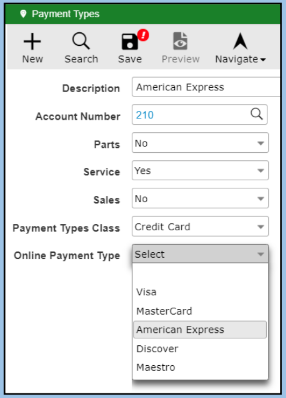
- Select [New] from the Action Ribbon.
- Input the credit card name in the Description field.
- Input the GL Account Number.
- Click the Parts dropdown and select No.
- Click the Service dropdown and select Yes.
- Click the Sales dropdown and select No.
- Click the Payment Types Class dropdown and select a Credit Card.
- Click the Online Payment Type dropdown and select the name of the
card. - Click [Save] in the Action Ribbon.
Note: The Online Payments Types are not available for user selection when making manual payments. Manual Payment Types will not work for Online Payments.
Permissions
Accounting > Maintenance > Employee
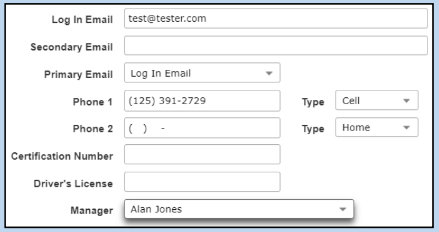
- Each User and their Manager must have the following in
their employee record:- Email address marked as Primary
- Cell Phone number
- Manager’s name
- The assigned manager also needs their email address, phone number, and manager's name configured in their employee record as well.
Enabling Customer Records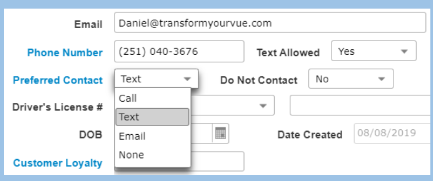
Service> Advisor> Repair Order
- Click on the Customer number link.
- Click on the Customer tab in the upper right.
- Confirm that the cell number is current and that Text
Allowed is set to Yes. - Confirm that the email address is current.
- Set the Preferred Contact to Text or Email.
- Click [Save] in the Action Ribbon
Processing Payments via Text and eMail
Service > Cashier > Repair Order
The [Invoice] button becomes available on the Cashier tab once the RO is Complete.
- Click the [Invoice] button to open the Send Payment Request window and confirm the payment amount. The invoice will be sent to the customer via text or email, as specified in the Customer Record.

- By default, an invoice will be included when sending a payment request. Unchecking the Include Invoice checkbox will exclude the invoice.
- Click the [Send] button to create the Payment Request to send the request to the consumer.
- Once the invoice has been sent, a Payment Requested placeholder will be added to the Payments grid.
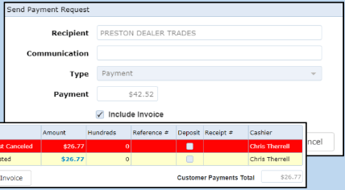
- Once the invoice has been sent, a Payment Requested placeholder will be added to the Payments grid.
- UpdatePromise will send a text or email to the customer to verify the customer’s identity and accept payment.
- The customer will need the phone number associated with the ticket, and
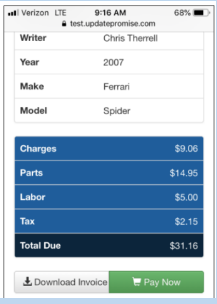
the make of the vehicle. - Once this data has been entered, the customer will see the interface with their vehicle info, including the ticket total.
- If the customer wishes to see the invoice, they can download it from the app to view.
- The customer will review and then press or click the [Pay Now] button.
- A credit card payment entry screen will be displayed.
- There is an option the customer can use to scan their credit card using their phone's camera.
- This option will import the card data into the field and is recommended as the best
method of card entry.
- This option will import the card data into the field and is recommended as the best
- After entering the credit card data, the screen will change to allow the user to sign for the
payment. - Saving will process the payment and apply it to the charges.
- Once UpdatePromise has processed the payment, the information will be sent back to VUE
in response to the Payment Request on the RO. - Once received, the RO may be closed.
Processing Manual Payments
If the customer arrives to pick up their vehicle and has not paid online: Service > Cashier > Repair Order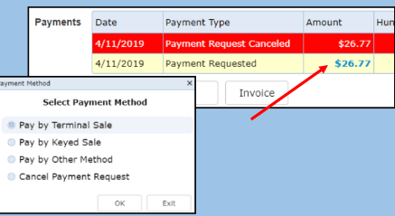
- In the Payment Requested field, click the Amount link to open the Payment Method window.
- Checking any option will override the previous request and allow for manual payment entry.
- Terminal and Keyed sale options are for the Clover credit card machine
Customer Facing Automated Messages
- An initial Thank You message is sent when the repair order is opened.
- An automated Status-Update is sent periodically. The variety of update messages is determined by the length of the repair order and the service advisor engagement with the customer.
- The system is designed to never send more than one status update per day.
- If the advisor is manually engaging with customer through the messaging, a Status message will not be sent out for that day.
- A Completion/Payment message is sent when the RO is Completed.
- A follow-up message is sent at 7:00 PM on the day the invoice is closed and the vehicle is picked up by the customer.