---
title: VUE Messaging & VUE Pay
description: .
---
[Skip to content](https://help.dominiondms.com/en/knowledge/vue-messaging#main-content)
[Create a Support Ticket](https://help.dominiondms.com/en/knowledge/kb-tickets/new?hsLang=en) [View Your Tickets](https://help.dominiondms.com/tickets-view?hsLang=en)
[](https://vue.dominiondms.com/)
- [VUE Login](https://vue.dominiondms.com/)
Open main navigation
Close main navigation
- [VUE Login](https://vue.dominiondms.com/)
- [Create a Support Ticket](https://help.dominiondms.com/en/knowledge/kb-tickets/new)
- [View Your Tickets](https://help.dominiondms.com/tickets-view)
Welcome to the Dominion DMS Help Center
- There are no suggestions because the search field is empty.
1. [Dominion DMS Help Center](https://help.dominiondms.com/en/knowledge?hsLang=en)
2. [General Topics](https://help.dominiondms.com/en/knowledge/general-topics?hsLang=en)
September 18, 2026
# VUE Messaging & VUE Pay
## Our Integration with UpdatePromise allows the ability to text a customer directly from VUE and take payments for service ROs.
VUE Messaging enables you to communicate with your service customers via text or email. The customer can get service updates, respond to requests, provide post delivery feedback and get service reminders. Payment via text or email is available with an accessory upgrade. Contact VUE Support to ask about VUE Pay
**[Click Here to Download the Update Promise Mobile App](https://updatepromise.com/update-promise-app/)**
**Permissions Needed**
**Navigate to:** Accounting \> Maintenance \> Employee.
Each User and their Manager must have the following in their employee record:
• Valid Log-in Email address **Primary Email must be Log in Email**
• Cell Phone number
• Manager’s name
• The user must be a **Service Manager** or an **Advisor**
#### **Enabling New Customer Records**
**Navigate to:** Service \> Advisor \> Repair Order.
****
1. Click on the Customer number link.
2. Click on the Customer tab in the upper right.
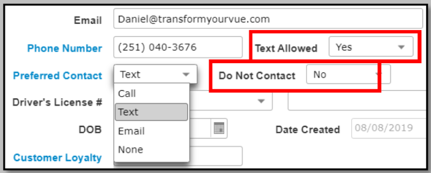
3. Confirm that the cell number is current and that **Text Allowed** is set to **Yes** and **Do Not Contact** is set to **No**.
4. Confirm that the email address is current.
Set the **Preferred Contact** to **Text** or **Email**. **Contact Support to set Preferred Contact default to TEXT**
---
#### **Messaging from within the Repair Order**
Keeping in touch with the customer is easy once the repair order has been completed and released. Just make sure the Promised Time hasn’t expired and the Notify By field is set to
Text.
- Click the chat icon to start or continue a chat: 
- A prompt will direct you to update the customer record. Click VUE messaging icon to begin your message.
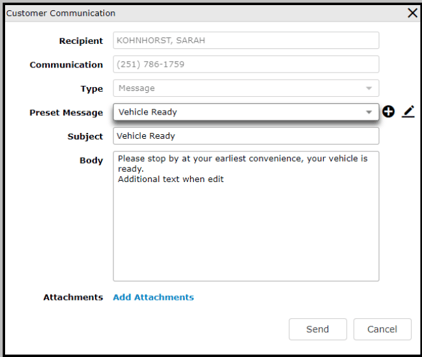
- Select from a list of preset messages by clicking the dropdown and selecting a message. The Subject line and full message display in the Body section.
- Click on the **Add Attachments** link to select a PDF listed or click the \[**Add**\] button to browse and attach a picture or other file from your PC.
- Click on the \[**Send**\] button.
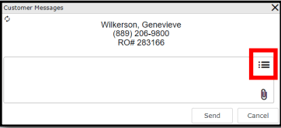
**Tip:** Clicking the Notify By hyperlink opens the history of customer messages. You may also use the List icon to select a preset message, or type in the provided space and click the \[Send\] button to send
****

**When troubleshooting, verify the following:**
- The promised time of the RO has not expired.
- The RO has been released.
- **Notify By** is set to text.
- The customer record is set to allow texting.
---
#### **VUE Pay - Payment Request with Invoice Copy (Online, Phone, or In-Person)**
**Overview:** UpdatePromise is now integrated with the Repair Order (RO) system under the name **VUE Pay**. This allows service departments to send secure payment requests to customers via text or email, including a copy of the invoice. Customers can pay online, by phone, or upon arrival. The Clover device is fully integrated to accept payments for all ROs, with or without UpdatePromise involvement.
**Accepted Payment Types via UpdatePromise:**
- Visa
- Mastercard
- Discover
- Maestro
---
#### **Sending a Payment Request via VUE Pay**
Once the Advisor completes all Customer Pay operations, the Cashier can initiate the payment process:
1. Ensure all Customer Pay operations are complete and the **Notify By** field is set to **Text** or **Email**.
2. Navigate to the **Cashier** tab.
3. Click the **\[Invoice\]** button.
4. In the **Send Payment Request** window:
- The **Include Invoice** checkbox is selected by default.
- Optionally, add a custom message in the **Communication** field.
5. Click **\[Send\]**.
6. A toast notification will confirm the request, and a new line will appear in the **Payments** section.
> **Note:** Customers can pay using the UpdatePromise app via the invoice link or in person at the Service Lane.
---
#### **Customer Pays for RO Online**
After the invoice is sent, the customer receives a text or email with a secure payment link:
1. On the **UpdatePromise** website, the customer enters their **phone number** and **vehicle make** to verify their record. Click **\[Verify\]**.
2. On the **Welcome** screen, select **\[Payments\]** to view the invoice.
3. On the **Payments** screen, review the **Invoice Total** and click **\[Pay Now\]**.
4. The **Repair Information** screen displays a summary of charges:
- Click **\[Download Invoice\]** to view the full invoice.
- Press the back button to return and click **\[Pay Now\]**.
5. On the **Credit Card Entry** screen:
- Use the **Scan Credit Card** feature to capture card details via the phone’s camera (recommended).
6. After entering payment details, the customer signs electronically.
7. A **Thank You for Payment** screen confirms the transaction.
> **Note:** This process automatically updates the RO’s payment method in the system.
---
#### **Cashier Verifies Payment and Closes the RO**
Once payment is received:
1. A **Payment Received Notification** appears.
2. Click the **RO # hyperlink** to open the Repair Order.
3. In the **Cashier** tab, confirm the **Payment Type** has updated (e.g., “Visa – online”).
4. The Cashier or Advisor may now **Close the Repair Order**.
[Have a suggestion? Let's hear it.](https://help.dominiondms.com/en/knowledge/suggestion-box?hs_preview=PtALkkGg-165311057568&hsLang=en)
- [Client Support Options](https://help.dominiondms.com/en/knowledge/client-support-options?hsLang=en)
- [Accounting](https://help.dominiondms.com/en/knowledge/accounting?hsLang=en#main-content)
- [General Topics](https://help.dominiondms.com/en/knowledge/accounting?hsLang=en#general-topics)
- [General Ledger - Journals](https://help.dominiondms.com/en/knowledge/accounting?hsLang=en#general-ledger-journals)
- [General Ledger - Schedules](https://help.dominiondms.com/en/knowledge/accounting?hsLang=en#general-ledger-schedules)
- [Cash and Bank \> View Check Register](https://help.dominiondms.com/en/knowledge/accounting?hsLang=en#cash-and-bank-view-check-register)
- [General Ledger \> General Ledger](https://help.dominiondms.com/en/knowledge/accounting?hsLang=en#general-ledger-general-ledger)
- [Monthly \> Financial Statement](https://help.dominiondms.com/en/knowledge/accounting?hsLang=en#monthly-financial-statement)
- [General Ledger \> Post Vehicle Sales](https://help.dominiondms.com/en/knowledge/accounting?hsLang=en#general-ledger-post-vehicle-sales)
- [Accounts Payable \>Vendors](https://help.dominiondms.com/en/knowledge/accounting?hsLang=en#accounts-payable-vendors)
- [Maintenance \> Parts Account Codes](https://help.dominiondms.com/en/knowledge/accounting?hsLang=en#maintenance-parts-account-codes)
- [Maintenance \> Journal Maintenance](https://help.dominiondms.com/en/knowledge/accounting?hsLang=en#maintenance-journal-maintenance)
- [Monthly \> Post Automatic Entries](https://help.dominiondms.com/en/knowledge/accounting?hsLang=en#monthly-post-automatic-entries)
- [Miscellaneous \> Customer Merge](https://help.dominiondms.com/en/knowledge/accounting?hsLang=en#miscellaneous-customer-merge)
- [General Ledger \> Schedule Reconciliation](https://help.dominiondms.com/en/knowledge/accounting?hsLang=en#general-ledger-schedule-reconciliation)
- [Cash and Bank \> Check Register Report](https://help.dominiondms.com/en/knowledge/accounting?hsLang=en#cash-and-bank-check-register-report)
- [Accounts Payable \> Purchase Orders](https://help.dominiondms.com/en/knowledge/accounting?hsLang=en#accounts-payable-purchase-orders)
- [Accounts Receivable \> Customers](https://help.dominiondms.com/en/knowledge/accounting?hsLang=en#accounts-receivable-customers)
- [Cash and Bank \> Reconcile Checking Accounts](https://help.dominiondms.com/en/knowledge/accounting?hsLang=en#cash-and-bank-reconcile-checking-accounts)
- [Maintenance \> Service Account Codes](https://help.dominiondms.com/en/knowledge/accounting?hsLang=en#maintenance-service-account-codes)
- [Maintenance \> Financial Statement Maintenance](https://help.dominiondms.com/en/knowledge/accounting?hsLang=en#maintenance-financial-statement-maintenance)
- [Miscellaneous \> Title Tracking](https://help.dominiondms.com/en/knowledge/accounting?hsLang=en#miscellaneous-title-tracking)
- [Maintenance \> Daily Report Maintenance](https://help.dominiondms.com/en/knowledge/accounting?hsLang=en#maintenance-daily-report-maintenance)
- [General Ledger \> Manual GL Posting](https://help.dominiondms.com/en/knowledge/accounting?hsLang=en#general-ledger-manual-gl-posting)
- [Maintenance \> Employees](https://help.dominiondms.com/en/knowledge/accounting?hsLang=en#maintenance-employees)
- [Maintenance \> Payment Types](https://help.dominiondms.com/en/knowledge/accounting?hsLang=en#maintenance-payment-types)
- [Maintenance \> Schedule Maintenance](https://help.dominiondms.com/en/knowledge/accounting?hsLang=en#maintenance-schedule-maintenance)
- [Monthly \> Open/Close Periods](https://help.dominiondms.com/en/knowledge/accounting?hsLang=en#monthly-open-close-periods)
- [Maintenance \> Bank and Checking Maintenance](https://help.dominiondms.com/en/knowledge/accounting?hsLang=en#maintenance-bank-and-checking-maintenance)
- [Maintenance \> Roles](https://help.dominiondms.com/en/knowledge/accounting?hsLang=en#maintenance-roles)
- [Cash and Bank \> Manual Checks](https://help.dominiondms.com/en/knowledge/accounting?hsLang=en#cash-and-bank-manual-checks)
- [Accounts Receivable \> Receipt Book](https://help.dominiondms.com/en/knowledge/accounting?hsLang=en#accounts-receivable-receipt-book)
- [Maintenance \> Vehicle Sales Maintenance](https://help.dominiondms.com/en/knowledge/accounting?hsLang=en#maintenance-vehicle-sales-maintenance)
- [Accounts Payable \> Accounts Payable](https://help.dominiondms.com/en/knowledge/accounting?hsLang=en#accounts-payable-accounts-payable)
- [Maintenance \> Default Settings](https://help.dominiondms.com/en/knowledge/accounting?hsLang=en#maintenance-default-settings)
- [Monthly \> Statistical Data](https://help.dominiondms.com/en/knowledge/accounting?hsLang=en#monthly-statistical-data)
- [Miscellaneous \> Accessories Due](https://help.dominiondms.com/en/knowledge/accounting?hsLang=en#miscellaneous-accessories-due)
- [Accounts Receivable \> Calculate Finance Charges](https://help.dominiondms.com/en/knowledge/accounting?hsLang=en#accounts-receivable-calculate-finance-charges)
- [Reports \> Schedule Reports](https://help.dominiondms.com/en/knowledge/accounting?hsLang=en#reports-schedule-reports)
- [Monthly \> Reporting Account Setup](https://help.dominiondms.com/en/knowledge/accounting?hsLang=en#monthly-reporting-account-setup)
- [Miscellaneous \> Reopen Parts & Service Tickets](https://help.dominiondms.com/en/knowledge/accounting?hsLang=en#miscellaneous-reopen-parts-service-tickets)
- [Maintenance \> Automatic Entry Maintenance](https://help.dominiondms.com/en/knowledge/accounting?hsLang=en#maintenance-automatic-entry-maintenance)
- [Accounts Receivable \> Statements](https://help.dominiondms.com/en/knowledge/accounting?hsLang=en#accounts-receivable-statements)
- [Cash and Bank \> 1099s](https://help.dominiondms.com/en/knowledge/accounting?hsLang=en#cash-and-bank-1099s)
- [Reports - Chart of Accounts](https://help.dominiondms.com/en/knowledge/accounting?hsLang=en#reports-chart-of-accounts)
- [Accounts Receivable \> Aged Analysis Report](https://help.dominiondms.com/en/knowledge/accounting?hsLang=en#accounts-receivable-aged-analysis-report)
- [Reports \> Trial Balance](https://help.dominiondms.com/en/knowledge/accounting?hsLang=en#reports-trial-balance)
- [Reports \> Trend Analysis](https://help.dominiondms.com/en/knowledge/accounting?hsLang=en#reports-trend-analysis)
- [Reports \> Stock/Schedule Comparison](https://help.dominiondms.com/en/knowledge/accounting?hsLang=en#reports-stock-schedule-comparison)
- [Reports \> Journal Reports](https://help.dominiondms.com/en/knowledge/accounting?hsLang=en#reports-journal-reports)
- [Reports \> General Ledger](https://help.dominiondms.com/en/knowledge/accounting?hsLang=en#reports-general-ledger)
- [Reports \> Customer List](https://help.dominiondms.com/en/knowledge/accounting?hsLang=en#reports-customer-list)
- [Reports \> Employee](https://help.dominiondms.com/en/knowledge/accounting?hsLang=en#reports-employee)
- [Reports \> RO Invoice Location](https://help.dominiondms.com/en/knowledge/accounting?hsLang=en#reports-ro-invoice-location)
- [Reports \> Floorplan Rebate](https://help.dominiondms.com/en/knowledge/accounting?hsLang=en#reports-floorplan-rebate)
- [Reports \> Floorplan Report](https://help.dominiondms.com/en/knowledge/accounting?hsLang=en#reports-floorplan-report)
- [Reports \> Vendor List](https://help.dominiondms.com/en/knowledge/accounting?hsLang=en#reports-vendor-list)
- [End of Year](https://help.dominiondms.com/en/knowledge/accounting?hsLang=en#end-of-year)
- [Parts](https://help.dominiondms.com/en/knowledge/parts?hsLang=en#main-content)
- [Counter - Parts Inventory](https://help.dominiondms.com/en/knowledge/parts?hsLang=en#counter-parts-inventory)
- [Counter - Parts Desk](https://help.dominiondms.com/en/knowledge/parts?hsLang=en#counter-parts-desk)
- [Physical Inventory \> Physical Inventory](https://help.dominiondms.com/en/knowledge/parts?hsLang=en#physical-inventory-physical-inventory)
- [Management \> Parts Returns](https://help.dominiondms.com/en/knowledge/parts?hsLang=en#management-parts-returns)
- [Management \> Parts Orders](https://help.dominiondms.com/en/knowledge/parts?hsLang=en#management-parts-orders)
- [Management \> Purchase Orders](https://help.dominiondms.com/en/knowledge/parts?hsLang=en#management-purchase-orders)
- [Maintenance \> Order Sources](https://help.dominiondms.com/en/knowledge/parts?hsLang=en#maintenance-order-sources)
- [Management \> Parts Inventory Update](https://help.dominiondms.com/en/knowledge/parts?hsLang=en#management-parts-inventory-update)
- [Cashier \> Receipt Book](https://help.dominiondms.com/en/knowledge/parts?hsLang=en#cashier-receipt-book)
- [Cashier \> Parts Invoices](https://help.dominiondms.com/en/knowledge/parts?hsLang=en#cashier-parts-invoices)
- [Counter \> Parts Request Roster](https://help.dominiondms.com/en/knowledge/parts?hsLang=en#counter-parts-request-roster)
- [Miscellaneous \> All Vehicles](https://help.dominiondms.com/en/knowledge/parts?hsLang=en#miscellaneous-all-vehicles)
- [Maintenance \> Fees](https://help.dominiondms.com/en/knowledge/parts?hsLang=en#maintenance-fees)
- [Maintenance \> Price Codes](https://help.dominiondms.com/en/knowledge/parts?hsLang=en#maintenance-price-codes)
- [Counter \> Parts Invoices](https://help.dominiondms.com/en/knowledge/parts?hsLang=en#counter-parts-invoices)
- [Miscellaneous \> Vendors](https://help.dominiondms.com/en/knowledge/parts?hsLang=en#miscellaneous-vendors)
- [Counter \> Back Counter](https://help.dominiondms.com/en/knowledge/parts?hsLang=en#counter-back-counter)
- [Miscellaneous \> Customers](https://help.dominiondms.com/en/knowledge/parts?hsLang=en#miscellaneous-customers)
- [Counter \> Special Orders](https://help.dominiondms.com/en/knowledge/parts?hsLang=en#counter-special-orders)
- [Maintenance \> Order Groups](https://help.dominiondms.com/en/knowledge/parts?hsLang=en#maintenance-order-groups)
- [Maintenance \> Parts Inventory Parts Type](https://help.dominiondms.com/en/knowledge/parts?hsLang=en#maintenance-parts-inventory-parts-type)
- [Cashier \> Daily Close](https://help.dominiondms.com/en/knowledge/parts?hsLang=en#cashier-daily-close)
- [Maintenance \> Header Fees](https://help.dominiondms.com/en/knowledge/parts?hsLang=en#maintenance-header-fees)
- [Management \> Parts Phasing](https://help.dominiondms.com/en/knowledge/parts?hsLang=en#management-parts-phasing)
- [Reports \> Sales](https://help.dominiondms.com/en/knowledge/parts?hsLang=en#reports-sales)
- [Management \> Inventory Management Tool](https://help.dominiondms.com/en/knowledge/parts?hsLang=en#management-inventory-management-tool)
- [Reports \> Special Order](https://help.dominiondms.com/en/knowledge/parts?hsLang=en#reports-special-order)
- [Cashier Receipts Report](https://help.dominiondms.com/en/knowledge/parts?hsLang=en#cashier-receipts-report)
- [Reports \> Inventory](https://help.dominiondms.com/en/knowledge/parts?hsLang=en#reports-inventory)
- [Parts \> Reports](https://help.dominiondms.com/en/knowledge/parts?hsLang=en#parts-reports)
- [Service](https://help.dominiondms.com/en/knowledge/service?hsLang=en#main-content)
- [Maintenance \> Op Codes](https://help.dominiondms.com/en/knowledge/service?hsLang=en#maintenance-op-codes)
- [Advisor \> Repair Orders](https://help.dominiondms.com/en/knowledge/service?hsLang=en#advisor-repair-orders)
- [Maintenance \> Fees](https://help.dominiondms.com/en/knowledge/service?hsLang=en#maintenance-fees)
- [Reports \> Payroll \> Unpaid Technician Labor Report](https://help.dominiondms.com/en/knowledge/service?hsLang=en#reports-payroll-unpaid-technician-labor-report)
- [Advisor \> Appointment Schedule](https://help.dominiondms.com/en/knowledge/service?hsLang=en#advisor-appointment-schedule)
- [Advisor \> Appointments](https://help.dominiondms.com/en/knowledge/service?hsLang=en#advisor-appointments)
- [Maintenance \> Skill Sets](https://help.dominiondms.com/en/knowledge/service?hsLang=en#maintenance-skill-sets)
- [Technician \> Technician System](https://help.dominiondms.com/en/knowledge/service?hsLang=en#technician-technician-system)
- [Advisor \> Special Orders](https://help.dominiondms.com/en/knowledge/service?hsLang=en#advisor-special-orders)
- [Cashier \> Receipt Book](https://help.dominiondms.com/en/knowledge/service?hsLang=en#cashier-receipt-book)
- [Miscellaneous \> Customers](https://help.dominiondms.com/en/knowledge/service?hsLang=en#miscellaneous-customers)
- [Maintenance \> Header Fees](https://help.dominiondms.com/en/knowledge/service?hsLang=en#maintenance-header-fees)
- [Miscellaneous \> All Vehicles](https://help.dominiondms.com/en/knowledge/service?hsLang=en#miscellaneous-all-vehicles)
- [Advisor \> Appointment Calendar](https://help.dominiondms.com/en/knowledge/service?hsLang=en#advisor-appointment-calendar)
- [Advisor \> Purchase Orders](https://help.dominiondms.com/en/knowledge/service?hsLang=en#advisor-purchase-orders)
- [Advisor \> Route Sheet](https://help.dominiondms.com/en/knowledge/service?hsLang=en#advisor-route-sheet)
- [Miscellaneous \> Vendors](https://help.dominiondms.com/en/knowledge/service?hsLang=en#miscellaneous-vendors)
- [Maintenance \> Labor Rates](https://help.dominiondms.com/en/knowledge/service?hsLang=en#maintenance-labor-rates)
- [Advisor \> Parts Inventory](https://help.dominiondms.com/en/knowledge/service?hsLang=en#advisor-parts-inventory)
- [Reports \> Sales](https://help.dominiondms.com/en/knowledge/service?hsLang=en#reports-sales)
- [Reports \> Audit](https://help.dominiondms.com/en/knowledge/service?hsLang=en#reports-audit)
- [Maintenance \> Rate Levels](https://help.dominiondms.com/en/knowledge/service?hsLang=en#maintenance-rate-levels)
- [Maintenance \> Service Dispatch Configuration](https://help.dominiondms.com/en/knowledge/service?hsLang=en#maintenance-service-dispatch-configuration)
- [Maintenance \> Service Configurations](https://help.dominiondms.com/en/knowledge/service?hsLang=en#maintenance-service-configurations)
- [Maintenance \> Tech Management](https://help.dominiondms.com/en/knowledge/service?hsLang=en#maintenance-tech-management)
- [Maintenance \> Employees](https://help.dominiondms.com/en/knowledge/service?hsLang=en#maintenance-employees)
- [Reports](https://help.dominiondms.com/en/knowledge/service?hsLang=en#reports)
- [Reports \> Appointment](https://help.dominiondms.com/en/knowledge/service?hsLang=en#reports-appointment)
- [Dominion Dealer University](https://help.dominiondms.com/en/knowledge/dominion-dealer-university?hsLang=en)
- [Sales and F&I](https://help.dominiondms.com/en/knowledge/sales-and-fi?hsLang=en#main-content)
- [F&I \> Sales Desk](https://help.dominiondms.com/en/knowledge/sales-and-fi?hsLang=en#fi-sales-desk)
- [Miscellaneous \> Purchase Orders](https://help.dominiondms.com/en/knowledge/sales-and-fi?hsLang=en#miscellaneous-purchase-orders)
- [Reports \> Sales](https://help.dominiondms.com/en/knowledge/sales-and-fi?hsLang=en#reports-sales)
- [Vehicles \> Vehicle Inventory](https://help.dominiondms.com/en/knowledge/sales-and-fi?hsLang=en#vehicles-vehicle-inventory)
- [Maintenance \> Miscellaneous](https://help.dominiondms.com/en/knowledge/sales-and-fi?hsLang=en#maintenance-miscellaneous)
- [F&I \> Deals](https://help.dominiondms.com/en/knowledge/sales-and-fi?hsLang=en#fi-deals)
- [Maintenance \> Vehicles](https://help.dominiondms.com/en/knowledge/sales-and-fi?hsLang=en#maintenance-vehicles)
- [Vehicles \> All Vehicles](https://help.dominiondms.com/en/knowledge/sales-and-fi?hsLang=en#vehicles-all-vehicles)
- [F&I \> Prospects](https://help.dominiondms.com/en/knowledge/sales-and-fi?hsLang=en#fi-prospects)
- [F&I \> Outside Sales](https://help.dominiondms.com/en/knowledge/sales-and-fi?hsLang=en#fi-outside-sales)
- [Maintenance \> Sales](https://help.dominiondms.com/en/knowledge/sales-and-fi?hsLang=en#maintenance-sales)
- [Miscellaneous \> Vendors](https://help.dominiondms.com/en/knowledge/sales-and-fi?hsLang=en#miscellaneous-vendors)
- [Miscellaneous \> Customers](https://help.dominiondms.com/en/knowledge/sales-and-fi?hsLang=en#miscellaneous-customers)
- [Miscellaneous \> Receipt Book](https://help.dominiondms.com/en/knowledge/sales-and-fi?hsLang=en#miscellaneous-receipt-book)
- [Reports \> Commission](https://help.dominiondms.com/en/knowledge/sales-and-fi?hsLang=en#reports-commission)
- [Sales \> Reports](https://help.dominiondms.com/en/knowledge/sales-and-fi?hsLang=en#sales-reports)
- [Reports \> F&I](https://help.dominiondms.com/en/knowledge/sales-and-fi?hsLang=en#reports-fi)
- [Payroll](https://help.dominiondms.com/en/knowledge/payroll?hsLang=en#main-content)
- [Maintenance \> Company Information](https://help.dominiondms.com/en/knowledge/payroll?hsLang=en#maintenance-company-information)
- [Payroll Process \> Void Payroll Checks](https://help.dominiondms.com/en/knowledge/payroll?hsLang=en#payroll-process-void-payroll-checks)
- [Payroll Process \> Enter/Edit Payroll Entries](https://help.dominiondms.com/en/knowledge/payroll?hsLang=en#payroll-process-enter-edit-payroll-entries)
- [Reports \> Quarterly Reports](https://help.dominiondms.com/en/knowledge/payroll?hsLang=en#reports-quarterly-reports)
- [Maintenance \> Employee Information](https://help.dominiondms.com/en/knowledge/payroll?hsLang=en#maintenance-employee-information)
- [Payroll \> Reports](https://help.dominiondms.com/en/knowledge/payroll?hsLang=en#payroll-reports)
- [Maintenance \> Archive Current Year](https://help.dominiondms.com/en/knowledge/payroll?hsLang=en#maintenance-archive-current-year)
- [Payroll \> Processing](https://help.dominiondms.com/en/knowledge/payroll?hsLang=en#payroll-processing)
- [OEM DCS](https://help.dominiondms.com/en/knowledge/oem-dcs?hsLang=en#main-content)
- [GM](https://help.dominiondms.com/en/knowledge/oem-dcs?hsLang=en#gm)
- [Ford](https://help.dominiondms.com/en/knowledge/oem-dcs?hsLang=en#ford)
- [General Topics](https://help.dominiondms.com/en/knowledge/general-topics?hsLang=en#main-content)
- [Print](https://help.dominiondms.com/en/knowledge/general-topics?hsLang=en#print)
- [VUE](https://help.dominiondms.com/en/knowledge/general-topics?hsLang=en#vue)
- [VUE Training & User Guides](https://help.dominiondms.com/en/knowledge/vue-training-user-guides?hsLang=en#main-content)
- [User Guides](https://help.dominiondms.com/en/knowledge/vue-training-user-guides?hsLang=en#user-guides)
- [Podcasts and VideoCasts](https://help.dominiondms.com/en/knowledge/podcasts-and-videocasts?hsLang=en#main-content)
- [Service Management](https://help.dominiondms.com/en/knowledge/podcasts-and-videocasts?hsLang=en#service-management)
- [Collision Center/ Body Shop](https://help.dominiondms.com/en/knowledge/podcasts-and-videocasts?hsLang=en#collision-center-body-shop)
- [CRM](https://help.dominiondms.com/en/knowledge/podcasts-and-videocasts?hsLang=en#crm)
- [Document Management](https://help.dominiondms.com/en/knowledge/podcasts-and-videocasts?hsLang=en#document-management)
- [Vehicle Inventory Management](https://help.dominiondms.com/en/knowledge/podcasts-and-videocasts?hsLang=en#vehicle-inventory-management)
- [Accounting Processes](https://help.dominiondms.com/en/knowledge/podcasts-and-videocasts?hsLang=en#accounting-processes)
- [F&I Deal Process](https://help.dominiondms.com/en/knowledge/podcasts-and-videocasts?hsLang=en#fi-deal-process)
- [Payroll](https://help.dominiondms.com/en/knowledge/podcasts-and-videocasts?hsLang=en#payroll)
- [Retail and Fleet Management](https://help.dominiondms.com/en/knowledge/podcasts-and-videocasts?hsLang=en#retail-and-fleet-management)
- [Digital Retail](https://help.dominiondms.com/en/knowledge/podcasts-and-videocasts?hsLang=en#digital-retail)
- [Credit Bureaus](https://help.dominiondms.com/en/knowledge/podcasts-and-videocasts?hsLang=en#credit-bureaus)
- [eContracting](https://help.dominiondms.com/en/knowledge/podcasts-and-videocasts?hsLang=en#econtracting)
- [Marketing](https://help.dominiondms.com/en/knowledge/podcasts-and-videocasts?hsLang=en#marketing)
- [Payment Processing](https://help.dominiondms.com/en/knowledge/podcasts-and-videocasts?hsLang=en#payment-processing)
- [Registration and Titling](https://help.dominiondms.com/en/knowledge/podcasts-and-videocasts?hsLang=en#registration-and-titling)
- [Recent Enhancements](https://help.dominiondms.com/en/knowledge/recent-enhancements?hsLang=en#main-content)
- [VUE Software Updates](https://help.dominiondms.com/en/knowledge/recent-enhancements?hsLang=en#vue-software-updates)
[](https://www.dominiondms.com)
150 Granby St
Norfolk, VA 23510
[Copyright - Dominion DMS](https://forms.office.com/Pages/ResponsePage.aspx?id=6f83PexuWE-xqW9kLygglODQggSQzXZEttZ8lNAOypBUN1hUV0VUTlpXMzE5RVdOVEtVVU5CMlVROS4u)