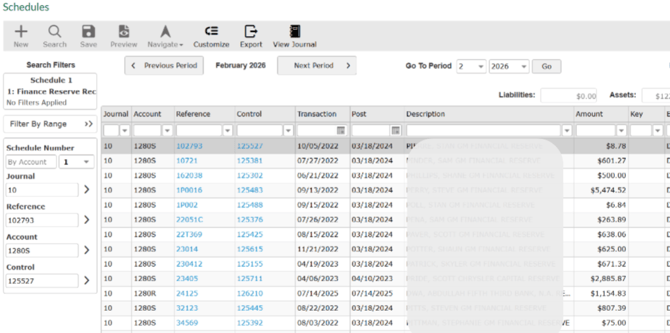
The Schedule feature in VUE is designed to be user-friendly and easy to navigate. The layout streamlines schedule management, enabling any Accounting employee to efficiently access, interpret, and update financial timelines.
Navigate to: Accounting > General Ledger > Schedules
Action Ribbon
Use the Action Ribbon to Customize, Export, Print, or View Journal right from the Schedule screen.

-
Customize: Filter your data to customize your search.
-
Export: Export your Grid to an Excel file.
-
View Journal: View the Journal right from the Schedule Screen.
Using the Grid Search:
-
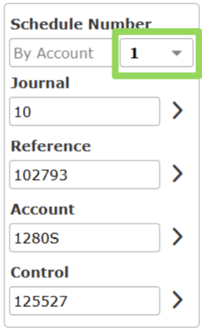
In the Schedule Number dropdown, select a specific schedule.
-
On the left side of the screen, enter a log string into one of the following fields:
-
Journal
-
Reference
-
Account
-
Control
-
-
Click the caret (▼) next to the field.
-
Click on a specific result row to highlight and view its line details.
The system will only allow one type of Search Filter to be used at a time.
Inside the Primary Grid:
- Click the [Filter By Range] button.

- Enter a range in any or all of the available range fields.
- If a range does not apply, the [All] checkbox next to that set will be selected by default.
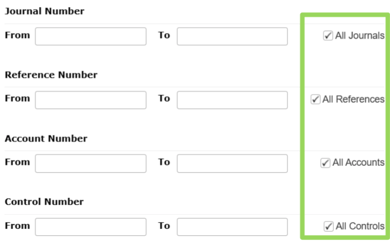
- Click the [Apply Filters] button.

- For more targeted results, refine your search using the Transaction, Post, and Employee fields located at the top of the grid

- Click on a specific row in the results to highlight it and view the details of that line.