
The S/O Parts Report is one of the most essential accountability and customer service tools in Parts & Service. Its purpose is to track every part that was specially ordered for a parts or service.
Frequency: Daily or Weekly
Who uses it: Parts and Service Employees
Why they use it: Prevents lost parts and forgotten follow-ups and protects dealership gross profit.
Navigate to: Parts > Reports > Orders > Special Orders
Report Parameters
- Companies - The dealership (or group of stores) the report will pull data from. If multiple stores were selected, it would combine S/O activity across all.
- Report Type - The style or layout of the report.
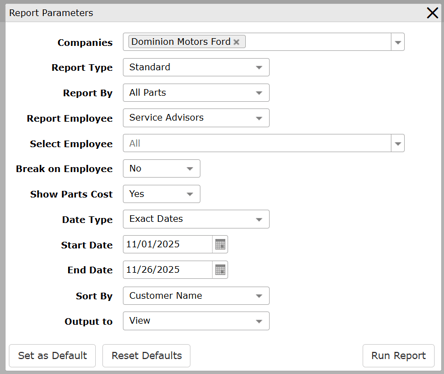
- Report By - Defines which parts appear in the report.
- Report Employee - Determines whose transactions you’re analyzing and will pull SO's tied to Parts, Service, or all.
- Break on Employee - Controls grouping in the report.
- No = All SO parts are shown in a single list
- Yes = The report breaks into sections per employee
- Show Parts Cost - Determines if parts cost will be listed in the report.
- Date Type - Defines your date range.
- Sort By - Determines how rows are sorted in the final report.
- Customer Name is best for follow-up
- Output to - How you want to view it on the screen. "Quede" options will send the report to the notifications bell at the top of your dashboard.
- Set as Default - Saves these parameter choices as your default layout.
- Reset Defaults - Reverts to system default settings.
- Run Report - Runs the report with the parameters selected.