---
title: Schedule Detail Report
description: Schedule Detail Report
---
[Skip to content](https://help.dominiondms.com/en/knowledge/schedule-detail-report#main-content)
[Create a Support Ticket](https://help.dominiondms.com/en/knowledge/kb-tickets/new?hsLang=en) [View Your Tickets](https://help.dominiondms.com/tickets-view?hsLang=en)
[](https://vue.dominiondms.com/)
- [VUE Login](https://vue.dominiondms.com/)
Open main navigation
Close main navigation
- [VUE Login](https://vue.dominiondms.com/)
- [Create a Support Ticket](https://help.dominiondms.com/en/knowledge/kb-tickets/new)
- [View Your Tickets](https://help.dominiondms.com/tickets-view)
Welcome to the Dominion DMS Help Center
- There are no suggestions because the search field is empty.
1. [Dominion DMS Help Center](https://help.dominiondms.com/en/knowledge?hsLang=en)
2. [Accounting](https://help.dominiondms.com/en/knowledge/accounting?hsLang=en)
3. [Reports \> Schedule Reports](https://help.dominiondms.com/en/knowledge/accounting?hsLang=en#reports-schedule-reports)
January 20, 2026
# Schedule Detail Report
## Detailed Account Activity
The Schedule Detail Report provides a line-by-line breakdown of account activity, showing individual transactions, dates, reference numbers, descriptions, and aging details. It is designed for deep analysis of account balances and transaction history. For example, analyzing the aging of customer balances and reconciling vehicle inventory or service receivables.
**When to Use It:**
- **Investigating Specific Transactions**: Ideal when users need to trace the origin or nature of a balance.
- **Customer or Vendor Account Review**: Useful for reviewing detailed activity for a specific control number (e.g., customer/vendor).
- **Aging Analysis**: Shows how long balances have been outstanding, which helps with collections or follow-up.
- **Audit and Reconciliation**: Essential for verifying the accuracy of entries and resolving discrepancies.
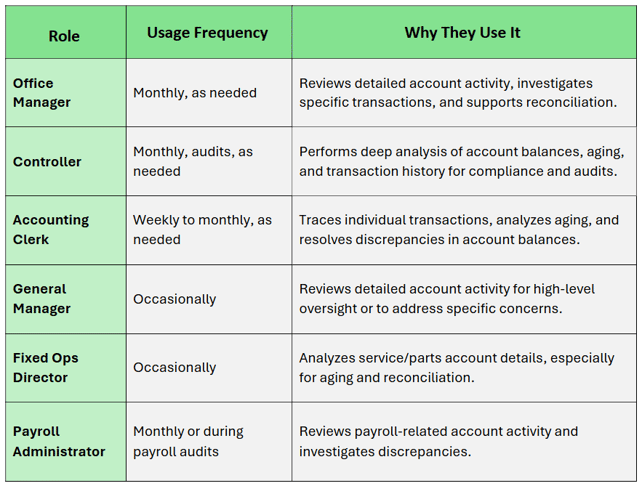
#### **Who Uses the Schedule Detail Report, How Often, and Why**
****
**Navigate to:** Accounting \> Reports \> Schedule \> Detail
#### **Choose Parameters**
This section clarifies the parameters outlined in this report. For additional details that apply to all reports, please refer to the **[Common Report Features](https://help.dominiondms.com/en/knowledge/create-standard-reports?hsLang=en)**article.
- **Report Type:**
- **Standard:** Displays detailed schedule information, including control number, age, reference, and description. Includes parameters such as Break on Ctrl, Exclude 0 Balance, Sort by Detail, Sort By options (Control \> Age, Control \> Reference, Age \> Age, Age \> Reference), Header Descending, and Detail Descending.
- **Export:** Designed for generating a detailed data file for external analysis. Differences when selecting Export:
- Break on Ctrl defaults to No
- Exclude 0 Balance defaults to No
- Sort by Detail defaults to No
- Advanced multi-level sort options removed; minimal sorting applied
- Header Descending and Detail Descending options are not available
- **Schedule List:** Choose All or specific schedules to view
- **Select Accounts:** Enter specific accounts if needed
- **Enter Control(s):** Filter by control numbers
- **Exclude 0 Balance:** Yes or No
- **Include Aging:** Yes or No
- **Select Date By:** - Post Date - Transaction Date
- [Client Support Options](https://help.dominiondms.com/en/knowledge/client-support-options?hsLang=en)
- [Accounting](https://help.dominiondms.com/en/knowledge/accounting?hsLang=en#main-content)
- [General Topics](https://help.dominiondms.com/en/knowledge/accounting?hsLang=en#general-topics)
- [General Ledger - Journals](https://help.dominiondms.com/en/knowledge/accounting?hsLang=en#general-ledger-journals)
- [General Ledger - Schedules](https://help.dominiondms.com/en/knowledge/accounting?hsLang=en#general-ledger-schedules)
- [Cash and Bank \> View Check Register](https://help.dominiondms.com/en/knowledge/accounting?hsLang=en#cash-and-bank-view-check-register)
- [General Ledger \> General Ledger](https://help.dominiondms.com/en/knowledge/accounting?hsLang=en#general-ledger-general-ledger)
- [Monthly \> Financial Statement](https://help.dominiondms.com/en/knowledge/accounting?hsLang=en#monthly-financial-statement)
- [General Ledger \> Post Vehicle Sales](https://help.dominiondms.com/en/knowledge/accounting?hsLang=en#general-ledger-post-vehicle-sales)
- [Accounts Payable \>Vendors](https://help.dominiondms.com/en/knowledge/accounting?hsLang=en#accounts-payable-vendors)
- [Maintenance \> Parts Account Codes](https://help.dominiondms.com/en/knowledge/accounting?hsLang=en#maintenance-parts-account-codes)
- [Maintenance \> Journal Maintenance](https://help.dominiondms.com/en/knowledge/accounting?hsLang=en#maintenance-journal-maintenance)
- [Monthly \> Post Automatic Entries](https://help.dominiondms.com/en/knowledge/accounting?hsLang=en#monthly-post-automatic-entries)
- [Miscellaneous \> Customer Merge](https://help.dominiondms.com/en/knowledge/accounting?hsLang=en#miscellaneous-customer-merge)
- [General Ledger \> Schedule Reconciliation](https://help.dominiondms.com/en/knowledge/accounting?hsLang=en#general-ledger-schedule-reconciliation)
- [Cash and Bank \> Check Register Report](https://help.dominiondms.com/en/knowledge/accounting?hsLang=en#cash-and-bank-check-register-report)
- [Accounts Payable \> Purchase Orders](https://help.dominiondms.com/en/knowledge/accounting?hsLang=en#accounts-payable-purchase-orders)
- [Accounts Receivable \> Customers](https://help.dominiondms.com/en/knowledge/accounting?hsLang=en#accounts-receivable-customers)
- [Cash and Bank \> Reconcile Checking Accounts](https://help.dominiondms.com/en/knowledge/accounting?hsLang=en#cash-and-bank-reconcile-checking-accounts)
- [Maintenance \> Service Account Codes](https://help.dominiondms.com/en/knowledge/accounting?hsLang=en#maintenance-service-account-codes)
- [Maintenance \> Financial Statement Maintenance](https://help.dominiondms.com/en/knowledge/accounting?hsLang=en#maintenance-financial-statement-maintenance)
- [Miscellaneous \> Title Tracking](https://help.dominiondms.com/en/knowledge/accounting?hsLang=en#miscellaneous-title-tracking)
- [Maintenance \> Daily Report Maintenance](https://help.dominiondms.com/en/knowledge/accounting?hsLang=en#maintenance-daily-report-maintenance)
- [General Ledger \> Manual GL Posting](https://help.dominiondms.com/en/knowledge/accounting?hsLang=en#general-ledger-manual-gl-posting)
- [Maintenance \> Employees](https://help.dominiondms.com/en/knowledge/accounting?hsLang=en#maintenance-employees)
- [Maintenance \> Payment Types](https://help.dominiondms.com/en/knowledge/accounting?hsLang=en#maintenance-payment-types)
- [Maintenance \> Schedule Maintenance](https://help.dominiondms.com/en/knowledge/accounting?hsLang=en#maintenance-schedule-maintenance)
- [Monthly \> Open/Close Periods](https://help.dominiondms.com/en/knowledge/accounting?hsLang=en#monthly-open-close-periods)
- [Maintenance \> Bank and Checking Maintenance](https://help.dominiondms.com/en/knowledge/accounting?hsLang=en#maintenance-bank-and-checking-maintenance)
- [Maintenance \> Roles](https://help.dominiondms.com/en/knowledge/accounting?hsLang=en#maintenance-roles)
- [Cash and Bank \> Manual Checks](https://help.dominiondms.com/en/knowledge/accounting?hsLang=en#cash-and-bank-manual-checks)
- [Accounts Receivable \> Receipt Book](https://help.dominiondms.com/en/knowledge/accounting?hsLang=en#accounts-receivable-receipt-book)
- [Maintenance \> Vehicle Sales Maintenance](https://help.dominiondms.com/en/knowledge/accounting?hsLang=en#maintenance-vehicle-sales-maintenance)
- [Accounts Payable \> Accounts Payable](https://help.dominiondms.com/en/knowledge/accounting?hsLang=en#accounts-payable-accounts-payable)
- [Maintenance \> Default Settings](https://help.dominiondms.com/en/knowledge/accounting?hsLang=en#maintenance-default-settings)
- [Monthly \> Statistical Data](https://help.dominiondms.com/en/knowledge/accounting?hsLang=en#monthly-statistical-data)
- [Miscellaneous \> Accessories Due](https://help.dominiondms.com/en/knowledge/accounting?hsLang=en#miscellaneous-accessories-due)
- [Accounts Receivable \> Calculate Finance Charges](https://help.dominiondms.com/en/knowledge/accounting?hsLang=en#accounts-receivable-calculate-finance-charges)
- [Reports \> Schedule Reports](https://help.dominiondms.com/en/knowledge/accounting?hsLang=en#reports-schedule-reports)
- [Monthly \> Reporting Account Setup](https://help.dominiondms.com/en/knowledge/accounting?hsLang=en#monthly-reporting-account-setup)
- [Miscellaneous \> Reopen Parts & Service Tickets](https://help.dominiondms.com/en/knowledge/accounting?hsLang=en#miscellaneous-reopen-parts-service-tickets)
- [Maintenance \> Automatic Entry Maintenance](https://help.dominiondms.com/en/knowledge/accounting?hsLang=en#maintenance-automatic-entry-maintenance)
- [Accounts Receivable \> Statements](https://help.dominiondms.com/en/knowledge/accounting?hsLang=en#accounts-receivable-statements)
- [Cash and Bank \> 1099s](https://help.dominiondms.com/en/knowledge/accounting?hsLang=en#cash-and-bank-1099s)
- [Reports - Chart of Accounts](https://help.dominiondms.com/en/knowledge/accounting?hsLang=en#reports-chart-of-accounts)
- [Accounts Receivable \> Aged Analysis Report](https://help.dominiondms.com/en/knowledge/accounting?hsLang=en#accounts-receivable-aged-analysis-report)
- [Reports \> Trial Balance](https://help.dominiondms.com/en/knowledge/accounting?hsLang=en#reports-trial-balance)
- [Reports \> Trend Analysis](https://help.dominiondms.com/en/knowledge/accounting?hsLang=en#reports-trend-analysis)
- [Reports \> Stock/Schedule Comparison](https://help.dominiondms.com/en/knowledge/accounting?hsLang=en#reports-stock-schedule-comparison)
- [Reports \> Journal Reports](https://help.dominiondms.com/en/knowledge/accounting?hsLang=en#reports-journal-reports)
- [Reports \> General Ledger](https://help.dominiondms.com/en/knowledge/accounting?hsLang=en#reports-general-ledger)
- [Reports \> Customer List](https://help.dominiondms.com/en/knowledge/accounting?hsLang=en#reports-customer-list)
- [Reports \> Employee](https://help.dominiondms.com/en/knowledge/accounting?hsLang=en#reports-employee)
- [Reports \> RO Invoice Location](https://help.dominiondms.com/en/knowledge/accounting?hsLang=en#reports-ro-invoice-location)
- [Reports \> Floorplan Rebate](https://help.dominiondms.com/en/knowledge/accounting?hsLang=en#reports-floorplan-rebate)
- [Reports \> Floorplan Report](https://help.dominiondms.com/en/knowledge/accounting?hsLang=en#reports-floorplan-report)
- [Reports \> Vendor List](https://help.dominiondms.com/en/knowledge/accounting?hsLang=en#reports-vendor-list)
- [End of Year](https://help.dominiondms.com/en/knowledge/accounting?hsLang=en#end-of-year)
- [Parts](https://help.dominiondms.com/en/knowledge/parts?hsLang=en#main-content)
- [Counter - Parts Inventory](https://help.dominiondms.com/en/knowledge/parts?hsLang=en#counter-parts-inventory)
- [Counter - Parts Desk](https://help.dominiondms.com/en/knowledge/parts?hsLang=en#counter-parts-desk)
- [Physical Inventory \> Physical Inventory](https://help.dominiondms.com/en/knowledge/parts?hsLang=en#physical-inventory-physical-inventory)
- [Management \> Parts Returns](https://help.dominiondms.com/en/knowledge/parts?hsLang=en#management-parts-returns)
- [Management \> Parts Orders](https://help.dominiondms.com/en/knowledge/parts?hsLang=en#management-parts-orders)
- [Management \> Purchase Orders](https://help.dominiondms.com/en/knowledge/parts?hsLang=en#management-purchase-orders)
- [Maintenance \> Order Sources](https://help.dominiondms.com/en/knowledge/parts?hsLang=en#maintenance-order-sources)
- [Management \> Parts Inventory Update](https://help.dominiondms.com/en/knowledge/parts?hsLang=en#management-parts-inventory-update)
- [Cashier \> Receipt Book](https://help.dominiondms.com/en/knowledge/parts?hsLang=en#cashier-receipt-book)
- [Cashier \> Parts Invoices](https://help.dominiondms.com/en/knowledge/parts?hsLang=en#cashier-parts-invoices)
- [Counter \> Parts Request Roster](https://help.dominiondms.com/en/knowledge/parts?hsLang=en#counter-parts-request-roster)
- [Miscellaneous \> All Vehicles](https://help.dominiondms.com/en/knowledge/parts?hsLang=en#miscellaneous-all-vehicles)
- [Maintenance \> Fees](https://help.dominiondms.com/en/knowledge/parts?hsLang=en#maintenance-fees)
- [Maintenance \> Price Codes](https://help.dominiondms.com/en/knowledge/parts?hsLang=en#maintenance-price-codes)
- [Counter \> Parts Invoices](https://help.dominiondms.com/en/knowledge/parts?hsLang=en#counter-parts-invoices)
- [Miscellaneous \> Vendors](https://help.dominiondms.com/en/knowledge/parts?hsLang=en#miscellaneous-vendors)
- [Counter \> Back Counter](https://help.dominiondms.com/en/knowledge/parts?hsLang=en#counter-back-counter)
- [Miscellaneous \> Customers](https://help.dominiondms.com/en/knowledge/parts?hsLang=en#miscellaneous-customers)
- [Counter \> Special Orders](https://help.dominiondms.com/en/knowledge/parts?hsLang=en#counter-special-orders)
- [Maintenance \> Order Groups](https://help.dominiondms.com/en/knowledge/parts?hsLang=en#maintenance-order-groups)
- [Maintenance \> Parts Inventory Parts Type](https://help.dominiondms.com/en/knowledge/parts?hsLang=en#maintenance-parts-inventory-parts-type)
- [Cashier \> Daily Close](https://help.dominiondms.com/en/knowledge/parts?hsLang=en#cashier-daily-close)
- [Maintenance \> Header Fees](https://help.dominiondms.com/en/knowledge/parts?hsLang=en#maintenance-header-fees)
- [Management \> Parts Phasing](https://help.dominiondms.com/en/knowledge/parts?hsLang=en#management-parts-phasing)
- [Reports \> Sales](https://help.dominiondms.com/en/knowledge/parts?hsLang=en#reports-sales)
- [Management \> Inventory Management Tool](https://help.dominiondms.com/en/knowledge/parts?hsLang=en#management-inventory-management-tool)
- [Reports \> Special Order](https://help.dominiondms.com/en/knowledge/parts?hsLang=en#reports-special-order)
- [Cashier Receipts Report](https://help.dominiondms.com/en/knowledge/parts?hsLang=en#cashier-receipts-report)
- [Reports \> Inventory](https://help.dominiondms.com/en/knowledge/parts?hsLang=en#reports-inventory)
- [Parts \> Reports](https://help.dominiondms.com/en/knowledge/parts?hsLang=en#parts-reports)
- [Service](https://help.dominiondms.com/en/knowledge/service?hsLang=en#main-content)
- [Maintenance \> Op Codes](https://help.dominiondms.com/en/knowledge/service?hsLang=en#maintenance-op-codes)
- [Advisor \> Repair Orders](https://help.dominiondms.com/en/knowledge/service?hsLang=en#advisor-repair-orders)
- [Maintenance \> Fees](https://help.dominiondms.com/en/knowledge/service?hsLang=en#maintenance-fees)
- [Reports \> Payroll \> Unpaid Technician Labor Report](https://help.dominiondms.com/en/knowledge/service?hsLang=en#reports-payroll-unpaid-technician-labor-report)
- [Advisor \> Appointment Schedule](https://help.dominiondms.com/en/knowledge/service?hsLang=en#advisor-appointment-schedule)
- [Advisor \> Appointments](https://help.dominiondms.com/en/knowledge/service?hsLang=en#advisor-appointments)
- [Maintenance \> Skill Sets](https://help.dominiondms.com/en/knowledge/service?hsLang=en#maintenance-skill-sets)
- [Technician \> Technician System](https://help.dominiondms.com/en/knowledge/service?hsLang=en#technician-technician-system)
- [Advisor \> Special Orders](https://help.dominiondms.com/en/knowledge/service?hsLang=en#advisor-special-orders)
- [Cashier \> Receipt Book](https://help.dominiondms.com/en/knowledge/service?hsLang=en#cashier-receipt-book)
- [Miscellaneous \> Customers](https://help.dominiondms.com/en/knowledge/service?hsLang=en#miscellaneous-customers)
- [Maintenance \> Header Fees](https://help.dominiondms.com/en/knowledge/service?hsLang=en#maintenance-header-fees)
- [Miscellaneous \> All Vehicles](https://help.dominiondms.com/en/knowledge/service?hsLang=en#miscellaneous-all-vehicles)
- [Advisor \> Appointment Calendar](https://help.dominiondms.com/en/knowledge/service?hsLang=en#advisor-appointment-calendar)
- [Advisor \> Purchase Orders](https://help.dominiondms.com/en/knowledge/service?hsLang=en#advisor-purchase-orders)
- [Advisor \> Route Sheet](https://help.dominiondms.com/en/knowledge/service?hsLang=en#advisor-route-sheet)
- [Miscellaneous \> Vendors](https://help.dominiondms.com/en/knowledge/service?hsLang=en#miscellaneous-vendors)
- [Maintenance \> Labor Rates](https://help.dominiondms.com/en/knowledge/service?hsLang=en#maintenance-labor-rates)
- [Advisor \> Parts Inventory](https://help.dominiondms.com/en/knowledge/service?hsLang=en#advisor-parts-inventory)
- [Reports \> Sales](https://help.dominiondms.com/en/knowledge/service?hsLang=en#reports-sales)
- [Reports \> Audit](https://help.dominiondms.com/en/knowledge/service?hsLang=en#reports-audit)
- [Maintenance \> Rate Levels](https://help.dominiondms.com/en/knowledge/service?hsLang=en#maintenance-rate-levels)
- [Maintenance \> Service Dispatch Configuration](https://help.dominiondms.com/en/knowledge/service?hsLang=en#maintenance-service-dispatch-configuration)
- [Maintenance \> Service Configurations](https://help.dominiondms.com/en/knowledge/service?hsLang=en#maintenance-service-configurations)
- [Maintenance \> Tech Management](https://help.dominiondms.com/en/knowledge/service?hsLang=en#maintenance-tech-management)
- [Maintenance \> Employees](https://help.dominiondms.com/en/knowledge/service?hsLang=en#maintenance-employees)
- [Reports](https://help.dominiondms.com/en/knowledge/service?hsLang=en#reports)
- [Reports \> Appointment](https://help.dominiondms.com/en/knowledge/service?hsLang=en#reports-appointment)
- [Dominion Dealer University](https://help.dominiondms.com/en/knowledge/dominion-dealer-university?hsLang=en)
- [Sales and F&I](https://help.dominiondms.com/en/knowledge/sales-and-fi?hsLang=en#main-content)
- [F&I \> Sales Desk](https://help.dominiondms.com/en/knowledge/sales-and-fi?hsLang=en#fi-sales-desk)
- [Miscellaneous \> Purchase Orders](https://help.dominiondms.com/en/knowledge/sales-and-fi?hsLang=en#miscellaneous-purchase-orders)
- [Reports \> Sales](https://help.dominiondms.com/en/knowledge/sales-and-fi?hsLang=en#reports-sales)
- [Vehicles \> Vehicle Inventory](https://help.dominiondms.com/en/knowledge/sales-and-fi?hsLang=en#vehicles-vehicle-inventory)
- [Maintenance \> Miscellaneous](https://help.dominiondms.com/en/knowledge/sales-and-fi?hsLang=en#maintenance-miscellaneous)
- [F&I \> Deals](https://help.dominiondms.com/en/knowledge/sales-and-fi?hsLang=en#fi-deals)
- [Maintenance \> Vehicles](https://help.dominiondms.com/en/knowledge/sales-and-fi?hsLang=en#maintenance-vehicles)
- [Vehicles \> All Vehicles](https://help.dominiondms.com/en/knowledge/sales-and-fi?hsLang=en#vehicles-all-vehicles)
- [F&I \> Prospects](https://help.dominiondms.com/en/knowledge/sales-and-fi?hsLang=en#fi-prospects)
- [F&I \> Outside Sales](https://help.dominiondms.com/en/knowledge/sales-and-fi?hsLang=en#fi-outside-sales)
- [Maintenance \> Sales](https://help.dominiondms.com/en/knowledge/sales-and-fi?hsLang=en#maintenance-sales)
- [Miscellaneous \> Vendors](https://help.dominiondms.com/en/knowledge/sales-and-fi?hsLang=en#miscellaneous-vendors)
- [Miscellaneous \> Customers](https://help.dominiondms.com/en/knowledge/sales-and-fi?hsLang=en#miscellaneous-customers)
- [Miscellaneous \> Receipt Book](https://help.dominiondms.com/en/knowledge/sales-and-fi?hsLang=en#miscellaneous-receipt-book)
- [Reports \> Commission](https://help.dominiondms.com/en/knowledge/sales-and-fi?hsLang=en#reports-commission)
- [Sales \> Reports](https://help.dominiondms.com/en/knowledge/sales-and-fi?hsLang=en#sales-reports)
- [Reports \> F&I](https://help.dominiondms.com/en/knowledge/sales-and-fi?hsLang=en#reports-fi)
- [Payroll](https://help.dominiondms.com/en/knowledge/payroll?hsLang=en#main-content)
- [Maintenance \> Company Information](https://help.dominiondms.com/en/knowledge/payroll?hsLang=en#maintenance-company-information)
- [Payroll Process \> Void Payroll Checks](https://help.dominiondms.com/en/knowledge/payroll?hsLang=en#payroll-process-void-payroll-checks)
- [Payroll Process \> Enter/Edit Payroll Entries](https://help.dominiondms.com/en/knowledge/payroll?hsLang=en#payroll-process-enter-edit-payroll-entries)
- [Reports \> Quarterly Reports](https://help.dominiondms.com/en/knowledge/payroll?hsLang=en#reports-quarterly-reports)
- [Maintenance \> Employee Information](https://help.dominiondms.com/en/knowledge/payroll?hsLang=en#maintenance-employee-information)
- [Payroll \> Reports](https://help.dominiondms.com/en/knowledge/payroll?hsLang=en#payroll-reports)
- [Maintenance \> Archive Current Year](https://help.dominiondms.com/en/knowledge/payroll?hsLang=en#maintenance-archive-current-year)
- [Payroll \> Processing](https://help.dominiondms.com/en/knowledge/payroll?hsLang=en#payroll-processing)
- [OEM DCS](https://help.dominiondms.com/en/knowledge/oem-dcs?hsLang=en#main-content)
- [GM](https://help.dominiondms.com/en/knowledge/oem-dcs?hsLang=en#gm)
- [Ford](https://help.dominiondms.com/en/knowledge/oem-dcs?hsLang=en#ford)
- [General Topics](https://help.dominiondms.com/en/knowledge/general-topics?hsLang=en#main-content)
- [Print](https://help.dominiondms.com/en/knowledge/general-topics?hsLang=en#print)
- [VUE](https://help.dominiondms.com/en/knowledge/general-topics?hsLang=en#vue)
- [VUE Training & User Guides](https://help.dominiondms.com/en/knowledge/vue-training-user-guides?hsLang=en#main-content)
- [User Guides](https://help.dominiondms.com/en/knowledge/vue-training-user-guides?hsLang=en#user-guides)
- [Podcasts and VideoCasts](https://help.dominiondms.com/en/knowledge/podcasts-and-videocasts?hsLang=en#main-content)
- [Service Management](https://help.dominiondms.com/en/knowledge/podcasts-and-videocasts?hsLang=en#service-management)
- [Collision Center/ Body Shop](https://help.dominiondms.com/en/knowledge/podcasts-and-videocasts?hsLang=en#collision-center-body-shop)
- [CRM](https://help.dominiondms.com/en/knowledge/podcasts-and-videocasts?hsLang=en#crm)
- [Document Management](https://help.dominiondms.com/en/knowledge/podcasts-and-videocasts?hsLang=en#document-management)
- [Vehicle Inventory Management](https://help.dominiondms.com/en/knowledge/podcasts-and-videocasts?hsLang=en#vehicle-inventory-management)
- [Accounting Processes](https://help.dominiondms.com/en/knowledge/podcasts-and-videocasts?hsLang=en#accounting-processes)
- [F&I Deal Process](https://help.dominiondms.com/en/knowledge/podcasts-and-videocasts?hsLang=en#fi-deal-process)
- [Payroll](https://help.dominiondms.com/en/knowledge/podcasts-and-videocasts?hsLang=en#payroll)
- [Retail and Fleet Management](https://help.dominiondms.com/en/knowledge/podcasts-and-videocasts?hsLang=en#retail-and-fleet-management)
- [Digital Retail](https://help.dominiondms.com/en/knowledge/podcasts-and-videocasts?hsLang=en#digital-retail)
- [Credit Bureaus](https://help.dominiondms.com/en/knowledge/podcasts-and-videocasts?hsLang=en#credit-bureaus)
- [eContracting](https://help.dominiondms.com/en/knowledge/podcasts-and-videocasts?hsLang=en#econtracting)
- [Marketing](https://help.dominiondms.com/en/knowledge/podcasts-and-videocasts?hsLang=en#marketing)
- [Payment Processing](https://help.dominiondms.com/en/knowledge/podcasts-and-videocasts?hsLang=en#payment-processing)
- [Registration and Titling](https://help.dominiondms.com/en/knowledge/podcasts-and-videocasts?hsLang=en#registration-and-titling)
- [Recent Enhancements](https://help.dominiondms.com/en/knowledge/recent-enhancements?hsLang=en#main-content)
- [VUE Software Updates](https://help.dominiondms.com/en/knowledge/recent-enhancements?hsLang=en#vue-software-updates)
[](https://www.dominiondms.com)
150 Granby St
Norfolk, VA 23510
[Copyright - Dominion DMS](https://forms.office.com/Pages/ResponsePage.aspx?id=6f83PexuWE-xqW9kLygglODQggSQzXZEttZ8lNAOypBUN1hUV0VUTlpXMzE5RVdOVEtVVU5CMlVROS4u)