
The Schedule Account Summary Report provides an overview of transactions posted to a specific account across multiple control numbers. It is designed to help dealership accounting staff track financial activity within a selected account over a defined period.
When to Use It:
- Monthly Reconciliation: To verify all entries posted to a specific account (e.g., Accounts Payable or Receivables) during the month.
- Audit Preparation: To provide auditors with a clear breakdown of account activity, including control descriptions and reference numbers.
- Vendor or Customer Review: To analyze transactions tied to specific vendors or customers, especially when grouped by control numbers.
- Error Investigation: To identify and correct misposted entries or unusual amounts within an account.
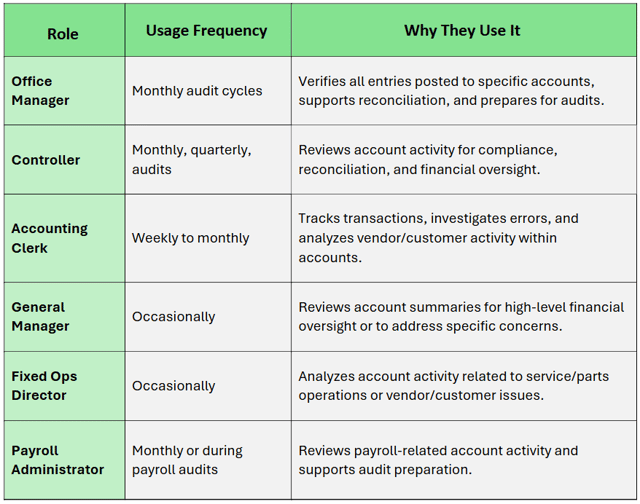
Who Uses the Schedule Account Summary Report, How Often, and Why
Navigate to: Accounting > Reports > Schedule > Account Summary
Choose Parameters
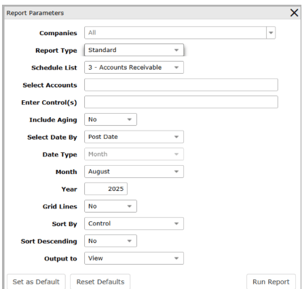
This section clarifies the parameters outlined in this report. For additional details that apply to all reports, please refer to the Common Report Features article.
-
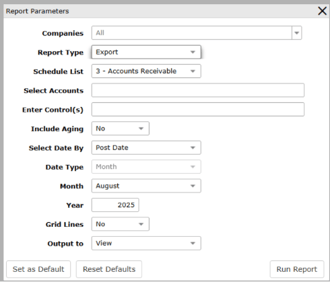
Report Type:
-
Standard: Displays summarized account details including account number, control, control description, date, reference, and amount. Includes totals by account and control for quick review. Optimized for on-screen viewing and PDF output.
-
Export: Generates a detailed data file for external analysis (CSV/Excel).
-
Includes additional columns such as Post Date, Transaction Date, JR Reference, and Post Description.
-
Layout optimized for spreadsheet output rather than formatted display.
-
Advanced sorting options are limited compared to Standard view
-
-
- Schedule List: Choose the schedule(s) to include
-
Select Accounts: Enter specific accounts if needed
-
Enter Control(s): Filter by control numbers
-
Exclude 0 Balance: Yes or No
-
Include Aging: Yes or No