---
title: Repair Order (RO) Invoice Location
description: Repair Order Invoice Location
---
[Skip to content](https://help.dominiondms.com/en/knowledge/repair-order-ro-invoice-location#main-content)
[Create a Support Ticket](https://help.dominiondms.com/en/knowledge/kb-tickets/new?hsLang=en) [View Your Tickets](https://help.dominiondms.com/tickets-view?hsLang=en)
[](https://vue.dominiondms.com/)
- [VUE Login](https://vue.dominiondms.com/)
Open main navigation
Close main navigation
- [VUE Login](https://vue.dominiondms.com/)
- [Create a Support Ticket](https://help.dominiondms.com/en/knowledge/kb-tickets/new)
- [View Your Tickets](https://help.dominiondms.com/tickets-view)
Welcome to the Dominion DMS Help Center
- There are no suggestions because the search field is empty.
1. [Dominion DMS Help Center](https://help.dominiondms.com/en/knowledge?hsLang=en)
2. [Accounting](https://help.dominiondms.com/en/knowledge/accounting?hsLang=en)
3. [Reports \> RO Invoice Location](https://help.dominiondms.com/en/knowledge/accounting?hsLang=en#reports-ro-invoice-location)
February 11, 2026
# Repair Order (RO) Invoice Location
## Track Repair Orders and Parts Invoices
The RO/Invoice Location Report provides a complete listing of **Repair Orders (ROs)** and **Parts Invoices** within a specified numeric range. It displays ticket numbers and uses symbols to indicate their status:
- \* = Missing Ticket
- o = Open Ticket
- v = Voided Ticket
This report is designed to help dealerships track ticket sequences, identify gaps, and ensure accurate record-keeping for service and parts operations.
**When to Use It:**
- **Ticket Sequence Verification:**
Ideal for confirming that all ROs and invoices are accounted for and identifying missing or skipped numbers.
- **Audit and Compliance:**
Used during audits to validate ticket integrity and detect irregularities in numbering or status.
- **Error Detection:**
Helps locate missing, open, or voided tickets that could impact billing or reporting.
- **Operational Oversight:**
Supports service and parts managers in monitoring ticket flow and ensuring proper documentation.
- **End-of-Day or Month-End Review:**
Useful for reconciling ticket activity before closing periods.
***Note:** You can filter by **Ticket Type** (RO, Invoice, or Both), set **RO and Invoice ranges**, and choose output options for flexible viewing.*
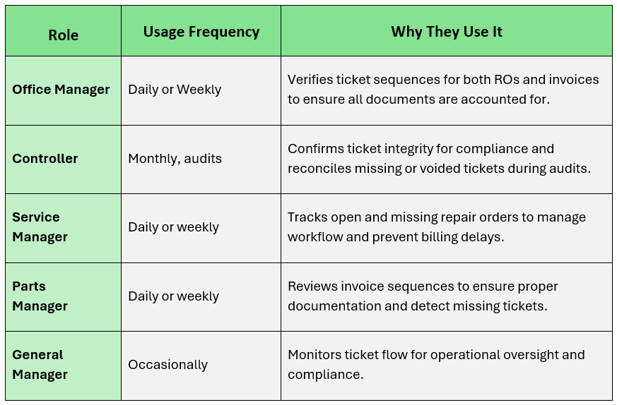
#### **Who Uses the RO/Invoice Location Report, How Often, and Why**
**Navigate to:** Accounting \> Reports \>RO Invoice Location
##### **Choose Parameters**
This section clarifies the parameters outlined in this report. For additional details that apply to all reports, please refer to the **[Common Report Features](https://help.dominiondms.com/en/knowledge/create-standard-reports?hsLang=en)**article.
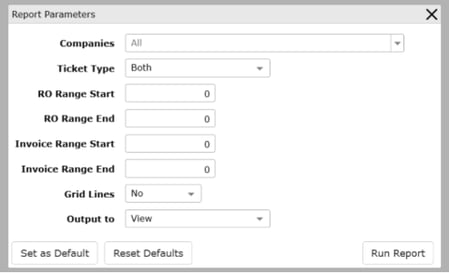
- **Ticket Type** determines which ticket types are included.
- **Both:** Includes Repair Orders and Parts Invoices
- **Repair Orders:** Includes Repair Orders only
- **Parts Invoices:** Includes Parts Invoices only
- **RO Range Start** Enter the starting Repair Order number to include in the report.
- **RO Range End** Enter the ending Repair Order number to include in the report.
- **Invoice Range Start** Enter the starting invoice number to include in the report.
- **Invoice Range End** Enter the ending invoice number to include in the report.
- [Client Support Options](https://help.dominiondms.com/en/knowledge/client-support-options?hsLang=en)
- [Accounting](https://help.dominiondms.com/en/knowledge/accounting?hsLang=en#main-content)
- [General Topics](https://help.dominiondms.com/en/knowledge/accounting?hsLang=en#general-topics)
- [General Ledger - Journals](https://help.dominiondms.com/en/knowledge/accounting?hsLang=en#general-ledger-journals)
- [General Ledger - Schedules](https://help.dominiondms.com/en/knowledge/accounting?hsLang=en#general-ledger-schedules)
- [Cash and Bank \> View Check Register](https://help.dominiondms.com/en/knowledge/accounting?hsLang=en#cash-and-bank-view-check-register)
- [General Ledger \> General Ledger](https://help.dominiondms.com/en/knowledge/accounting?hsLang=en#general-ledger-general-ledger)
- [Monthly \> Financial Statement](https://help.dominiondms.com/en/knowledge/accounting?hsLang=en#monthly-financial-statement)
- [General Ledger \> Post Vehicle Sales](https://help.dominiondms.com/en/knowledge/accounting?hsLang=en#general-ledger-post-vehicle-sales)
- [Accounts Payable \>Vendors](https://help.dominiondms.com/en/knowledge/accounting?hsLang=en#accounts-payable-vendors)
- [Maintenance \> Parts Account Codes](https://help.dominiondms.com/en/knowledge/accounting?hsLang=en#maintenance-parts-account-codes)
- [Maintenance \> Journal Maintenance](https://help.dominiondms.com/en/knowledge/accounting?hsLang=en#maintenance-journal-maintenance)
- [Monthly \> Post Automatic Entries](https://help.dominiondms.com/en/knowledge/accounting?hsLang=en#monthly-post-automatic-entries)
- [Miscellaneous \> Customer Merge](https://help.dominiondms.com/en/knowledge/accounting?hsLang=en#miscellaneous-customer-merge)
- [General Ledger \> Schedule Reconciliation](https://help.dominiondms.com/en/knowledge/accounting?hsLang=en#general-ledger-schedule-reconciliation)
- [Cash and Bank \> Check Register Report](https://help.dominiondms.com/en/knowledge/accounting?hsLang=en#cash-and-bank-check-register-report)
- [Accounts Payable \> Purchase Orders](https://help.dominiondms.com/en/knowledge/accounting?hsLang=en#accounts-payable-purchase-orders)
- [Accounts Receivable \> Customers](https://help.dominiondms.com/en/knowledge/accounting?hsLang=en#accounts-receivable-customers)
- [Cash and Bank \> Reconcile Checking Accounts](https://help.dominiondms.com/en/knowledge/accounting?hsLang=en#cash-and-bank-reconcile-checking-accounts)
- [Maintenance \> Service Account Codes](https://help.dominiondms.com/en/knowledge/accounting?hsLang=en#maintenance-service-account-codes)
- [Maintenance \> Financial Statement Maintenance](https://help.dominiondms.com/en/knowledge/accounting?hsLang=en#maintenance-financial-statement-maintenance)
- [Miscellaneous \> Title Tracking](https://help.dominiondms.com/en/knowledge/accounting?hsLang=en#miscellaneous-title-tracking)
- [Maintenance \> Daily Report Maintenance](https://help.dominiondms.com/en/knowledge/accounting?hsLang=en#maintenance-daily-report-maintenance)
- [General Ledger \> Manual GL Posting](https://help.dominiondms.com/en/knowledge/accounting?hsLang=en#general-ledger-manual-gl-posting)
- [Maintenance \> Employees](https://help.dominiondms.com/en/knowledge/accounting?hsLang=en#maintenance-employees)
- [Maintenance \> Payment Types](https://help.dominiondms.com/en/knowledge/accounting?hsLang=en#maintenance-payment-types)
- [Maintenance \> Schedule Maintenance](https://help.dominiondms.com/en/knowledge/accounting?hsLang=en#maintenance-schedule-maintenance)
- [Monthly \> Open/Close Periods](https://help.dominiondms.com/en/knowledge/accounting?hsLang=en#monthly-open-close-periods)
- [Maintenance \> Bank and Checking Maintenance](https://help.dominiondms.com/en/knowledge/accounting?hsLang=en#maintenance-bank-and-checking-maintenance)
- [Maintenance \> Roles](https://help.dominiondms.com/en/knowledge/accounting?hsLang=en#maintenance-roles)
- [Cash and Bank \> Manual Checks](https://help.dominiondms.com/en/knowledge/accounting?hsLang=en#cash-and-bank-manual-checks)
- [Accounts Receivable \> Receipt Book](https://help.dominiondms.com/en/knowledge/accounting?hsLang=en#accounts-receivable-receipt-book)
- [Maintenance \> Vehicle Sales Maintenance](https://help.dominiondms.com/en/knowledge/accounting?hsLang=en#maintenance-vehicle-sales-maintenance)
- [Accounts Payable \> Accounts Payable](https://help.dominiondms.com/en/knowledge/accounting?hsLang=en#accounts-payable-accounts-payable)
- [Maintenance \> Default Settings](https://help.dominiondms.com/en/knowledge/accounting?hsLang=en#maintenance-default-settings)
- [Monthly \> Statistical Data](https://help.dominiondms.com/en/knowledge/accounting?hsLang=en#monthly-statistical-data)
- [Miscellaneous \> Accessories Due](https://help.dominiondms.com/en/knowledge/accounting?hsLang=en#miscellaneous-accessories-due)
- [Accounts Receivable \> Calculate Finance Charges](https://help.dominiondms.com/en/knowledge/accounting?hsLang=en#accounts-receivable-calculate-finance-charges)
- [Reports \> Schedule Reports](https://help.dominiondms.com/en/knowledge/accounting?hsLang=en#reports-schedule-reports)
- [Monthly \> Reporting Account Setup](https://help.dominiondms.com/en/knowledge/accounting?hsLang=en#monthly-reporting-account-setup)
- [Miscellaneous \> Reopen Parts & Service Tickets](https://help.dominiondms.com/en/knowledge/accounting?hsLang=en#miscellaneous-reopen-parts-service-tickets)
- [Maintenance \> Automatic Entry Maintenance](https://help.dominiondms.com/en/knowledge/accounting?hsLang=en#maintenance-automatic-entry-maintenance)
- [Accounts Receivable \> Statements](https://help.dominiondms.com/en/knowledge/accounting?hsLang=en#accounts-receivable-statements)
- [Cash and Bank \> 1099s](https://help.dominiondms.com/en/knowledge/accounting?hsLang=en#cash-and-bank-1099s)
- [Reports - Chart of Accounts](https://help.dominiondms.com/en/knowledge/accounting?hsLang=en#reports-chart-of-accounts)
- [Accounts Receivable \> Aged Analysis Report](https://help.dominiondms.com/en/knowledge/accounting?hsLang=en#accounts-receivable-aged-analysis-report)
- [Reports \> Trial Balance](https://help.dominiondms.com/en/knowledge/accounting?hsLang=en#reports-trial-balance)
- [Reports \> Trend Analysis](https://help.dominiondms.com/en/knowledge/accounting?hsLang=en#reports-trend-analysis)
- [Reports \> Stock/Schedule Comparison](https://help.dominiondms.com/en/knowledge/accounting?hsLang=en#reports-stock-schedule-comparison)
- [Reports \> Journal Reports](https://help.dominiondms.com/en/knowledge/accounting?hsLang=en#reports-journal-reports)
- [Reports \> General Ledger](https://help.dominiondms.com/en/knowledge/accounting?hsLang=en#reports-general-ledger)
- [Reports \> Customer List](https://help.dominiondms.com/en/knowledge/accounting?hsLang=en#reports-customer-list)
- [Reports \> Employee](https://help.dominiondms.com/en/knowledge/accounting?hsLang=en#reports-employee)
- [Reports \> RO Invoice Location](https://help.dominiondms.com/en/knowledge/accounting?hsLang=en#reports-ro-invoice-location)
- [Reports \> Floorplan Rebate](https://help.dominiondms.com/en/knowledge/accounting?hsLang=en#reports-floorplan-rebate)
- [Reports \> Floorplan Report](https://help.dominiondms.com/en/knowledge/accounting?hsLang=en#reports-floorplan-report)
- [Reports \> Vendor List](https://help.dominiondms.com/en/knowledge/accounting?hsLang=en#reports-vendor-list)
- [End of Year](https://help.dominiondms.com/en/knowledge/accounting?hsLang=en#end-of-year)
- [Parts](https://help.dominiondms.com/en/knowledge/parts?hsLang=en#main-content)
- [Counter - Parts Inventory](https://help.dominiondms.com/en/knowledge/parts?hsLang=en#counter-parts-inventory)
- [Counter - Parts Desk](https://help.dominiondms.com/en/knowledge/parts?hsLang=en#counter-parts-desk)
- [Physical Inventory \> Physical Inventory](https://help.dominiondms.com/en/knowledge/parts?hsLang=en#physical-inventory-physical-inventory)
- [Management \> Parts Returns](https://help.dominiondms.com/en/knowledge/parts?hsLang=en#management-parts-returns)
- [Management \> Parts Orders](https://help.dominiondms.com/en/knowledge/parts?hsLang=en#management-parts-orders)
- [Management \> Purchase Orders](https://help.dominiondms.com/en/knowledge/parts?hsLang=en#management-purchase-orders)
- [Maintenance \> Order Sources](https://help.dominiondms.com/en/knowledge/parts?hsLang=en#maintenance-order-sources)
- [Management \> Parts Inventory Update](https://help.dominiondms.com/en/knowledge/parts?hsLang=en#management-parts-inventory-update)
- [Cashier \> Receipt Book](https://help.dominiondms.com/en/knowledge/parts?hsLang=en#cashier-receipt-book)
- [Cashier \> Parts Invoices](https://help.dominiondms.com/en/knowledge/parts?hsLang=en#cashier-parts-invoices)
- [Counter \> Parts Request Roster](https://help.dominiondms.com/en/knowledge/parts?hsLang=en#counter-parts-request-roster)
- [Miscellaneous \> All Vehicles](https://help.dominiondms.com/en/knowledge/parts?hsLang=en#miscellaneous-all-vehicles)
- [Maintenance \> Fees](https://help.dominiondms.com/en/knowledge/parts?hsLang=en#maintenance-fees)
- [Maintenance \> Price Codes](https://help.dominiondms.com/en/knowledge/parts?hsLang=en#maintenance-price-codes)
- [Counter \> Parts Invoices](https://help.dominiondms.com/en/knowledge/parts?hsLang=en#counter-parts-invoices)
- [Miscellaneous \> Vendors](https://help.dominiondms.com/en/knowledge/parts?hsLang=en#miscellaneous-vendors)
- [Counter \> Back Counter](https://help.dominiondms.com/en/knowledge/parts?hsLang=en#counter-back-counter)
- [Miscellaneous \> Customers](https://help.dominiondms.com/en/knowledge/parts?hsLang=en#miscellaneous-customers)
- [Counter \> Special Orders](https://help.dominiondms.com/en/knowledge/parts?hsLang=en#counter-special-orders)
- [Maintenance \> Order Groups](https://help.dominiondms.com/en/knowledge/parts?hsLang=en#maintenance-order-groups)
- [Maintenance \> Parts Inventory Parts Type](https://help.dominiondms.com/en/knowledge/parts?hsLang=en#maintenance-parts-inventory-parts-type)
- [Cashier \> Daily Close](https://help.dominiondms.com/en/knowledge/parts?hsLang=en#cashier-daily-close)
- [Maintenance \> Header Fees](https://help.dominiondms.com/en/knowledge/parts?hsLang=en#maintenance-header-fees)
- [Management \> Parts Phasing](https://help.dominiondms.com/en/knowledge/parts?hsLang=en#management-parts-phasing)
- [Reports \> Sales](https://help.dominiondms.com/en/knowledge/parts?hsLang=en#reports-sales)
- [Management \> Inventory Management Tool](https://help.dominiondms.com/en/knowledge/parts?hsLang=en#management-inventory-management-tool)
- [Reports \> Special Order](https://help.dominiondms.com/en/knowledge/parts?hsLang=en#reports-special-order)
- [Cashier Receipts Report](https://help.dominiondms.com/en/knowledge/parts?hsLang=en#cashier-receipts-report)
- [Reports \> Inventory](https://help.dominiondms.com/en/knowledge/parts?hsLang=en#reports-inventory)
- [Parts \> Reports](https://help.dominiondms.com/en/knowledge/parts?hsLang=en#parts-reports)
- [Service](https://help.dominiondms.com/en/knowledge/service?hsLang=en#main-content)
- [Maintenance \> Op Codes](https://help.dominiondms.com/en/knowledge/service?hsLang=en#maintenance-op-codes)
- [Advisor \> Repair Orders](https://help.dominiondms.com/en/knowledge/service?hsLang=en#advisor-repair-orders)
- [Maintenance \> Fees](https://help.dominiondms.com/en/knowledge/service?hsLang=en#maintenance-fees)
- [Reports \> Payroll \> Unpaid Technician Labor Report](https://help.dominiondms.com/en/knowledge/service?hsLang=en#reports-payroll-unpaid-technician-labor-report)
- [Advisor \> Appointment Schedule](https://help.dominiondms.com/en/knowledge/service?hsLang=en#advisor-appointment-schedule)
- [Advisor \> Appointments](https://help.dominiondms.com/en/knowledge/service?hsLang=en#advisor-appointments)
- [Maintenance \> Skill Sets](https://help.dominiondms.com/en/knowledge/service?hsLang=en#maintenance-skill-sets)
- [Technician \> Technician System](https://help.dominiondms.com/en/knowledge/service?hsLang=en#technician-technician-system)
- [Advisor \> Special Orders](https://help.dominiondms.com/en/knowledge/service?hsLang=en#advisor-special-orders)
- [Cashier \> Receipt Book](https://help.dominiondms.com/en/knowledge/service?hsLang=en#cashier-receipt-book)
- [Miscellaneous \> Customers](https://help.dominiondms.com/en/knowledge/service?hsLang=en#miscellaneous-customers)
- [Maintenance \> Header Fees](https://help.dominiondms.com/en/knowledge/service?hsLang=en#maintenance-header-fees)
- [Miscellaneous \> All Vehicles](https://help.dominiondms.com/en/knowledge/service?hsLang=en#miscellaneous-all-vehicles)
- [Advisor \> Appointment Calendar](https://help.dominiondms.com/en/knowledge/service?hsLang=en#advisor-appointment-calendar)
- [Advisor \> Purchase Orders](https://help.dominiondms.com/en/knowledge/service?hsLang=en#advisor-purchase-orders)
- [Advisor \> Route Sheet](https://help.dominiondms.com/en/knowledge/service?hsLang=en#advisor-route-sheet)
- [Miscellaneous \> Vendors](https://help.dominiondms.com/en/knowledge/service?hsLang=en#miscellaneous-vendors)
- [Maintenance \> Labor Rates](https://help.dominiondms.com/en/knowledge/service?hsLang=en#maintenance-labor-rates)
- [Advisor \> Parts Inventory](https://help.dominiondms.com/en/knowledge/service?hsLang=en#advisor-parts-inventory)
- [Reports \> Sales](https://help.dominiondms.com/en/knowledge/service?hsLang=en#reports-sales)
- [Reports \> Audit](https://help.dominiondms.com/en/knowledge/service?hsLang=en#reports-audit)
- [Maintenance \> Rate Levels](https://help.dominiondms.com/en/knowledge/service?hsLang=en#maintenance-rate-levels)
- [Maintenance \> Service Dispatch Configuration](https://help.dominiondms.com/en/knowledge/service?hsLang=en#maintenance-service-dispatch-configuration)
- [Maintenance \> Service Configurations](https://help.dominiondms.com/en/knowledge/service?hsLang=en#maintenance-service-configurations)
- [Maintenance \> Tech Management](https://help.dominiondms.com/en/knowledge/service?hsLang=en#maintenance-tech-management)
- [Maintenance \> Employees](https://help.dominiondms.com/en/knowledge/service?hsLang=en#maintenance-employees)
- [Reports](https://help.dominiondms.com/en/knowledge/service?hsLang=en#reports)
- [Reports \> Appointment](https://help.dominiondms.com/en/knowledge/service?hsLang=en#reports-appointment)
- [Dominion Dealer University](https://help.dominiondms.com/en/knowledge/dominion-dealer-university?hsLang=en)
- [Sales and F&I](https://help.dominiondms.com/en/knowledge/sales-and-fi?hsLang=en#main-content)
- [F&I \> Sales Desk](https://help.dominiondms.com/en/knowledge/sales-and-fi?hsLang=en#fi-sales-desk)
- [Miscellaneous \> Purchase Orders](https://help.dominiondms.com/en/knowledge/sales-and-fi?hsLang=en#miscellaneous-purchase-orders)
- [Reports \> Sales](https://help.dominiondms.com/en/knowledge/sales-and-fi?hsLang=en#reports-sales)
- [Vehicles \> Vehicle Inventory](https://help.dominiondms.com/en/knowledge/sales-and-fi?hsLang=en#vehicles-vehicle-inventory)
- [Maintenance \> Miscellaneous](https://help.dominiondms.com/en/knowledge/sales-and-fi?hsLang=en#maintenance-miscellaneous)
- [F&I \> Deals](https://help.dominiondms.com/en/knowledge/sales-and-fi?hsLang=en#fi-deals)
- [Maintenance \> Vehicles](https://help.dominiondms.com/en/knowledge/sales-and-fi?hsLang=en#maintenance-vehicles)
- [Vehicles \> All Vehicles](https://help.dominiondms.com/en/knowledge/sales-and-fi?hsLang=en#vehicles-all-vehicles)
- [F&I \> Prospects](https://help.dominiondms.com/en/knowledge/sales-and-fi?hsLang=en#fi-prospects)
- [F&I \> Outside Sales](https://help.dominiondms.com/en/knowledge/sales-and-fi?hsLang=en#fi-outside-sales)
- [Maintenance \> Sales](https://help.dominiondms.com/en/knowledge/sales-and-fi?hsLang=en#maintenance-sales)
- [Miscellaneous \> Vendors](https://help.dominiondms.com/en/knowledge/sales-and-fi?hsLang=en#miscellaneous-vendors)
- [Miscellaneous \> Customers](https://help.dominiondms.com/en/knowledge/sales-and-fi?hsLang=en#miscellaneous-customers)
- [Miscellaneous \> Receipt Book](https://help.dominiondms.com/en/knowledge/sales-and-fi?hsLang=en#miscellaneous-receipt-book)
- [Reports \> Commission](https://help.dominiondms.com/en/knowledge/sales-and-fi?hsLang=en#reports-commission)
- [Sales \> Reports](https://help.dominiondms.com/en/knowledge/sales-and-fi?hsLang=en#sales-reports)
- [Reports \> F&I](https://help.dominiondms.com/en/knowledge/sales-and-fi?hsLang=en#reports-fi)
- [Payroll](https://help.dominiondms.com/en/knowledge/payroll?hsLang=en#main-content)
- [Maintenance \> Company Information](https://help.dominiondms.com/en/knowledge/payroll?hsLang=en#maintenance-company-information)
- [Payroll Process \> Void Payroll Checks](https://help.dominiondms.com/en/knowledge/payroll?hsLang=en#payroll-process-void-payroll-checks)
- [Payroll Process \> Enter/Edit Payroll Entries](https://help.dominiondms.com/en/knowledge/payroll?hsLang=en#payroll-process-enter-edit-payroll-entries)
- [Reports \> Quarterly Reports](https://help.dominiondms.com/en/knowledge/payroll?hsLang=en#reports-quarterly-reports)
- [Maintenance \> Employee Information](https://help.dominiondms.com/en/knowledge/payroll?hsLang=en#maintenance-employee-information)
- [Payroll \> Reports](https://help.dominiondms.com/en/knowledge/payroll?hsLang=en#payroll-reports)
- [Maintenance \> Archive Current Year](https://help.dominiondms.com/en/knowledge/payroll?hsLang=en#maintenance-archive-current-year)
- [Payroll \> Processing](https://help.dominiondms.com/en/knowledge/payroll?hsLang=en#payroll-processing)
- [OEM DCS](https://help.dominiondms.com/en/knowledge/oem-dcs?hsLang=en#main-content)
- [GM](https://help.dominiondms.com/en/knowledge/oem-dcs?hsLang=en#gm)
- [Ford](https://help.dominiondms.com/en/knowledge/oem-dcs?hsLang=en#ford)
- [General Topics](https://help.dominiondms.com/en/knowledge/general-topics?hsLang=en#main-content)
- [Print](https://help.dominiondms.com/en/knowledge/general-topics?hsLang=en#print)
- [VUE](https://help.dominiondms.com/en/knowledge/general-topics?hsLang=en#vue)
- [VUE Training & User Guides](https://help.dominiondms.com/en/knowledge/vue-training-user-guides?hsLang=en#main-content)
- [User Guides](https://help.dominiondms.com/en/knowledge/vue-training-user-guides?hsLang=en#user-guides)
- [Podcasts and VideoCasts](https://help.dominiondms.com/en/knowledge/podcasts-and-videocasts?hsLang=en#main-content)
- [Service Management](https://help.dominiondms.com/en/knowledge/podcasts-and-videocasts?hsLang=en#service-management)
- [Collision Center/ Body Shop](https://help.dominiondms.com/en/knowledge/podcasts-and-videocasts?hsLang=en#collision-center-body-shop)
- [CRM](https://help.dominiondms.com/en/knowledge/podcasts-and-videocasts?hsLang=en#crm)
- [Document Management](https://help.dominiondms.com/en/knowledge/podcasts-and-videocasts?hsLang=en#document-management)
- [Vehicle Inventory Management](https://help.dominiondms.com/en/knowledge/podcasts-and-videocasts?hsLang=en#vehicle-inventory-management)
- [Accounting Processes](https://help.dominiondms.com/en/knowledge/podcasts-and-videocasts?hsLang=en#accounting-processes)
- [F&I Deal Process](https://help.dominiondms.com/en/knowledge/podcasts-and-videocasts?hsLang=en#fi-deal-process)
- [Payroll](https://help.dominiondms.com/en/knowledge/podcasts-and-videocasts?hsLang=en#payroll)
- [Retail and Fleet Management](https://help.dominiondms.com/en/knowledge/podcasts-and-videocasts?hsLang=en#retail-and-fleet-management)
- [Digital Retail](https://help.dominiondms.com/en/knowledge/podcasts-and-videocasts?hsLang=en#digital-retail)
- [Credit Bureaus](https://help.dominiondms.com/en/knowledge/podcasts-and-videocasts?hsLang=en#credit-bureaus)
- [eContracting](https://help.dominiondms.com/en/knowledge/podcasts-and-videocasts?hsLang=en#econtracting)
- [Marketing](https://help.dominiondms.com/en/knowledge/podcasts-and-videocasts?hsLang=en#marketing)
- [Payment Processing](https://help.dominiondms.com/en/knowledge/podcasts-and-videocasts?hsLang=en#payment-processing)
- [Registration and Titling](https://help.dominiondms.com/en/knowledge/podcasts-and-videocasts?hsLang=en#registration-and-titling)
- [Recent Enhancements](https://help.dominiondms.com/en/knowledge/recent-enhancements?hsLang=en#main-content)
- [VUE Software Updates](https://help.dominiondms.com/en/knowledge/recent-enhancements?hsLang=en#vue-software-updates)
[](https://www.dominiondms.com)
150 Granby St
Norfolk, VA 23510
[Copyright - Dominion DMS](https://forms.office.com/Pages/ResponsePage.aspx?id=6f83PexuWE-xqW9kLygglODQggSQzXZEttZ8lNAOypBUN1hUV0VUTlpXMzE5RVdOVEtVVU5CMlVROS4u)