Overview
Positive Pay is an automated fraud detection tool offered by the Cash Management department of most banks. It is a service that matches the account number, check number and dollar amount of each check presented for payment against a list of checks previously authorized and issued by the company.
The list of issued and voided checks are sent nightly to the bank. The check-issued file sent to the bank contains the check number, account number, issue date, and dollar amount. For some banks the payee name is included, but is not part of the matching service. When those issued checks are presented for payment at the bank, they are compared electronically against the list of transmitted checks.
When a check is presented that does not have a match in the file, it becomes an "exception item". The bank sends a fax or an image of the exception item to the dealership. The dealership reviews the image and instructs the bank to pay or return the check.
Permissions

Accounting > Maintenance > Employee > Permissions tab
Accounting > Maintenance > Bank and Checking Maintenance
Setup and Activation
The Positive Pay button is enabled when a Positive Pay Bank is defined in the Bank and
Checking Maintenance for that bank.
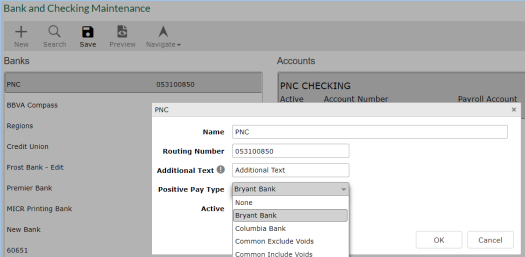
Navigate to Accounting > Maintenance > Bank and Checking Maintenance
• Select a bank.
• Select a Bank from the Positive Pay Type dropdown list.
• Click OK.
Process
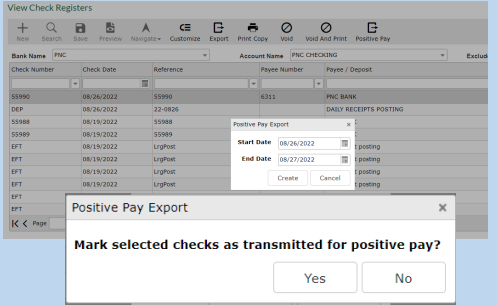
Navigate to Accounting > Cash and Bank > View Check Registers
• Select an account.
• Click Positive Pay in the Action Ribbon.
• Enter a Start Date and an End Date for the report.
• Click Create.
• Click Yes to mark checks as transmitted for Positive Pay.
• Click on Export in the Action Ribbon.
• Select the xls. File from your Download folder.
• Send the file to your bank as the bank has instructed.