---
title: Physical Inventory Process
description: .
---
[Skip to content](https://help.dominiondms.com/en/knowledge/physical-inventory#main-content)
[Create a Support Ticket](https://help.dominiondms.com/en/knowledge/kb-tickets/new?hsLang=en) [View Your Tickets](https://help.dominiondms.com/tickets-view?hsLang=en)
[](https://vue.dominiondms.com/)
- [VUE Login](https://vue.dominiondms.com/)
Open main navigation
Close main navigation
- [VUE Login](https://vue.dominiondms.com/)
- [Create a Support Ticket](https://help.dominiondms.com/en/knowledge/kb-tickets/new)
- [View Your Tickets](https://help.dominiondms.com/tickets-view)
Welcome to the Dominion DMS Help Center
- There are no suggestions because the search field is empty.
1. [Dominion DMS Help Center](https://help.dominiondms.com/en/knowledge?hsLang=en)
2. [Parts](https://help.dominiondms.com/en/knowledge/parts?hsLang=en)
3. [Physical Inventory \> Physical Inventory](https://help.dominiondms.com/en/knowledge/parts?hsLang=en#physical-inventory-physical-inventory)
March 27, 2026
# Physical Inventory Process
## Ensure the Value of Inventory is Current and Accurate
[](https://www.dduonline.com/learn/course/3586/parts-physical-inventory?generated_by=13053&hash=163f112c2d807accba020e36d52f9e396798b3d1)
The Physical Inventory allows the Parts department to ensure that the value of the inventory is current and accurate. Follow these steps to perform your next Physical Inventory Process.
1. Set the sorting parameters
2. Make Filter Selections
3. Clean up locations and costs
4. Finalize the Setup
5. Perform Physical Inventory Count
6. Perform Variance and adjust counts as needed
7. Print the Valuation Report
8. Update the system inventory
9. Special Order Index's by OEM
**For the printable version of this article[CLICK HERE](https://help.dominiondms.com/hubfs/Physical%20Inventory%20-%20USER%201.pdf?hsLang=en)**
---
#### **Setting/Sorting Parameters**
**Navigate to:** Parts \> Physical Inventory \> Physical Inventory Process
- Select an existing Physical Inventory or click the \[**New**\] button in the Action Ribbon.
- In the **New Parts Physical Inventory** parameters window, determine what will and will not be included in the count by using the available filter selections (see below).
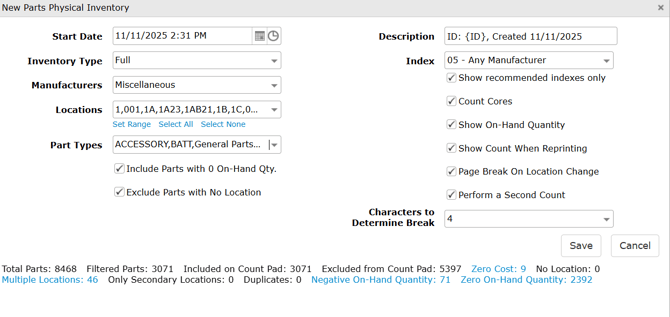
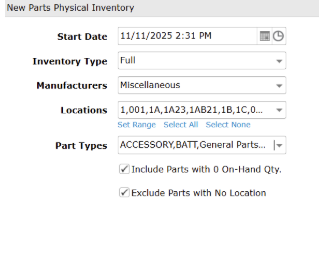
- **Start Date** - Defaults to today’s date and time. Use the calendar and clock tools to edit. Most printed reports will refer to this Start Date as the created date.
- **Inventory Type**
- **Full** - Includes all part locations. (Sometimes referred to as the Annual Physical Inventory Count.)
- **Fastest Moving** - Limits the count to higher volume parts or only parts that have had sales within a date range. Parts that have had no sales within the defined date range will be excluded.
- **Perpetual** - Select Perpetual to conduct smaller, more frequent counts. Selecting Perpetual narrows the count by setting a percentage of part numbers within the specified location range. Enter a percentage, and VUE will calculate the number of parts to be selected at random. Enter the number of parts to count, and VUE will calculate the percentage.
- **Manufacturers** - Select the part Manufacturers to include in the count.
- **Locations** - Regardless of the Inventory Type, defining bin locations is required. Use the drop-down to select the bin locations to include:
- **Set Range** - Available for inventory type Full or Fastest Moving. Allows selection of bin locations between a starting and ending location. Select the Starting Location and Ending Location from the provided drop-downs.
- **Set Range and Percentage** - Selecting the Perpetual inventory type enables you to narrow the count further by setting a percentage of the selected location range. Select Starting Location and Ending Location from the drop-down. Enter the percentage of the locations you want to be included in the count.
- **Select All** - This selection includes all bin locations and permits the deselection of individual bins.
- **Select None** - Clears the location range and permits individual bin selection.
- **Part Types** - Select Part Types to include parts as defined in Parts Inventory \> Parts Type. General Parts include parts that do not have a defined part type in the part record
- 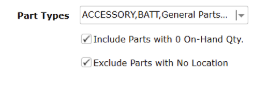**Include Parts with 0 On-Hand Qty** - Check the box to include.
- **Exclude Parts with No Location** - Check the box to exclude.
- **Date Range** - ***Available when Fastest Moving is selected as Inventory Type***. Set a Start and Stop date used to define parts as Fastest Moving or not.
- Select a Date Range with the Calendars or, use one of the shortcuts provided.
- **This Month** = Month-to-date
- **Last Month** = Last full month
- **This Year** = Year-to-date
- **Last Year** = Last Calendar year
- **Include Parts with Zero On-Hand Qty** - Mark to include parts that currently show no on-hand quantity
- **Exclude Parts with No Location** - Mark to exclude parts without an assigned bin location. - *If included in the count, these parts will be listed under the name “UNASSIGNED”. Mark to exclude parts with no or unknown locations*.
- **Parts** - This parameter is available for **Fastest Moving** and **Perpetual Inventory** counts only. This is the percentage of part numbers within the identified location range. Enter the percentage of bin locations to be included in this count, and VUE will calculate the number of parts. Alternatively, enter the number of parts you want to include, and VUE will calculate the percentage.
- - **Apply Weighted Randomness** -This checkbox is only available when **Perpetual** has been selected as the inventory type. Selecting Weighted Randomness gives parts that haven't been counted better odds of being counted.
- **Description** - By default, VUE assigns an ID number to the count and records the date created. This field will appear on printed reports for future reference. This field is editable with a maximum field length of 50 characters.
- **Index** - Select appropriate index. This selection determines the sort sequence of the Count Pad.
- Index 05- Any Manufacturer. Part number sorting is by number of characters and then alpha-numeric.
- Index 15- Any Manufacturer. Sorting is by alph-anumeric.
- **Show Recommended Indexes Only** - Indexes that are not recommended may be removed from the dropdown by checking this box. Recommended Indexes include any index matching a manufacturer in your OEM list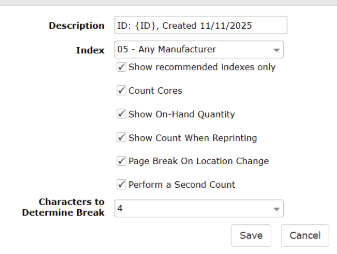
- **Count Cores** - By checking this box, part numbers with dirty cores are added to Count Pads, Status, and Count tabs so that Count Pads provide for the collection of on-hand dirty core quantities.
- **Show On-Hand Quantity** - Check this box to print on-hand quantities on Count Pads.
- **Perform a Second Count** - This option allows the user to perform a second count of the physical inventory.
- **Show Count When Reprinting** - By checking this box, subsequent Count Pad printing will include counts for previously entered items.
- **Page Break on Location Change** - Select this option to limit the number of bin locations per page when printing the Count Pad. Not selecting this option produces no page breaks. Pagination will be system generated for full pages
- **Characters to Determine Break** - Identifies which character in the Bin Location label governs each page break. Only available when Page Break on Location Change has been selected.
**Summary Totals** (see below) are positioned along the bottom of the **New Parts Physical Inventory** parameters window. These dynamic totals reflect your parameter selections. As the parameter selections change, the totals adjust accordingly.
The blue totals are links to records that are not zeroed out and should be reviewed before finalizing the physical count. Use these hyperlinks to go directly to potentially problematic parts records. Once you are satisfied with the settings, click \[**Save**\].
**Summary Totals located at the bottom of the screen include:**
- **Total Parts** - This is the sum of parts Included on Count Pad + Excluded from Count Pad.
- **Filtered Parts** - Number of parts remaining with current parameter filters applied.
- **Included on Count Pad** - Number of parts remaining after parameters applied and after any further narrowing by setting Inventory Type to Perpetual and specifying a percentage of locations within the range to be picked at random
- **Excluded from Count Pad** - Number of parts excluded due to filter selection. Included + Excluded = Total Parts.
- **Blue hyperlinks** - The totals shown in blue are links to records that need to equal ZERO and should be reviewed before finalizing the physical count. Use these hyperlinks to go directly to potentially problematic parts records.

- **Zero Cost** - The number of parts that have no cost listed. The link opens a window of the part numbers with no cost. Each part number is a link to the Part Record. Click on each part number link to open a new tab, and edit the cost
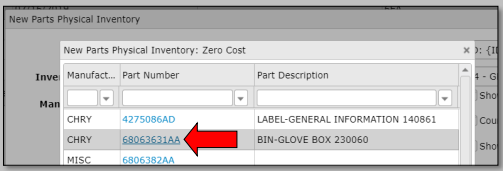
- **Multiple Locations** - The number of parts with multiple locations. Each Part number is a link to that Part Record. This link opens a new tab allowing for editing the locations in each part record
- **No Location** - The number of parts with no location. Each part number is a link to the Part
Record. This link opens a new tab allowing for editing the part location. If included in the
count, parts with no location will be listed under the location name UNASSIGNED.
- **Only Secondary Locations** - The number of parts that have a secondary location and no primary location. The part number link opens a new tab to edit bin locations.
- **Duplicates** - Part numbers that have more than one part record for the same part number. This link opens a window including part number links to each part record. Deactivate unwanted records from the \[**More**\] button in the Action Ribbon. The part can be reactivated at a later date and will retain the part history.
- **Negative On-Hand Quantity** - Part numbers that have less than zero as on-hand quantities. The Include Parts with Zero On-Hand Qty parameter must be enabled and the number of locations must be more than zero in order to be a hyperlink.
- **Zero On-Hand Quantity** - Part numbers that have zero on-hand quantities. The Include Parts with Zero On Hand Qty parameter must be enabled and the number of locations must be more than zero in order to be a hyperlink.
- **Save or Cancel** - Click the \[**Save**\] button to establish the new count, or click the \[Cancel\] button to escape without saving. Once saved, you will have another opportunity to edit the parameter selections again before finalizing selections and beginning the physical counting.
---
#### **Finalizing**
Once you have saved the primary settings, Filter/ Sort and select an Active Inventory Count from the grid.
- **Edit** - Click the \[Edit\] button in the Action Ribbon. Review the report parameters again. Review
and adjust any blue summary totals as described above before finalizing the setup
- **Finalize** - No adjustments are permitted after clicking the \[**Finalize Setup**\] button in the Action Ribbon. Click \[**Finalize Setup**\] to open the counting screen. Once finalized, you may review but not edit the sort parameters by clicking the \[**Settings**\] button in the Action Ribbon. The Counting screen will open when you click \[**Finalize Setup**\].
**Finalize Setup** will open a new screen listing the parts included in the **Physical Inventory** cycle. This screen also provides the next steps in the process.
---
#### **Physical Inventory Counts**
In **Action Ribbon** hover over **Reports.**
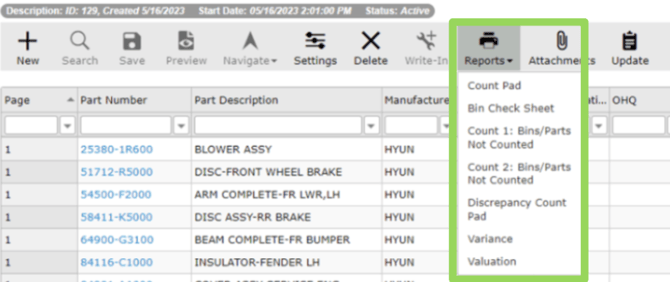
- **Count Pad** - Prints each part number by Bin Location. If the user selected the option to page break on Location change, a single sheet prints for each Bin Location. Without this selection, multiple bin locations can print on each page.
- **Bin Check Sheet** - This report gives the user a place to check off bin locations as they are counted.
- **Count #1** - The first physical count of the parts should begin. The actual number counted in each bin on the Count pads.
- **Count #1 Tab** - Enter the amount counted under the COUNT 1 tab in the Part Count field. Record the actual count quantity for each location.
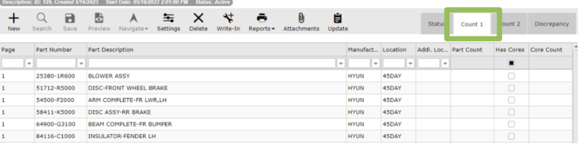
- When a Location display as UNASSIGNED, this means that the part number has a Bin Location without a Primary selection.
- The count of UNASSIGNED locations should match the Only Secondary Location hyperlink from the Parts Physical Inventory Setting screen.
- **Write-In** - Once the user has selected the Count 1 tab, the Write-In action button will become active.
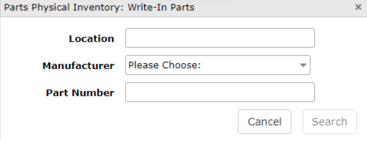
- Location - Type in the Bin Location the part was found in.
- Manufacturer - OEM of the part being typed in.
- Part Number - Key in part number and click Search
- If the part already exists in inventory and is on the count pad, the popup will inform the user and allow them to add to the on hand count.
**NOTE** - If the Location is different then what is currently on the part number, the new location will be added in as an additional location. If the locations are the same, no changes will be made to the location field.
- All Write-Ins are placed at the end of the count pad, and count screen, on page 9999.
- **Print Count 1**: **Bins/Parts Not Counted** - Print this report to identify any overlooked Bins in Count 1. This report lists any un-checked part numbers on the Status Tab.
- **Count Pad** - Print the Count pad again for Count #2 processing. Prints each part number by Bin Location. If the user selected the option to page break on Location change, a single sheet will print for each Bin Location. Without this selection, multiple bin locations can print on each page.
- **Count #2** (*If Perform a Second Count is selected during physical inventory creation*.)- Complete the second physical count of the parts. Record the actual counted in each Bin on the Count Pad.
- **Count #2 Tab** *(If Perform a Second Count is selected during physical inventory creation.)* - Enter the amount under the COUNT 2 Tab in the Part Count field. Record the actual count quantity for each location.
- **Reports - Print Count 2: Bins/Parts Not Counted** (*If Perform a Second Count is selected during physical inventory creation*.) - Print this report to identify any overlooked bins in Count 2. This report will list any un-checked part numbers on the Status Tab.
- **Status Tab** - This Tab acts as a Check Sheet letting the user know what parts have been counted so the user can verify that all locations have been counted.
---
#### **Adjust & Update Count Entries**
- **Status Tab** - After Count 1 & Count 2 are entered, user will want to use the Status tab to verify there are no missing Locations that have not yet been counted/entered.
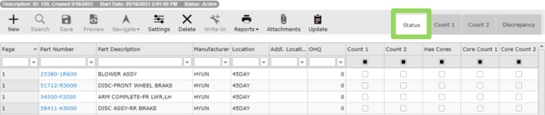
- **Discrepancy Tab** - This Tab includes parts where Count 1 did not match Count 2.

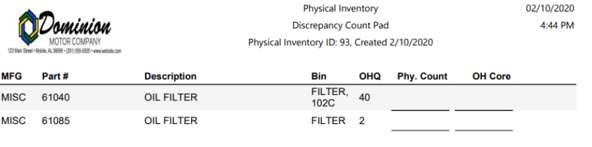
- **Discrepancy Count Pad** *(If Perform a Second Count is selected during physical inventory creation.)* **-** Print the Discrepancy Count Pad if needed for someone to go physically conduct a recount. Make corrections in either Count 1 or Count 2 Tab until no Discrepancies remain.
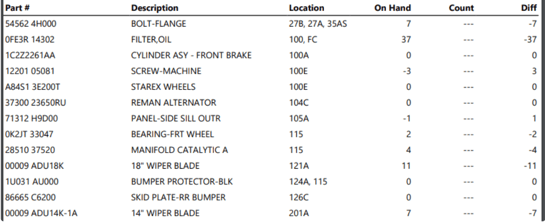
- **Variance Report** - Print the Variance report which will provide detail of all parts where the count is different between the entered count value and the current on-hand quantity in inventory. User should review and make any necessary changes prior to Update.
- If the user checked the Count Cores option, then core count can be entered for core parts. Update inventory will update the core qty for these parts to match the entered values. When running the Variance report, any core qty difference between entered values and inventory values is included.
- **Valuation Report** - Print the Valuation to see the dollar values of the count verses what is currently in inventory. There is also a breakdown of value by Part Types.
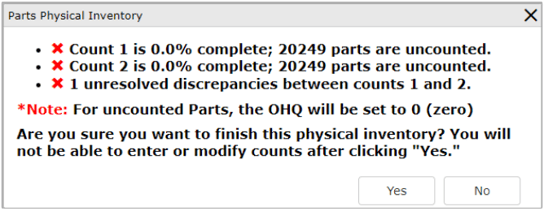
- **Update** - This will finalize the Physical Inventory Process. The User will not be able to enter or modify counts after clicking “Yes”.
- If the user checked the Count Cores option, then core count will be updated for core parts
#### **Special Order Index by OEM**
| **OEM** | **Use Case** | **Index #** | **Description** |
| --- | --- | --- | --- |
| **Any Manufacturer** | Default / most common | **5** | Standard right-justified location + part sort |
| **Any Manufacturer** | Simple alternative | **15** | Basic location + part number sorting |
| **GM (General Motors)** | Standard | **2** | Location + source + group + part # |
| **GM (General Motors)** | Improved bin sorting | **4** | Right-justified location + group + part # |
| **GM (General Motors)** | Conditional logic | **6** | Adjusts sort based on location format |
| **GM (General Motors)** | Group-focused | **11** | Group + part # (less emphasis on location) |
| **GM / Mitsubishi** | Mixed OEM logic | **3** | Location + group + part # (Mitsubishi simplified) |
| **Ford** | Standard | **7** | Location + FMCKEY |
| **Ford** | Structured part sorting | **8** | Base + prefix + suffix |
| **Ford** | Combined sort | **9** | Location + base + prefix + suffix |
| **Mazda** | Standard | **1** | Rearranges part number segments for sorting |
- [Client Support Options](https://help.dominiondms.com/en/knowledge/client-support-options?hsLang=en)
- [Accounting](https://help.dominiondms.com/en/knowledge/accounting?hsLang=en#main-content)
- [General Topics](https://help.dominiondms.com/en/knowledge/accounting?hsLang=en#general-topics)
- [General Ledger - Journals](https://help.dominiondms.com/en/knowledge/accounting?hsLang=en#general-ledger-journals)
- [General Ledger - Schedules](https://help.dominiondms.com/en/knowledge/accounting?hsLang=en#general-ledger-schedules)
- [Cash and Bank \> View Check Register](https://help.dominiondms.com/en/knowledge/accounting?hsLang=en#cash-and-bank-view-check-register)
- [General Ledger \> General Ledger](https://help.dominiondms.com/en/knowledge/accounting?hsLang=en#general-ledger-general-ledger)
- [Monthly \> Financial Statement](https://help.dominiondms.com/en/knowledge/accounting?hsLang=en#monthly-financial-statement)
- [General Ledger \> Post Vehicle Sales](https://help.dominiondms.com/en/knowledge/accounting?hsLang=en#general-ledger-post-vehicle-sales)
- [Accounts Payable \>Vendors](https://help.dominiondms.com/en/knowledge/accounting?hsLang=en#accounts-payable-vendors)
- [Maintenance \> Parts Account Codes](https://help.dominiondms.com/en/knowledge/accounting?hsLang=en#maintenance-parts-account-codes)
- [Maintenance \> Journal Maintenance](https://help.dominiondms.com/en/knowledge/accounting?hsLang=en#maintenance-journal-maintenance)
- [Monthly \> Post Automatic Entries](https://help.dominiondms.com/en/knowledge/accounting?hsLang=en#monthly-post-automatic-entries)
- [Miscellaneous \> Customer Merge](https://help.dominiondms.com/en/knowledge/accounting?hsLang=en#miscellaneous-customer-merge)
- [General Ledger \> Schedule Reconciliation](https://help.dominiondms.com/en/knowledge/accounting?hsLang=en#general-ledger-schedule-reconciliation)
- [Cash and Bank \> Check Register Report](https://help.dominiondms.com/en/knowledge/accounting?hsLang=en#cash-and-bank-check-register-report)
- [Accounts Payable \> Purchase Orders](https://help.dominiondms.com/en/knowledge/accounting?hsLang=en#accounts-payable-purchase-orders)
- [Accounts Receivable \> Customers](https://help.dominiondms.com/en/knowledge/accounting?hsLang=en#accounts-receivable-customers)
- [Cash and Bank \> Reconcile Checking Accounts](https://help.dominiondms.com/en/knowledge/accounting?hsLang=en#cash-and-bank-reconcile-checking-accounts)
- [Maintenance \> Service Account Codes](https://help.dominiondms.com/en/knowledge/accounting?hsLang=en#maintenance-service-account-codes)
- [Maintenance \> Financial Statement Maintenance](https://help.dominiondms.com/en/knowledge/accounting?hsLang=en#maintenance-financial-statement-maintenance)
- [Miscellaneous \> Title Tracking](https://help.dominiondms.com/en/knowledge/accounting?hsLang=en#miscellaneous-title-tracking)
- [Maintenance \> Daily Report Maintenance](https://help.dominiondms.com/en/knowledge/accounting?hsLang=en#maintenance-daily-report-maintenance)
- [General Ledger \> Manual GL Posting](https://help.dominiondms.com/en/knowledge/accounting?hsLang=en#general-ledger-manual-gl-posting)
- [Maintenance \> Employees](https://help.dominiondms.com/en/knowledge/accounting?hsLang=en#maintenance-employees)
- [Maintenance \> Payment Types](https://help.dominiondms.com/en/knowledge/accounting?hsLang=en#maintenance-payment-types)
- [Maintenance \> Schedule Maintenance](https://help.dominiondms.com/en/knowledge/accounting?hsLang=en#maintenance-schedule-maintenance)
- [Monthly \> Open/Close Periods](https://help.dominiondms.com/en/knowledge/accounting?hsLang=en#monthly-open-close-periods)
- [Maintenance \> Bank and Checking Maintenance](https://help.dominiondms.com/en/knowledge/accounting?hsLang=en#maintenance-bank-and-checking-maintenance)
- [Maintenance \> Roles](https://help.dominiondms.com/en/knowledge/accounting?hsLang=en#maintenance-roles)
- [Cash and Bank \> Manual Checks](https://help.dominiondms.com/en/knowledge/accounting?hsLang=en#cash-and-bank-manual-checks)
- [Accounts Receivable \> Receipt Book](https://help.dominiondms.com/en/knowledge/accounting?hsLang=en#accounts-receivable-receipt-book)
- [Maintenance \> Vehicle Sales Maintenance](https://help.dominiondms.com/en/knowledge/accounting?hsLang=en#maintenance-vehicle-sales-maintenance)
- [Accounts Payable \> Accounts Payable](https://help.dominiondms.com/en/knowledge/accounting?hsLang=en#accounts-payable-accounts-payable)
- [Maintenance \> Default Settings](https://help.dominiondms.com/en/knowledge/accounting?hsLang=en#maintenance-default-settings)
- [Monthly \> Statistical Data](https://help.dominiondms.com/en/knowledge/accounting?hsLang=en#monthly-statistical-data)
- [Miscellaneous \> Accessories Due](https://help.dominiondms.com/en/knowledge/accounting?hsLang=en#miscellaneous-accessories-due)
- [Accounts Receivable \> Calculate Finance Charges](https://help.dominiondms.com/en/knowledge/accounting?hsLang=en#accounts-receivable-calculate-finance-charges)
- [Reports \> Schedule Reports](https://help.dominiondms.com/en/knowledge/accounting?hsLang=en#reports-schedule-reports)
- [Monthly \> Reporting Account Setup](https://help.dominiondms.com/en/knowledge/accounting?hsLang=en#monthly-reporting-account-setup)
- [Miscellaneous \> Reopen Parts & Service Tickets](https://help.dominiondms.com/en/knowledge/accounting?hsLang=en#miscellaneous-reopen-parts-service-tickets)
- [Maintenance \> Automatic Entry Maintenance](https://help.dominiondms.com/en/knowledge/accounting?hsLang=en#maintenance-automatic-entry-maintenance)
- [Accounts Receivable \> Statements](https://help.dominiondms.com/en/knowledge/accounting?hsLang=en#accounts-receivable-statements)
- [Cash and Bank \> 1099s](https://help.dominiondms.com/en/knowledge/accounting?hsLang=en#cash-and-bank-1099s)
- [Reports - Chart of Accounts](https://help.dominiondms.com/en/knowledge/accounting?hsLang=en#reports-chart-of-accounts)
- [Accounts Receivable \> Aged Analysis Report](https://help.dominiondms.com/en/knowledge/accounting?hsLang=en#accounts-receivable-aged-analysis-report)
- [Reports \> Trial Balance](https://help.dominiondms.com/en/knowledge/accounting?hsLang=en#reports-trial-balance)
- [Reports \> Trend Analysis](https://help.dominiondms.com/en/knowledge/accounting?hsLang=en#reports-trend-analysis)
- [Reports \> Stock/Schedule Comparison](https://help.dominiondms.com/en/knowledge/accounting?hsLang=en#reports-stock-schedule-comparison)
- [Reports \> Journal Reports](https://help.dominiondms.com/en/knowledge/accounting?hsLang=en#reports-journal-reports)
- [Reports \> General Ledger](https://help.dominiondms.com/en/knowledge/accounting?hsLang=en#reports-general-ledger)
- [Reports \> Customer List](https://help.dominiondms.com/en/knowledge/accounting?hsLang=en#reports-customer-list)
- [Reports \> Employee](https://help.dominiondms.com/en/knowledge/accounting?hsLang=en#reports-employee)
- [Reports \> RO Invoice Location](https://help.dominiondms.com/en/knowledge/accounting?hsLang=en#reports-ro-invoice-location)
- [Reports \> Floorplan Rebate](https://help.dominiondms.com/en/knowledge/accounting?hsLang=en#reports-floorplan-rebate)
- [Reports \> Floorplan Report](https://help.dominiondms.com/en/knowledge/accounting?hsLang=en#reports-floorplan-report)
- [Reports \> Vendor List](https://help.dominiondms.com/en/knowledge/accounting?hsLang=en#reports-vendor-list)
- [End of Year](https://help.dominiondms.com/en/knowledge/accounting?hsLang=en#end-of-year)
- [Parts](https://help.dominiondms.com/en/knowledge/parts?hsLang=en#main-content)
- [Counter - Parts Inventory](https://help.dominiondms.com/en/knowledge/parts?hsLang=en#counter-parts-inventory)
- [Counter - Parts Desk](https://help.dominiondms.com/en/knowledge/parts?hsLang=en#counter-parts-desk)
- [Physical Inventory \> Physical Inventory](https://help.dominiondms.com/en/knowledge/parts?hsLang=en#physical-inventory-physical-inventory)
- [Management \> Parts Returns](https://help.dominiondms.com/en/knowledge/parts?hsLang=en#management-parts-returns)
- [Management \> Parts Orders](https://help.dominiondms.com/en/knowledge/parts?hsLang=en#management-parts-orders)
- [Management \> Purchase Orders](https://help.dominiondms.com/en/knowledge/parts?hsLang=en#management-purchase-orders)
- [Maintenance \> Order Sources](https://help.dominiondms.com/en/knowledge/parts?hsLang=en#maintenance-order-sources)
- [Management \> Parts Inventory Update](https://help.dominiondms.com/en/knowledge/parts?hsLang=en#management-parts-inventory-update)
- [Cashier \> Receipt Book](https://help.dominiondms.com/en/knowledge/parts?hsLang=en#cashier-receipt-book)
- [Cashier \> Parts Invoices](https://help.dominiondms.com/en/knowledge/parts?hsLang=en#cashier-parts-invoices)
- [Counter \> Parts Request Roster](https://help.dominiondms.com/en/knowledge/parts?hsLang=en#counter-parts-request-roster)
- [Miscellaneous \> All Vehicles](https://help.dominiondms.com/en/knowledge/parts?hsLang=en#miscellaneous-all-vehicles)
- [Maintenance \> Fees](https://help.dominiondms.com/en/knowledge/parts?hsLang=en#maintenance-fees)
- [Maintenance \> Price Codes](https://help.dominiondms.com/en/knowledge/parts?hsLang=en#maintenance-price-codes)
- [Counter \> Parts Invoices](https://help.dominiondms.com/en/knowledge/parts?hsLang=en#counter-parts-invoices)
- [Miscellaneous \> Vendors](https://help.dominiondms.com/en/knowledge/parts?hsLang=en#miscellaneous-vendors)
- [Counter \> Back Counter](https://help.dominiondms.com/en/knowledge/parts?hsLang=en#counter-back-counter)
- [Miscellaneous \> Customers](https://help.dominiondms.com/en/knowledge/parts?hsLang=en#miscellaneous-customers)
- [Counter \> Special Orders](https://help.dominiondms.com/en/knowledge/parts?hsLang=en#counter-special-orders)
- [Maintenance \> Order Groups](https://help.dominiondms.com/en/knowledge/parts?hsLang=en#maintenance-order-groups)
- [Maintenance \> Parts Inventory Parts Type](https://help.dominiondms.com/en/knowledge/parts?hsLang=en#maintenance-parts-inventory-parts-type)
- [Cashier \> Daily Close](https://help.dominiondms.com/en/knowledge/parts?hsLang=en#cashier-daily-close)
- [Maintenance \> Header Fees](https://help.dominiondms.com/en/knowledge/parts?hsLang=en#maintenance-header-fees)
- [Management \> Parts Phasing](https://help.dominiondms.com/en/knowledge/parts?hsLang=en#management-parts-phasing)
- [Reports \> Sales](https://help.dominiondms.com/en/knowledge/parts?hsLang=en#reports-sales)
- [Management \> Inventory Management Tool](https://help.dominiondms.com/en/knowledge/parts?hsLang=en#management-inventory-management-tool)
- [Reports \> Special Order](https://help.dominiondms.com/en/knowledge/parts?hsLang=en#reports-special-order)
- [Cashier Receipts Report](https://help.dominiondms.com/en/knowledge/parts?hsLang=en#cashier-receipts-report)
- [Reports \> Inventory](https://help.dominiondms.com/en/knowledge/parts?hsLang=en#reports-inventory)
- [Parts \> Reports](https://help.dominiondms.com/en/knowledge/parts?hsLang=en#parts-reports)
- [Service](https://help.dominiondms.com/en/knowledge/service?hsLang=en#main-content)
- [Maintenance \> Op Codes](https://help.dominiondms.com/en/knowledge/service?hsLang=en#maintenance-op-codes)
- [Advisor \> Repair Orders](https://help.dominiondms.com/en/knowledge/service?hsLang=en#advisor-repair-orders)
- [Maintenance \> Fees](https://help.dominiondms.com/en/knowledge/service?hsLang=en#maintenance-fees)
- [Reports \> Payroll \> Unpaid Technician Labor Report](https://help.dominiondms.com/en/knowledge/service?hsLang=en#reports-payroll-unpaid-technician-labor-report)
- [Advisor \> Appointment Schedule](https://help.dominiondms.com/en/knowledge/service?hsLang=en#advisor-appointment-schedule)
- [Advisor \> Appointments](https://help.dominiondms.com/en/knowledge/service?hsLang=en#advisor-appointments)
- [Maintenance \> Skill Sets](https://help.dominiondms.com/en/knowledge/service?hsLang=en#maintenance-skill-sets)
- [Technician \> Technician System](https://help.dominiondms.com/en/knowledge/service?hsLang=en#technician-technician-system)
- [Advisor \> Special Orders](https://help.dominiondms.com/en/knowledge/service?hsLang=en#advisor-special-orders)
- [Cashier \> Receipt Book](https://help.dominiondms.com/en/knowledge/service?hsLang=en#cashier-receipt-book)
- [Miscellaneous \> Customers](https://help.dominiondms.com/en/knowledge/service?hsLang=en#miscellaneous-customers)
- [Maintenance \> Header Fees](https://help.dominiondms.com/en/knowledge/service?hsLang=en#maintenance-header-fees)
- [Miscellaneous \> All Vehicles](https://help.dominiondms.com/en/knowledge/service?hsLang=en#miscellaneous-all-vehicles)
- [Advisor \> Appointment Calendar](https://help.dominiondms.com/en/knowledge/service?hsLang=en#advisor-appointment-calendar)
- [Advisor \> Purchase Orders](https://help.dominiondms.com/en/knowledge/service?hsLang=en#advisor-purchase-orders)
- [Advisor \> Route Sheet](https://help.dominiondms.com/en/knowledge/service?hsLang=en#advisor-route-sheet)
- [Miscellaneous \> Vendors](https://help.dominiondms.com/en/knowledge/service?hsLang=en#miscellaneous-vendors)
- [Maintenance \> Labor Rates](https://help.dominiondms.com/en/knowledge/service?hsLang=en#maintenance-labor-rates)
- [Advisor \> Parts Inventory](https://help.dominiondms.com/en/knowledge/service?hsLang=en#advisor-parts-inventory)
- [Reports \> Sales](https://help.dominiondms.com/en/knowledge/service?hsLang=en#reports-sales)
- [Reports \> Audit](https://help.dominiondms.com/en/knowledge/service?hsLang=en#reports-audit)
- [Maintenance \> Rate Levels](https://help.dominiondms.com/en/knowledge/service?hsLang=en#maintenance-rate-levels)
- [Maintenance \> Service Dispatch Configuration](https://help.dominiondms.com/en/knowledge/service?hsLang=en#maintenance-service-dispatch-configuration)
- [Maintenance \> Service Configurations](https://help.dominiondms.com/en/knowledge/service?hsLang=en#maintenance-service-configurations)
- [Maintenance \> Tech Management](https://help.dominiondms.com/en/knowledge/service?hsLang=en#maintenance-tech-management)
- [Maintenance \> Employees](https://help.dominiondms.com/en/knowledge/service?hsLang=en#maintenance-employees)
- [Reports](https://help.dominiondms.com/en/knowledge/service?hsLang=en#reports)
- [Reports \> Appointment](https://help.dominiondms.com/en/knowledge/service?hsLang=en#reports-appointment)
- [Dominion Dealer University](https://help.dominiondms.com/en/knowledge/dominion-dealer-university?hsLang=en)
- [Sales and F&I](https://help.dominiondms.com/en/knowledge/sales-and-fi?hsLang=en#main-content)
- [F&I \> Sales Desk](https://help.dominiondms.com/en/knowledge/sales-and-fi?hsLang=en#fi-sales-desk)
- [Miscellaneous \> Purchase Orders](https://help.dominiondms.com/en/knowledge/sales-and-fi?hsLang=en#miscellaneous-purchase-orders)
- [Reports \> Sales](https://help.dominiondms.com/en/knowledge/sales-and-fi?hsLang=en#reports-sales)
- [Vehicles \> Vehicle Inventory](https://help.dominiondms.com/en/knowledge/sales-and-fi?hsLang=en#vehicles-vehicle-inventory)
- [Maintenance \> Miscellaneous](https://help.dominiondms.com/en/knowledge/sales-and-fi?hsLang=en#maintenance-miscellaneous)
- [F&I \> Deals](https://help.dominiondms.com/en/knowledge/sales-and-fi?hsLang=en#fi-deals)
- [Maintenance \> Vehicles](https://help.dominiondms.com/en/knowledge/sales-and-fi?hsLang=en#maintenance-vehicles)
- [Vehicles \> All Vehicles](https://help.dominiondms.com/en/knowledge/sales-and-fi?hsLang=en#vehicles-all-vehicles)
- [F&I \> Prospects](https://help.dominiondms.com/en/knowledge/sales-and-fi?hsLang=en#fi-prospects)
- [F&I \> Outside Sales](https://help.dominiondms.com/en/knowledge/sales-and-fi?hsLang=en#fi-outside-sales)
- [Maintenance \> Sales](https://help.dominiondms.com/en/knowledge/sales-and-fi?hsLang=en#maintenance-sales)
- [Miscellaneous \> Vendors](https://help.dominiondms.com/en/knowledge/sales-and-fi?hsLang=en#miscellaneous-vendors)
- [Miscellaneous \> Customers](https://help.dominiondms.com/en/knowledge/sales-and-fi?hsLang=en#miscellaneous-customers)
- [Miscellaneous \> Receipt Book](https://help.dominiondms.com/en/knowledge/sales-and-fi?hsLang=en#miscellaneous-receipt-book)
- [Reports \> Commission](https://help.dominiondms.com/en/knowledge/sales-and-fi?hsLang=en#reports-commission)
- [Sales \> Reports](https://help.dominiondms.com/en/knowledge/sales-and-fi?hsLang=en#sales-reports)
- [Reports \> F&I](https://help.dominiondms.com/en/knowledge/sales-and-fi?hsLang=en#reports-fi)
- [Payroll](https://help.dominiondms.com/en/knowledge/payroll?hsLang=en#main-content)
- [Maintenance \> Company Information](https://help.dominiondms.com/en/knowledge/payroll?hsLang=en#maintenance-company-information)
- [Payroll Process \> Void Payroll Checks](https://help.dominiondms.com/en/knowledge/payroll?hsLang=en#payroll-process-void-payroll-checks)
- [Payroll Process \> Enter/Edit Payroll Entries](https://help.dominiondms.com/en/knowledge/payroll?hsLang=en#payroll-process-enter-edit-payroll-entries)
- [Reports \> Quarterly Reports](https://help.dominiondms.com/en/knowledge/payroll?hsLang=en#reports-quarterly-reports)
- [Maintenance \> Employee Information](https://help.dominiondms.com/en/knowledge/payroll?hsLang=en#maintenance-employee-information)
- [Payroll \> Reports](https://help.dominiondms.com/en/knowledge/payroll?hsLang=en#payroll-reports)
- [Maintenance \> Archive Current Year](https://help.dominiondms.com/en/knowledge/payroll?hsLang=en#maintenance-archive-current-year)
- [Payroll \> Processing](https://help.dominiondms.com/en/knowledge/payroll?hsLang=en#payroll-processing)
- [OEM DCS](https://help.dominiondms.com/en/knowledge/oem-dcs?hsLang=en#main-content)
- [GM](https://help.dominiondms.com/en/knowledge/oem-dcs?hsLang=en#gm)
- [Ford](https://help.dominiondms.com/en/knowledge/oem-dcs?hsLang=en#ford)
- [General Topics](https://help.dominiondms.com/en/knowledge/general-topics?hsLang=en#main-content)
- [Print](https://help.dominiondms.com/en/knowledge/general-topics?hsLang=en#print)
- [VUE](https://help.dominiondms.com/en/knowledge/general-topics?hsLang=en#vue)
- [VUE Training & User Guides](https://help.dominiondms.com/en/knowledge/vue-training-user-guides?hsLang=en#main-content)
- [User Guides](https://help.dominiondms.com/en/knowledge/vue-training-user-guides?hsLang=en#user-guides)
- [Podcasts and VideoCasts](https://help.dominiondms.com/en/knowledge/podcasts-and-videocasts?hsLang=en#main-content)
- [Service Management](https://help.dominiondms.com/en/knowledge/podcasts-and-videocasts?hsLang=en#service-management)
- [Collision Center/ Body Shop](https://help.dominiondms.com/en/knowledge/podcasts-and-videocasts?hsLang=en#collision-center-body-shop)
- [CRM](https://help.dominiondms.com/en/knowledge/podcasts-and-videocasts?hsLang=en#crm)
- [Document Management](https://help.dominiondms.com/en/knowledge/podcasts-and-videocasts?hsLang=en#document-management)
- [Vehicle Inventory Management](https://help.dominiondms.com/en/knowledge/podcasts-and-videocasts?hsLang=en#vehicle-inventory-management)
- [Accounting Processes](https://help.dominiondms.com/en/knowledge/podcasts-and-videocasts?hsLang=en#accounting-processes)
- [F&I Deal Process](https://help.dominiondms.com/en/knowledge/podcasts-and-videocasts?hsLang=en#fi-deal-process)
- [Payroll](https://help.dominiondms.com/en/knowledge/podcasts-and-videocasts?hsLang=en#payroll)
- [Retail and Fleet Management](https://help.dominiondms.com/en/knowledge/podcasts-and-videocasts?hsLang=en#retail-and-fleet-management)
- [Digital Retail](https://help.dominiondms.com/en/knowledge/podcasts-and-videocasts?hsLang=en#digital-retail)
- [Credit Bureaus](https://help.dominiondms.com/en/knowledge/podcasts-and-videocasts?hsLang=en#credit-bureaus)
- [eContracting](https://help.dominiondms.com/en/knowledge/podcasts-and-videocasts?hsLang=en#econtracting)
- [Marketing](https://help.dominiondms.com/en/knowledge/podcasts-and-videocasts?hsLang=en#marketing)
- [Payment Processing](https://help.dominiondms.com/en/knowledge/podcasts-and-videocasts?hsLang=en#payment-processing)
- [Registration and Titling](https://help.dominiondms.com/en/knowledge/podcasts-and-videocasts?hsLang=en#registration-and-titling)
- [Recent Enhancements](https://help.dominiondms.com/en/knowledge/recent-enhancements?hsLang=en#main-content)
- [VUE Software Updates](https://help.dominiondms.com/en/knowledge/recent-enhancements?hsLang=en#vue-software-updates)
[](https://www.dominiondms.com)
150 Granby St
Norfolk, VA 23510
[Copyright - Dominion DMS](https://forms.office.com/Pages/ResponsePage.aspx?id=6f83PexuWE-xqW9kLygglODQggSQzXZEttZ8lNAOypBUN1hUV0VUTlpXMzE5RVdOVEtVVU5CMlVROS4u)