---
title: Parts Desk
description: The Parts Desk is a powerful tool that allows parts employees to do most of their work from one easy-to-use screen. It’s designed to make your job faster and easier by putting everything you need in one place.
---
[Skip to content](https://help.dominiondms.com/en/knowledge/parts-desk#main-content)
[Create a Support Ticket](https://help.dominiondms.com/en/knowledge/kb-tickets/new?hsLang=en) [View Your Tickets](https://help.dominiondms.com/tickets-view?hsLang=en)
[](https://vue.dominiondms.com/)
- [VUE Login](https://vue.dominiondms.com/)
Open main navigation
Close main navigation
- [VUE Login](https://vue.dominiondms.com/)
- [Create a Support Ticket](https://help.dominiondms.com/en/knowledge/kb-tickets/new)
- [View Your Tickets](https://help.dominiondms.com/tickets-view)
Welcome to the Dominion DMS Help Center
- There are no suggestions because the search field is empty.
1. [Dominion DMS Help Center](https://help.dominiondms.com/en/knowledge?hsLang=en)
2. [Parts](https://help.dominiondms.com/en/knowledge/parts?hsLang=en)
3. [Counter - Parts Desk](https://help.dominiondms.com/en/knowledge/parts?hsLang=en#counter-parts-desk)
September 22, 2025
# Parts Desk
## Exploring the Parts Desk Features
TheParts Desk is a powerful tool that allows parts employees to do most of their work from one easy-to-use screen. It’s designed to make your job faster and easier by putting everything you need in one place.
In this article, you’ll learn about all the helpful features the Parts Desk offers and how it can improve your daily work. This tool is useful for anyone working at the parts counter, whether you’re starting a new task or finishing an existing one.
**Table of Contents:**
[Navigate and Customize your Grid](https://help.dominiondms.com/en/knowledge/parts-desk#Navigate)
[Create New or Open Exis](https://help.dominiondms.com/en/knowledge/parts-desk#create-open)[ting Parts Desks](https://help.dominiondms.com/en/knowledge/parts-desk#create-open)
[Apply C](https://help.dominiondms.com/en/knowledge/parts-desk#Charges-discounts)[harges and Discounts](https://help.dominiondms.com/en/knowledge/parts-desk#Charges-discounts)
[Update Price Codes](https://help.dominiondms.com/en/knowledge/parts-desk#price-codes)
[R](https://help.dominiondms.com/en/knowledge/parts-desk#lost-sale)[eport a Lost Sale](https://help.dominiondms.com/en/knowledge/parts-desk#lost-sale)
[Importing to a Repair Order or Invoice](https://help.dominiondms.com/en/knowledge/parts-desk#Import)
[Create a Special Order](https://help.dominiondms.com/en/knowledge/parts-desk#Special-order)
[Print (Quote, Pick List, and Labels)](https://help.dominiondms.com/en/knowledge/parts-desk#print)
**Best Practices:**
- Update and customize your grid by adding, removing, and reordering columns based on your daily tasks.
- Having printers set up and knowing what each print option does, saves time and reduces errors during busy hours.
- Keep track of ticket connections by utilizing the **RO/Invoice Ticket** column to determine if a desk is associated with a Repair Order, an Invoice, or both.
### **Navigate and Customize your Grid**
**Navigate to: Parts \> Counter \> Parts Desk**
On the far right of the Action ribbon, you can utilize the filter option to customize the Parts Desk Log view.
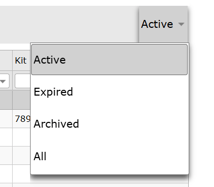
- **Active (Default)** - This is the default system setting but can be modified in the Customize option (Default Filter field). Active shows all Desks that are neither Expired nor Archived.
- **Expired** - Desks with an Effective Date that has passed.
- **Archived** - Desks that have been stored away.
- **All** - Includes Active, Expired, and Archived desks.
Narrow down your search by entering the Desk Number, Description, Date Created, Created By, and the Kit number.
****
#### Customization
You can customize what you view on the screen by selecting the  button in the Action Ribbon
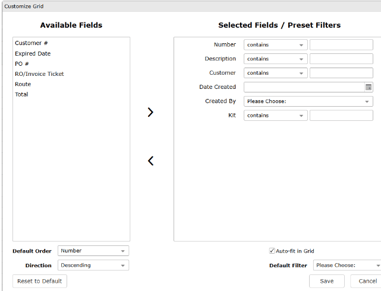
**Available Fields**
You can choose which columns show in the grid, and the order they appear.
- **Customer #** – Assigned customer number
- **Expired Date** – Date the desk expired
- **PO #** – Purchase Order number
- [**RO/Invoice Ticket**](https://help.dominiondms.com/en/knowledge/parts-desk#RO-INVOICE-COLUMN) – Associated ticket
- **Route** – Zone
- **Total** – Total dollar amount
**To Add a Column:**
- Select a field from **Available Fields.**
- Click the **right arrow ( \> )** to move it to **Selected Fields / Preset Filters.**
**To Remove a Column:**
- Select a field from **Selected Fields / Preset Filters.**
- Click the **left arrow ( \< )** to move it back to **Available Fields.**
**To Change Column Order:**
- Click and drag a field in **Selected Fields / Preset Filters** up or down.
**To Set a Default Filter:**
- Click the dropdown next to a field in **Selected Fields / Preset Filters.**
**Sort Order:**
- You can choose how the data is sorted: **Ascending** (A–Z or 1–10) or **Descending** (Z–A or 10–1).
**Export the Grid:**
- Select the  button in the **Action Ribbon** to **Export** your desk to an Excel file for your records.
#### RO/Invoice Ticket Column Feature
When the **RO/Invoice Ticket** column is added to the grid, it shows which tickets each parts desk is linked to.
Here’s what each option means:
- **ROs** – Shows desks that were added to a Repair Order.
- **Invoices** – Shows desks added to a Parts Invoice.
- **Multiple** – Shows desks linked to more than one ticket (ROs or Invoices).
- **None** – Shows desks not linked to any ticket. This column will be blank.
- **Please Choose** – Shows all desks (default setting).
If a desk is linked to a ticket, the ticket number will show as a **clickable link**. Clicking it will open the ticket in a new tab:
**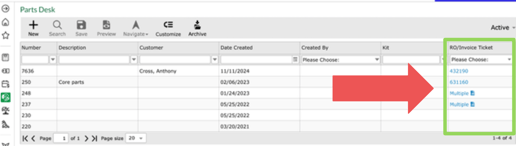**
The **Invoice link** opens the **Parts Invoice** screen. The **Repair Order link** opens the **Back Counter** screen.
If a desk is linked to **multiple tickets**, you’ll see a **paper icon** next to the word **Multiple **
Click the icon to open a **pop-up window** that lists all related tickets.
**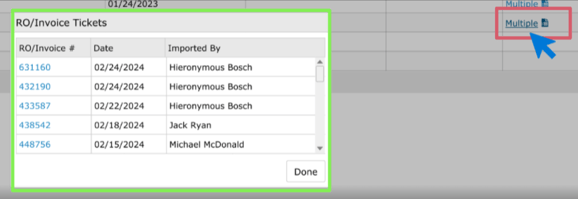**
Tickets are sorted by **date (newest first)**, then by ticket number.
Click the **Close** button or the **X** to return to the grid.
Note:
- Desks with **Parts Kits** will have a blank RO/Invoice Ticket column.
- The grid shows only **Active** desks.
- It shows the **10 most recent desks**. A scroll bar appears if there are more than 10.
### **Create New or Open Existing Parts Desk**
#### Create New
**Within the Primary Grid:**
- Click the **\[New\]** button located in the Action Ribbon. 
**On the Parts Desk screen:**
1. Scroll to the bottom of the screen. In the **Customer Number** field, enter the customer's number. Alternatively, you can type the customer's name in the **Customer Name** field or click the magnifying glass icon to search.

2. Enter the part number in the first **Part Number** field andclick\[TAB\].

3. Click the **\[Save\]** button in the Action Ribbon to save the entry.
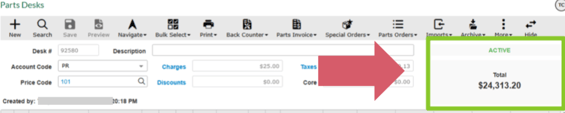
4. A running total is reflected in the top right header of the desk.
**Tip:**
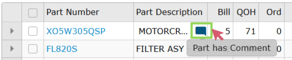
If you see the  icon next to a part, it indicates that a comment is linked to the part.
- When hovering over the icon, it displays *"Part has Comment"*
#### 
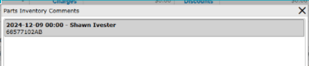
- When clicking on the  indicator, a pop-up displays the comments associated with that part.
#### 
#### Open Existing
Hover over **Parts Invoice**, **Special Orders**, or **Parts Orders**, then select **\[Open Existing\]**.
- If you are in a Parts Desk where a customer is already defined, selecting **\[Open Existing\]** will open a browse window showing only that customer’s orders. Orders from other customers will be filtered out.

- If no customer is defined in the Parts Desk, selecting **\[Open Existing\]** will open the browse window with **all customers' orders**, providing a quick way to search and select any existing tickets or special orders.
#### Create a Kit
**Within the Parts Desk screen:**
1. Click the  button in the Action Ribbon.
2. Add a description of your Kit.

3. Input two or more part numbers to be included in the Parts Kit.

4. Input Kit Number in the **Kit #** field and **\[Tab\]** to save.

5. Input an expiration date in the **to** field. An effective date is not required. However, an expiration date is required. If you do not have a specific date in mind, set the expiration to a date far into the future.

Easily locate your Kit by searching the **Description** or **Kit** number in the **Parts Desk.**

### **Charges and Discounts**
#### Add a Discount
**On the Parts Desk screen:**
1. Click the **Discounts** hyperlink located in the Desk header to open the **Fees** window.

2. In the **Code** dropdown menu, select the appropriate discount to apply.
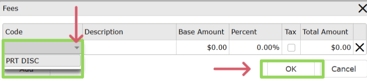
3. Click **\[OK\]** to confirm your selection.
4. Click **\[Save\]** in the Action Ribbon to apply and save the changes.
#### Add a Charge
**On the Parts Desk screen:**
1. Click the **Charges** hyperlink in the Desk header to open the **Fees** window.

2. From the **Code** dropdown menu, select the charge you want to apply.
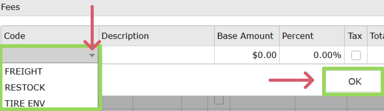
3. Click **\[OK\]** to confirm your selection.
4. Click **\[Save\]** in the Action Ribbon to apply and save the changes.
### **Modifying Price Codes**
#### Modifying the Price Code for the Entire Desk
**On the Parts Desk screen:**
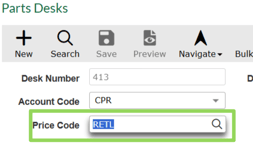
1. Click inside the **Price Code** field in the header. With the field highlighted, press the **\[Delete\]** key to clear the current entry.
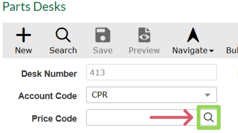
2. Click the **magnifying glass** icon to open the Price Code Search window.
3. In the **Price Code Search** window, select the appropriate Price Code.
4. When prompted with the **"Do you want to reprice all parts?"** message, click **\[Yes\]**.
5. Click **\[Save\]** in the Action Ribbon to apply and save the changes.
#### Modify a single Part Line
**On the Parts Desk screen:**
1. In the **Part Number** grid, click into the **Price Code** field and update the code as needed:
- Enter **"OC"** then hit \[TAB\] to make the **cost** field editable.

- Enter **"OV"** then hit \[TAB\] to make the **sales price** field editable.

2. Click **\[Save\]** in the Action Ribbon to apply and save the changes.
**Tip:**
If you see the  icon next to a part, it indicates that a comment is linked to the part.
- When hovering over the icon, it displays *"Part Comment"*
#### 
- When clicking on the  indicator, a pop-up displays the comments associated with that part.
#### 
### **Report a Lost Sale**
**On the Parts Desk screen:**
1. Click in the **Actions** field next to the relevant part number.
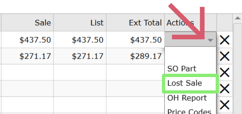
2. From the dropdown menu, select **Lost Sale**.
3. Enter the **quantity** for the lost sale.
4. Click **\[Submit\]** to record the lost sale.
### **Importing Parts to a Repair Order or Invoice**
**On the Parts Desk screen:**
1. Select the checkbox to the left of the part number you want to transfer.

- If no checkboxes are selected, **all parts** on the Desk will be included in the transfer.
2. Hover your cursor over the desired button in the Action Ribbon to display the available options.

3. Choose one of the following actions:
- **New Import** – to transfer the selected parts to a **new** order.
- **Import to Existing** – to transfer the selected parts to an **existing** order.
#### Back Counter \> Import to RO
**On the Parts Desk screen:**
1. Check the box to the left of the part number you want to transfer.

2. Hover your cursor over the **\[Back Counter\]** button in the Action Ribbon, then select **Import to RO**.
3. In the **Browse Repair Order** grid window, select the appropriate **Repair Order**.
4. Once selected, the **Repair Order** number appears in the lower-right corner of the **Parts Desk** screen, regardless of how many parts are being transferred.

**On the Back Counter screen:**
1. Assign an **Operation** to each part number in the **Part Number** grid.
2. Use the **Operation "blast"** function in the **Operations** grid to apply an operation to multiple parts.
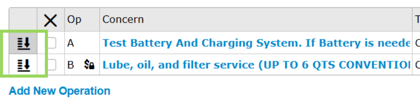
3. Complete the process by selecting **\[Bill to RO\]** in the Action Ribbon

**Note:** If the part quantity is not available **On Hand**, an alert will appear asking if you'd like to create a **Special Order (S.O.)**. Click the hyperlink provided to initiate the Special Order.
#### Parts Invoice \> Import to Invoice
1. Check the box to the left of the part number you want to transfer.

2. Hover your cursor over the **\[Parts Invoice\]** button in the Action Ribbon, then select one of
two options:
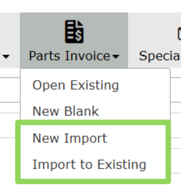
**New Import** - Import to a blank invoice.
**Import to Existing** - Import to an existing invoice.
3. The parts invoice number is recorded on the desk screen. These tickets appear in the bottom right corner of the **Parts Desk** screen.
#### 
The parts invoice number will be attached regardless of the number of parts being imported.
#### EPC Import \> Import from Electronic Parts Catalog
**On the Parts Desk screen:**
Hover over **\[EPC Import\]** and select from the dropdown
****
- **EPC Electronic Parts Catalog Import** - Imports EPC file to a new Parts Desk
- I**mport OEC (Original Equipment Connections)** - Imports OEC files to an existing Parts Desk
### **Create a Special Order**
**On the Parts Desk screen:**
1. Select the part(s) to be special ordered by checking the box to the left of each relevant part number.

- If **no checkboxes are selected**, **all parts** on the Parts Desk will be included in the special order.
2. Hover your cursor over the **\[Special Orders\]** button in the Action Ribbon, then choose one of the following options:
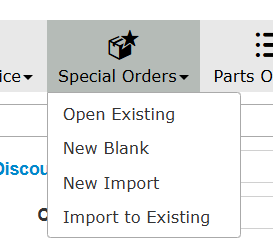
- **Open Existing** – to open and add parts to an existing Special Order.
- **New Import** – to create a new Special Order and import the selected parts.
- **Import to Existing** – to import the selected parts into a previously created Special Order.
- **New Blank** – to open a new, **blank** Special Order for manual entry.
### **Print (Quote, Pick List, and Labels)**
Select the desk you would like to print from.
**On the Parts Desk screen:**
Hover over the **Print** drop-down in the action ribbon and select a Print action.
Hover over the Print icon in the action ribbon and select one of the following print options:
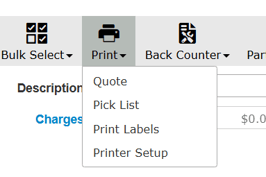
- **Quote** – Prints a detailed quote showing each item. If there are comments associated with that part, they will be visible on the quote.
- **Pick List** – Prints a list of all the parts on your desk.
- **Print Labels** – Prints labels for the parts on your desk.
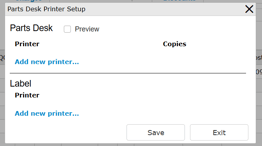
- **Printer Setup** – Allows setting printers for labels and Parts Desk. Click the blue **"Add new printer"** link to add a specific printer for each task
- [Client Support Options](https://help.dominiondms.com/en/knowledge/client-support-options?hsLang=en)
- [Accounting](https://help.dominiondms.com/en/knowledge/accounting?hsLang=en#main-content)
- [General Topics](https://help.dominiondms.com/en/knowledge/accounting?hsLang=en#general-topics)
- [General Ledger - Journals](https://help.dominiondms.com/en/knowledge/accounting?hsLang=en#general-ledger-journals)
- [General Ledger - Schedules](https://help.dominiondms.com/en/knowledge/accounting?hsLang=en#general-ledger-schedules)
- [Cash and Bank \> View Check Register](https://help.dominiondms.com/en/knowledge/accounting?hsLang=en#cash-and-bank-view-check-register)
- [General Ledger \> General Ledger](https://help.dominiondms.com/en/knowledge/accounting?hsLang=en#general-ledger-general-ledger)
- [Monthly \> Financial Statement](https://help.dominiondms.com/en/knowledge/accounting?hsLang=en#monthly-financial-statement)
- [General Ledger \> Post Vehicle Sales](https://help.dominiondms.com/en/knowledge/accounting?hsLang=en#general-ledger-post-vehicle-sales)
- [Accounts Payable \>Vendors](https://help.dominiondms.com/en/knowledge/accounting?hsLang=en#accounts-payable-vendors)
- [Maintenance \> Parts Account Codes](https://help.dominiondms.com/en/knowledge/accounting?hsLang=en#maintenance-parts-account-codes)
- [Maintenance \> Journal Maintenance](https://help.dominiondms.com/en/knowledge/accounting?hsLang=en#maintenance-journal-maintenance)
- [Monthly \> Post Automatic Entries](https://help.dominiondms.com/en/knowledge/accounting?hsLang=en#monthly-post-automatic-entries)
- [Miscellaneous \> Customer Merge](https://help.dominiondms.com/en/knowledge/accounting?hsLang=en#miscellaneous-customer-merge)
- [General Ledger \> Schedule Reconciliation](https://help.dominiondms.com/en/knowledge/accounting?hsLang=en#general-ledger-schedule-reconciliation)
- [Cash and Bank \> Check Register Report](https://help.dominiondms.com/en/knowledge/accounting?hsLang=en#cash-and-bank-check-register-report)
- [Accounts Payable \> Purchase Orders](https://help.dominiondms.com/en/knowledge/accounting?hsLang=en#accounts-payable-purchase-orders)
- [Accounts Receivable \> Customers](https://help.dominiondms.com/en/knowledge/accounting?hsLang=en#accounts-receivable-customers)
- [Cash and Bank \> Reconcile Checking Accounts](https://help.dominiondms.com/en/knowledge/accounting?hsLang=en#cash-and-bank-reconcile-checking-accounts)
- [Maintenance \> Service Account Codes](https://help.dominiondms.com/en/knowledge/accounting?hsLang=en#maintenance-service-account-codes)
- [Maintenance \> Financial Statement Maintenance](https://help.dominiondms.com/en/knowledge/accounting?hsLang=en#maintenance-financial-statement-maintenance)
- [Miscellaneous \> Title Tracking](https://help.dominiondms.com/en/knowledge/accounting?hsLang=en#miscellaneous-title-tracking)
- [Maintenance \> Daily Report Maintenance](https://help.dominiondms.com/en/knowledge/accounting?hsLang=en#maintenance-daily-report-maintenance)
- [General Ledger \> Manual GL Posting](https://help.dominiondms.com/en/knowledge/accounting?hsLang=en#general-ledger-manual-gl-posting)
- [Maintenance \> Employees](https://help.dominiondms.com/en/knowledge/accounting?hsLang=en#maintenance-employees)
- [Maintenance \> Payment Types](https://help.dominiondms.com/en/knowledge/accounting?hsLang=en#maintenance-payment-types)
- [Maintenance \> Schedule Maintenance](https://help.dominiondms.com/en/knowledge/accounting?hsLang=en#maintenance-schedule-maintenance)
- [Monthly \> Open/Close Periods](https://help.dominiondms.com/en/knowledge/accounting?hsLang=en#monthly-open-close-periods)
- [Maintenance \> Bank and Checking Maintenance](https://help.dominiondms.com/en/knowledge/accounting?hsLang=en#maintenance-bank-and-checking-maintenance)
- [Maintenance \> Roles](https://help.dominiondms.com/en/knowledge/accounting?hsLang=en#maintenance-roles)
- [Cash and Bank \> Manual Checks](https://help.dominiondms.com/en/knowledge/accounting?hsLang=en#cash-and-bank-manual-checks)
- [Accounts Receivable \> Receipt Book](https://help.dominiondms.com/en/knowledge/accounting?hsLang=en#accounts-receivable-receipt-book)
- [Maintenance \> Vehicle Sales Maintenance](https://help.dominiondms.com/en/knowledge/accounting?hsLang=en#maintenance-vehicle-sales-maintenance)
- [Accounts Payable \> Accounts Payable](https://help.dominiondms.com/en/knowledge/accounting?hsLang=en#accounts-payable-accounts-payable)
- [Maintenance \> Default Settings](https://help.dominiondms.com/en/knowledge/accounting?hsLang=en#maintenance-default-settings)
- [Monthly \> Statistical Data](https://help.dominiondms.com/en/knowledge/accounting?hsLang=en#monthly-statistical-data)
- [Miscellaneous \> Accessories Due](https://help.dominiondms.com/en/knowledge/accounting?hsLang=en#miscellaneous-accessories-due)
- [Accounts Receivable \> Calculate Finance Charges](https://help.dominiondms.com/en/knowledge/accounting?hsLang=en#accounts-receivable-calculate-finance-charges)
- [Reports \> Schedule Reports](https://help.dominiondms.com/en/knowledge/accounting?hsLang=en#reports-schedule-reports)
- [Monthly \> Reporting Account Setup](https://help.dominiondms.com/en/knowledge/accounting?hsLang=en#monthly-reporting-account-setup)
- [Miscellaneous \> Reopen Parts & Service Tickets](https://help.dominiondms.com/en/knowledge/accounting?hsLang=en#miscellaneous-reopen-parts-service-tickets)
- [Maintenance \> Automatic Entry Maintenance](https://help.dominiondms.com/en/knowledge/accounting?hsLang=en#maintenance-automatic-entry-maintenance)
- [Accounts Receivable \> Statements](https://help.dominiondms.com/en/knowledge/accounting?hsLang=en#accounts-receivable-statements)
- [Cash and Bank \> 1099s](https://help.dominiondms.com/en/knowledge/accounting?hsLang=en#cash-and-bank-1099s)
- [Reports - Chart of Accounts](https://help.dominiondms.com/en/knowledge/accounting?hsLang=en#reports-chart-of-accounts)
- [Accounts Receivable \> Aged Analysis Report](https://help.dominiondms.com/en/knowledge/accounting?hsLang=en#accounts-receivable-aged-analysis-report)
- [Reports \> Trial Balance](https://help.dominiondms.com/en/knowledge/accounting?hsLang=en#reports-trial-balance)
- [Reports \> Trend Analysis](https://help.dominiondms.com/en/knowledge/accounting?hsLang=en#reports-trend-analysis)
- [Reports \> Stock/Schedule Comparison](https://help.dominiondms.com/en/knowledge/accounting?hsLang=en#reports-stock-schedule-comparison)
- [Reports \> Journal Reports](https://help.dominiondms.com/en/knowledge/accounting?hsLang=en#reports-journal-reports)
- [Reports \> General Ledger](https://help.dominiondms.com/en/knowledge/accounting?hsLang=en#reports-general-ledger)
- [Reports \> Customer List](https://help.dominiondms.com/en/knowledge/accounting?hsLang=en#reports-customer-list)
- [Reports \> Employee](https://help.dominiondms.com/en/knowledge/accounting?hsLang=en#reports-employee)
- [Reports \> RO Invoice Location](https://help.dominiondms.com/en/knowledge/accounting?hsLang=en#reports-ro-invoice-location)
- [Reports \> Floorplan Rebate](https://help.dominiondms.com/en/knowledge/accounting?hsLang=en#reports-floorplan-rebate)
- [Reports \> Floorplan Report](https://help.dominiondms.com/en/knowledge/accounting?hsLang=en#reports-floorplan-report)
- [Reports \> Vendor List](https://help.dominiondms.com/en/knowledge/accounting?hsLang=en#reports-vendor-list)
- [End of Year](https://help.dominiondms.com/en/knowledge/accounting?hsLang=en#end-of-year)
- [Parts](https://help.dominiondms.com/en/knowledge/parts?hsLang=en#main-content)
- [Counter - Parts Inventory](https://help.dominiondms.com/en/knowledge/parts?hsLang=en#counter-parts-inventory)
- [Counter - Parts Desk](https://help.dominiondms.com/en/knowledge/parts?hsLang=en#counter-parts-desk)
- [Physical Inventory \> Physical Inventory](https://help.dominiondms.com/en/knowledge/parts?hsLang=en#physical-inventory-physical-inventory)
- [Management \> Parts Returns](https://help.dominiondms.com/en/knowledge/parts?hsLang=en#management-parts-returns)
- [Management \> Parts Orders](https://help.dominiondms.com/en/knowledge/parts?hsLang=en#management-parts-orders)
- [Management \> Purchase Orders](https://help.dominiondms.com/en/knowledge/parts?hsLang=en#management-purchase-orders)
- [Maintenance \> Order Sources](https://help.dominiondms.com/en/knowledge/parts?hsLang=en#maintenance-order-sources)
- [Management \> Parts Inventory Update](https://help.dominiondms.com/en/knowledge/parts?hsLang=en#management-parts-inventory-update)
- [Cashier \> Receipt Book](https://help.dominiondms.com/en/knowledge/parts?hsLang=en#cashier-receipt-book)
- [Cashier \> Parts Invoices](https://help.dominiondms.com/en/knowledge/parts?hsLang=en#cashier-parts-invoices)
- [Counter \> Parts Request Roster](https://help.dominiondms.com/en/knowledge/parts?hsLang=en#counter-parts-request-roster)
- [Miscellaneous \> All Vehicles](https://help.dominiondms.com/en/knowledge/parts?hsLang=en#miscellaneous-all-vehicles)
- [Maintenance \> Fees](https://help.dominiondms.com/en/knowledge/parts?hsLang=en#maintenance-fees)
- [Maintenance \> Price Codes](https://help.dominiondms.com/en/knowledge/parts?hsLang=en#maintenance-price-codes)
- [Counter \> Parts Invoices](https://help.dominiondms.com/en/knowledge/parts?hsLang=en#counter-parts-invoices)
- [Miscellaneous \> Vendors](https://help.dominiondms.com/en/knowledge/parts?hsLang=en#miscellaneous-vendors)
- [Counter \> Back Counter](https://help.dominiondms.com/en/knowledge/parts?hsLang=en#counter-back-counter)
- [Miscellaneous \> Customers](https://help.dominiondms.com/en/knowledge/parts?hsLang=en#miscellaneous-customers)
- [Counter \> Special Orders](https://help.dominiondms.com/en/knowledge/parts?hsLang=en#counter-special-orders)
- [Maintenance \> Order Groups](https://help.dominiondms.com/en/knowledge/parts?hsLang=en#maintenance-order-groups)
- [Maintenance \> Parts Inventory Parts Type](https://help.dominiondms.com/en/knowledge/parts?hsLang=en#maintenance-parts-inventory-parts-type)
- [Cashier \> Daily Close](https://help.dominiondms.com/en/knowledge/parts?hsLang=en#cashier-daily-close)
- [Maintenance \> Header Fees](https://help.dominiondms.com/en/knowledge/parts?hsLang=en#maintenance-header-fees)
- [Management \> Parts Phasing](https://help.dominiondms.com/en/knowledge/parts?hsLang=en#management-parts-phasing)
- [Reports \> Sales](https://help.dominiondms.com/en/knowledge/parts?hsLang=en#reports-sales)
- [Management \> Inventory Management Tool](https://help.dominiondms.com/en/knowledge/parts?hsLang=en#management-inventory-management-tool)
- [Reports \> Special Order](https://help.dominiondms.com/en/knowledge/parts?hsLang=en#reports-special-order)
- [Cashier Receipts Report](https://help.dominiondms.com/en/knowledge/parts?hsLang=en#cashier-receipts-report)
- [Reports \> Inventory](https://help.dominiondms.com/en/knowledge/parts?hsLang=en#reports-inventory)
- [Parts \> Reports](https://help.dominiondms.com/en/knowledge/parts?hsLang=en#parts-reports)
- [Service](https://help.dominiondms.com/en/knowledge/service?hsLang=en#main-content)
- [Maintenance \> Op Codes](https://help.dominiondms.com/en/knowledge/service?hsLang=en#maintenance-op-codes)
- [Advisor \> Repair Orders](https://help.dominiondms.com/en/knowledge/service?hsLang=en#advisor-repair-orders)
- [Maintenance \> Fees](https://help.dominiondms.com/en/knowledge/service?hsLang=en#maintenance-fees)
- [Reports \> Payroll \> Unpaid Technician Labor Report](https://help.dominiondms.com/en/knowledge/service?hsLang=en#reports-payroll-unpaid-technician-labor-report)
- [Advisor \> Appointment Schedule](https://help.dominiondms.com/en/knowledge/service?hsLang=en#advisor-appointment-schedule)
- [Advisor \> Appointments](https://help.dominiondms.com/en/knowledge/service?hsLang=en#advisor-appointments)
- [Maintenance \> Skill Sets](https://help.dominiondms.com/en/knowledge/service?hsLang=en#maintenance-skill-sets)
- [Technician \> Technician System](https://help.dominiondms.com/en/knowledge/service?hsLang=en#technician-technician-system)
- [Advisor \> Special Orders](https://help.dominiondms.com/en/knowledge/service?hsLang=en#advisor-special-orders)
- [Cashier \> Receipt Book](https://help.dominiondms.com/en/knowledge/service?hsLang=en#cashier-receipt-book)
- [Miscellaneous \> Customers](https://help.dominiondms.com/en/knowledge/service?hsLang=en#miscellaneous-customers)
- [Maintenance \> Header Fees](https://help.dominiondms.com/en/knowledge/service?hsLang=en#maintenance-header-fees)
- [Miscellaneous \> All Vehicles](https://help.dominiondms.com/en/knowledge/service?hsLang=en#miscellaneous-all-vehicles)
- [Advisor \> Appointment Calendar](https://help.dominiondms.com/en/knowledge/service?hsLang=en#advisor-appointment-calendar)
- [Advisor \> Purchase Orders](https://help.dominiondms.com/en/knowledge/service?hsLang=en#advisor-purchase-orders)
- [Advisor \> Route Sheet](https://help.dominiondms.com/en/knowledge/service?hsLang=en#advisor-route-sheet)
- [Miscellaneous \> Vendors](https://help.dominiondms.com/en/knowledge/service?hsLang=en#miscellaneous-vendors)
- [Maintenance \> Labor Rates](https://help.dominiondms.com/en/knowledge/service?hsLang=en#maintenance-labor-rates)
- [Advisor \> Parts Inventory](https://help.dominiondms.com/en/knowledge/service?hsLang=en#advisor-parts-inventory)
- [Reports \> Sales](https://help.dominiondms.com/en/knowledge/service?hsLang=en#reports-sales)
- [Reports \> Audit](https://help.dominiondms.com/en/knowledge/service?hsLang=en#reports-audit)
- [Maintenance \> Rate Levels](https://help.dominiondms.com/en/knowledge/service?hsLang=en#maintenance-rate-levels)
- [Maintenance \> Service Dispatch Configuration](https://help.dominiondms.com/en/knowledge/service?hsLang=en#maintenance-service-dispatch-configuration)
- [Maintenance \> Service Configurations](https://help.dominiondms.com/en/knowledge/service?hsLang=en#maintenance-service-configurations)
- [Maintenance \> Tech Management](https://help.dominiondms.com/en/knowledge/service?hsLang=en#maintenance-tech-management)
- [Maintenance \> Employees](https://help.dominiondms.com/en/knowledge/service?hsLang=en#maintenance-employees)
- [Reports](https://help.dominiondms.com/en/knowledge/service?hsLang=en#reports)
- [Reports \> Appointment](https://help.dominiondms.com/en/knowledge/service?hsLang=en#reports-appointment)
- [Dominion Dealer University](https://help.dominiondms.com/en/knowledge/dominion-dealer-university?hsLang=en)
- [Sales and F&I](https://help.dominiondms.com/en/knowledge/sales-and-fi?hsLang=en#main-content)
- [F&I \> Sales Desk](https://help.dominiondms.com/en/knowledge/sales-and-fi?hsLang=en#fi-sales-desk)
- [Miscellaneous \> Purchase Orders](https://help.dominiondms.com/en/knowledge/sales-and-fi?hsLang=en#miscellaneous-purchase-orders)
- [Reports \> Sales](https://help.dominiondms.com/en/knowledge/sales-and-fi?hsLang=en#reports-sales)
- [Vehicles \> Vehicle Inventory](https://help.dominiondms.com/en/knowledge/sales-and-fi?hsLang=en#vehicles-vehicle-inventory)
- [Maintenance \> Miscellaneous](https://help.dominiondms.com/en/knowledge/sales-and-fi?hsLang=en#maintenance-miscellaneous)
- [F&I \> Deals](https://help.dominiondms.com/en/knowledge/sales-and-fi?hsLang=en#fi-deals)
- [Maintenance \> Vehicles](https://help.dominiondms.com/en/knowledge/sales-and-fi?hsLang=en#maintenance-vehicles)
- [Vehicles \> All Vehicles](https://help.dominiondms.com/en/knowledge/sales-and-fi?hsLang=en#vehicles-all-vehicles)
- [F&I \> Prospects](https://help.dominiondms.com/en/knowledge/sales-and-fi?hsLang=en#fi-prospects)
- [F&I \> Outside Sales](https://help.dominiondms.com/en/knowledge/sales-and-fi?hsLang=en#fi-outside-sales)
- [Maintenance \> Sales](https://help.dominiondms.com/en/knowledge/sales-and-fi?hsLang=en#maintenance-sales)
- [Miscellaneous \> Vendors](https://help.dominiondms.com/en/knowledge/sales-and-fi?hsLang=en#miscellaneous-vendors)
- [Miscellaneous \> Customers](https://help.dominiondms.com/en/knowledge/sales-and-fi?hsLang=en#miscellaneous-customers)
- [Miscellaneous \> Receipt Book](https://help.dominiondms.com/en/knowledge/sales-and-fi?hsLang=en#miscellaneous-receipt-book)
- [Reports \> Commission](https://help.dominiondms.com/en/knowledge/sales-and-fi?hsLang=en#reports-commission)
- [Sales \> Reports](https://help.dominiondms.com/en/knowledge/sales-and-fi?hsLang=en#sales-reports)
- [Reports \> F&I](https://help.dominiondms.com/en/knowledge/sales-and-fi?hsLang=en#reports-fi)
- [Payroll](https://help.dominiondms.com/en/knowledge/payroll?hsLang=en#main-content)
- [Maintenance \> Company Information](https://help.dominiondms.com/en/knowledge/payroll?hsLang=en#maintenance-company-information)
- [Payroll Process \> Void Payroll Checks](https://help.dominiondms.com/en/knowledge/payroll?hsLang=en#payroll-process-void-payroll-checks)
- [Payroll Process \> Enter/Edit Payroll Entries](https://help.dominiondms.com/en/knowledge/payroll?hsLang=en#payroll-process-enter-edit-payroll-entries)
- [Reports \> Quarterly Reports](https://help.dominiondms.com/en/knowledge/payroll?hsLang=en#reports-quarterly-reports)
- [Maintenance \> Employee Information](https://help.dominiondms.com/en/knowledge/payroll?hsLang=en#maintenance-employee-information)
- [Payroll \> Reports](https://help.dominiondms.com/en/knowledge/payroll?hsLang=en#payroll-reports)
- [Maintenance \> Archive Current Year](https://help.dominiondms.com/en/knowledge/payroll?hsLang=en#maintenance-archive-current-year)
- [Payroll \> Processing](https://help.dominiondms.com/en/knowledge/payroll?hsLang=en#payroll-processing)
- [OEM DCS](https://help.dominiondms.com/en/knowledge/oem-dcs?hsLang=en#main-content)
- [GM](https://help.dominiondms.com/en/knowledge/oem-dcs?hsLang=en#gm)
- [Ford](https://help.dominiondms.com/en/knowledge/oem-dcs?hsLang=en#ford)
- [General Topics](https://help.dominiondms.com/en/knowledge/general-topics?hsLang=en#main-content)
- [Print](https://help.dominiondms.com/en/knowledge/general-topics?hsLang=en#print)
- [VUE](https://help.dominiondms.com/en/knowledge/general-topics?hsLang=en#vue)
- [VUE Training & User Guides](https://help.dominiondms.com/en/knowledge/vue-training-user-guides?hsLang=en#main-content)
- [User Guides](https://help.dominiondms.com/en/knowledge/vue-training-user-guides?hsLang=en#user-guides)
- [Podcasts and VideoCasts](https://help.dominiondms.com/en/knowledge/podcasts-and-videocasts?hsLang=en#main-content)
- [Service Management](https://help.dominiondms.com/en/knowledge/podcasts-and-videocasts?hsLang=en#service-management)
- [Collision Center/ Body Shop](https://help.dominiondms.com/en/knowledge/podcasts-and-videocasts?hsLang=en#collision-center-body-shop)
- [CRM](https://help.dominiondms.com/en/knowledge/podcasts-and-videocasts?hsLang=en#crm)
- [Document Management](https://help.dominiondms.com/en/knowledge/podcasts-and-videocasts?hsLang=en#document-management)
- [Vehicle Inventory Management](https://help.dominiondms.com/en/knowledge/podcasts-and-videocasts?hsLang=en#vehicle-inventory-management)
- [Accounting Processes](https://help.dominiondms.com/en/knowledge/podcasts-and-videocasts?hsLang=en#accounting-processes)
- [F&I Deal Process](https://help.dominiondms.com/en/knowledge/podcasts-and-videocasts?hsLang=en#fi-deal-process)
- [Payroll](https://help.dominiondms.com/en/knowledge/podcasts-and-videocasts?hsLang=en#payroll)
- [Retail and Fleet Management](https://help.dominiondms.com/en/knowledge/podcasts-and-videocasts?hsLang=en#retail-and-fleet-management)
- [Digital Retail](https://help.dominiondms.com/en/knowledge/podcasts-and-videocasts?hsLang=en#digital-retail)
- [Credit Bureaus](https://help.dominiondms.com/en/knowledge/podcasts-and-videocasts?hsLang=en#credit-bureaus)
- [eContracting](https://help.dominiondms.com/en/knowledge/podcasts-and-videocasts?hsLang=en#econtracting)
- [Marketing](https://help.dominiondms.com/en/knowledge/podcasts-and-videocasts?hsLang=en#marketing)
- [Payment Processing](https://help.dominiondms.com/en/knowledge/podcasts-and-videocasts?hsLang=en#payment-processing)
- [Registration and Titling](https://help.dominiondms.com/en/knowledge/podcasts-and-videocasts?hsLang=en#registration-and-titling)
- [Recent Enhancements](https://help.dominiondms.com/en/knowledge/recent-enhancements?hsLang=en#main-content)
- [VUE Software Updates](https://help.dominiondms.com/en/knowledge/recent-enhancements?hsLang=en#vue-software-updates)
[](https://www.dominiondms.com)
150 Granby St
Norfolk, VA 23510
[Copyright - Dominion DMS](https://forms.office.com/Pages/ResponsePage.aspx?id=6f83PexuWE-xqW9kLygglODQggSQzXZEttZ8lNAOypBUN1hUV0VUTlpXMzE5RVdOVEtVVU5CMlVROS4u)