
Overview
Magnetic Ink Character Recognition (MICR) printing, prints the bank routing number, account number, and check number on a safety paper using a dedicated printer and safety paper stock. This functionality in VUE supports multicompany dealerships and dealers with multiple bank accounts. This function requires a MICR enabled printer that uses MICR ink.
Permissions
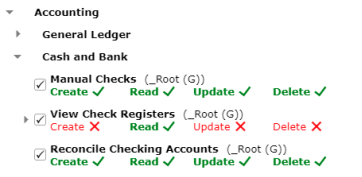
Users must have permissions enabled to run and print checks. Roles would include Title Clerk, A/P
Clerk, Billing Clerk, and Accounting Manager.
Set-Up
• Printer requirements - MICR printing requires an MICR Printer that can utilize two ink cartridges at once (MICR ink and regular ink) and most dealers will want multiple paper trays to manage different color checks. At a minimum, one tray is needed for checks and a method to print the overflow.
• Paper requirements - Unique color safety paper for each checking account and plain paper for any overflow (like itemizing the invoices or amounts for each line) is recommended.
• Bank Information requirements - Bank account numbers, next check number, and any single line of
information you want to print below the bank phone number on each check.
MIRC Check Printing
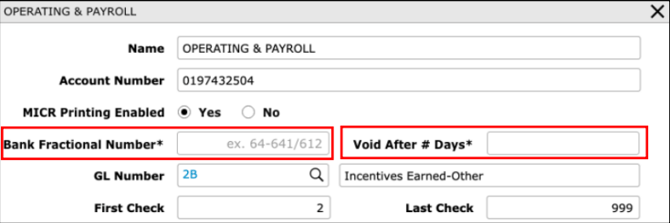
You need to know the Bank Fractional Number and the number of days to voiding before you can enable MICR Printing.
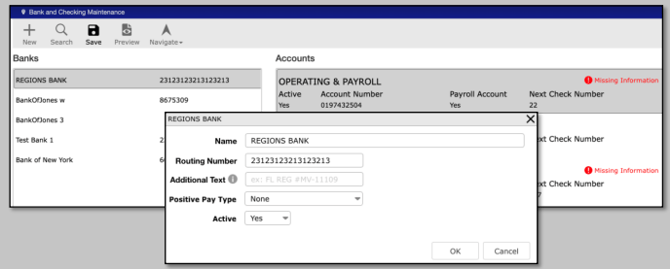
1. Navigate to Accounting > Maintenance > Bank and Checking Maintenance
2. Select a bank from the Banks section.
3. Double click an account from the Accounts section, or select a bank and click Edit in the lower right, to open the bank’s account detail window.
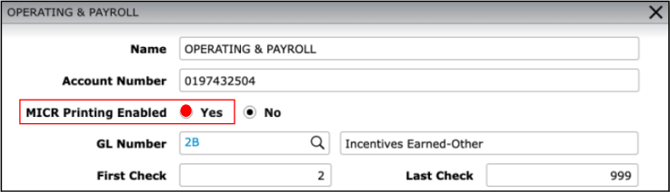
4. Mark the MICR Printing Enabled to Yes.
5. Input the Bank Fractional Number and the Void After # Days number.
6. Click OK in the lower right to return to the Bank and Checking Maintenance screen.
7. Click Save in the Action Ribbon.