
The Inventory Stock report lists vehicles in inventory, including optionally on-order vehicles, organized by VIN and providing detailed information such as arrival date, age, stock number (linked to vehicle records), condition (new/used), class, VIN, lot, year, make, model, mileage, color, body, transmission, cylinders, and pricing.
Frequency: Monthly
Who uses it: Sales Managers
Why they use it: Print PDFs for sales staff and by used managers to adjust vehicle prices quickly.
Navigate to: Sales > Reports > Vehicle > Inventory Stock
Choose Parameters
This section clarifies the parameters outlined in this report. For additional details that apply to all reports, please refer to the Common Report Features article.
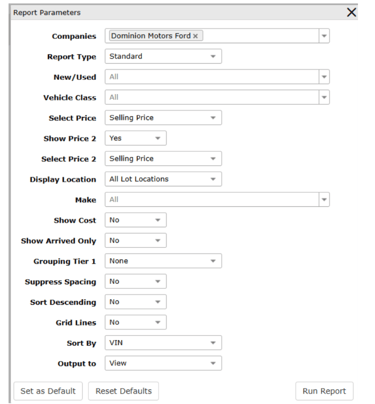
Report Type – Standard to generate in VUE, Export to generate an Excel spreadsheet.
New/Used - Select specifically to generate report information on New or Used vehicles. All is the default.
Vehicle Class – Select specifically to generate report information on types of vehicles (Car, SUV, Truck, etc.). Multiples can be selected. All is the default.
Select Price – Select specifically to generate report information on pricing on the vehicle (e.g., Selling Price or Internet Price, if applicable). Selling Price is the default.
Show Price 2 – If applicable and multiple prices are added to vehicle records. Select to show multiple prices on the vehicle (e.g., Selling Price and Internet Price). Yes is the default, making the Select Price 2 facet appear. If changed to No, the Select Price 2 facet is removed.
Select Price 2 – If applicable, and multiple prices are added to vehicle records. If Show Price 2 is set to Yes, select an additional price to display from the vehicle data (e.g., Internet Price).
Display Location – If applicable, and vehicle records include Lot information. Default is All Lot Locations. Selecting Include generates a Lot Location(s) facet to type specific lot(s) for the report to only look at (separate multiple Lot codes with a comma). Selecting Exclude generates a Lot Location(s) facet to specify the lot(s) to omit from the report (separate multiple Lot codes with a comma).
Make - Select specifically to generate report information on Makes of vehicles (Chevrolet, GMC, Buick etc.). Multiples can be selected. All is the default.
Show Cost – Select to generate the Cost amount from vehicle records into the report. No is the default. If changed to Yes, a Cost Type facet appears to select the specific vehicle cost in the report data (Actual Cost, Commissionable Cost, Scheduled Cost, or Total Cost).
Show Arrived Only – Select to specify vehicles that are In Stock or On Order. No is the default, showing both In Stock and On Order. Changing to Yes shows only In Stock vehicles.
Grouping Tier 1 – Select to create a specific view of the data presented. Default is None. Options are Year, Make, or Model. If an option is selected, a Grouping Tier 2 facet appears, allowing selection of another option. If an option is selected from Grouping Tier 2, a Grouping Type 3 facet appears allowing, for example, to select vehicles to be grouped by Year, Make and Model if desired.
Sort Descending – Select to sort report data in descending order based on the criteria selected in the Sort By facet. Default is Yes.