Table of Contents
For Dealer Administrators
Credit Application - Within VUE
-
VUE Credit Application Details - Applicant
-
VUE Credit Application Details - Co-Applicant
-
VUE Credit Application Details - Vehicle
-
VUE Credit Application Details - Trade
-
VUE Credit Application Details - Product
-
VUE Credit Application Details - Submitting the Application
Credit Application - Within Dealertrack
eContracting: Within VUE
eContracting: Within Dealertrack
Credit Application - Within VUE
Sales and F&I
- Navigate to Sales > F&I > Sales Desk or Deals
- Filter/Sort the primary grid to locate the Sales Desk or Deal.
- Click to select the corresponding line for the Sales Desk or Deal.
- Hover over the More icon in the Action Ribbon and select [Credit Request] from the drop down.
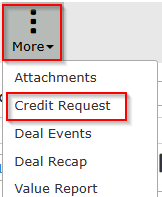
- A prompt will generate.
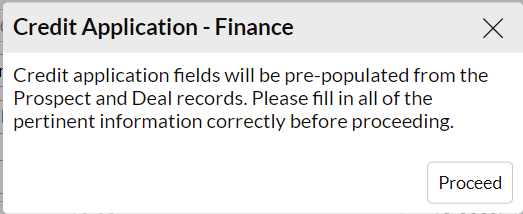
- If this is the first time attempting to submit credit on the customer, the prompt notifies that credit application information will populate from the Prospect and Deal data.
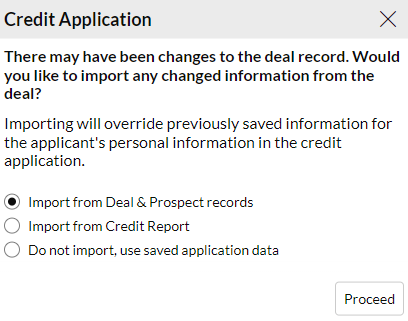
- If credit application data has been previously saved, a prompt will generate providing the option to re-import from the Deal & Prospect, or use the Saved Application data.
- If this is the first time attempting to submit credit on the customer, the prompt notifies that credit application information will populate from the Prospect and Deal data.
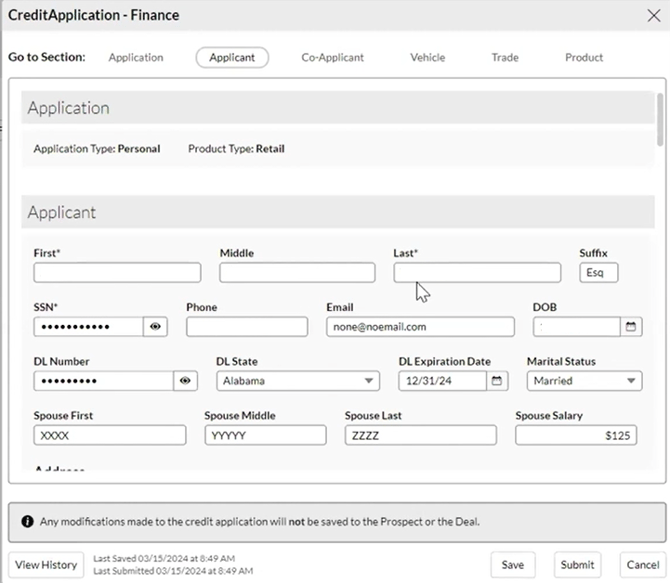
- The Credit Application will generate.
-
- NOTE: If Prospect Class is selected as Business, an additional field will be provided to the top of the application to capture the appropriate business fields.
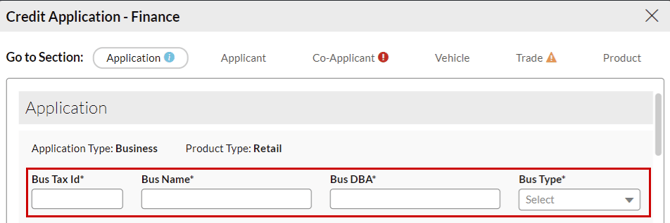
- NOTE: If Prospect Class is selected as Business, an additional field will be provided to the top of the application to capture the appropriate business fields.
Use the Go to Section area to navigate the Credit Application.

Required fields are marked with an asterisk.
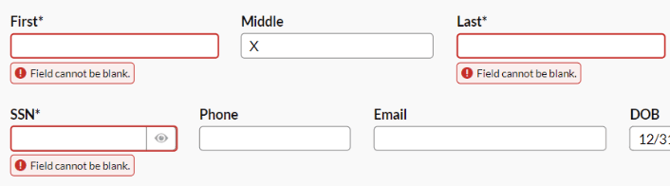
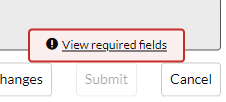
If required fields are left blank, warnings will generate and the Submit button to the bottom of the Credit Application will not be available. Hovering over the Submit button will reveal remaining required fields that need attention.
Note: Changes made in the Credit Application DO NOT update the deal. They are only used for the Credit application.
VUE Credit Application Details - Applicant
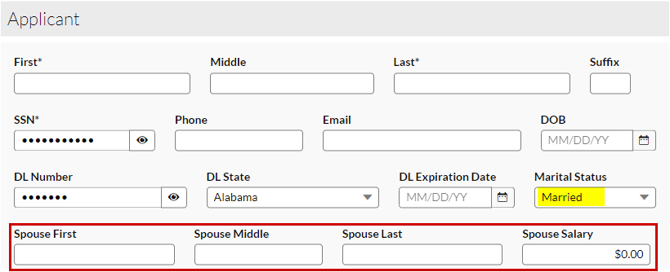
Applicant data pre-populates from Prospect record, where available.
|
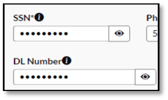
Pro Tip - The SSN and Driver’s License fields offer a Show/Hide icon. Permissioned users can toggle between Show and Hide, as well as add and edit the SSN and DL fields. Users without permissions may not toggle it, but they can enter a new SSN or DL to change it until the [Save] button is selected.
|
Spouse fields will only be shown if Marital Status is selected as Married.
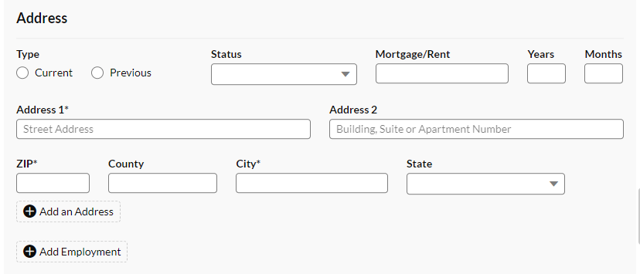
Address Information
The address information captured in the prospect record will populate. This data can be updated as necessary.
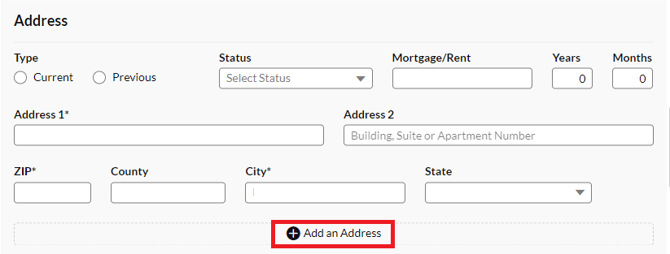
Use Add an Address to record a previous address if necessary.
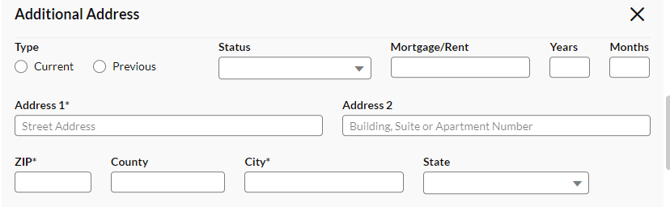
Note: there is a limit of two entries (Current and Previous).
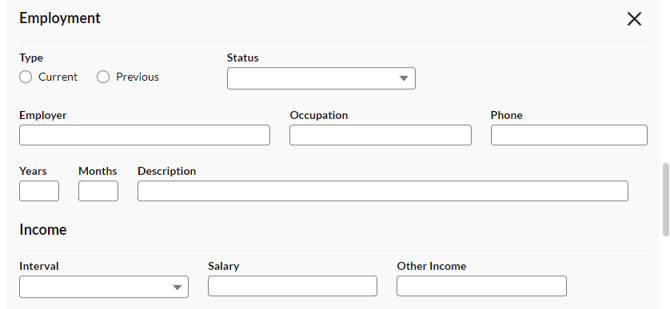
Employment
Employment information must be added manually.
Use Add Additional Employment to record a previous employer.
Note: there is a limit of two entries (Current and Previous).
VUE Credit Application Details - Co-Applicant
Co-applicant data prepopulates from the co-buyer tab of the Prospect record, where available.
If there is no co-buyer, the co-applicant fields are hidden by default, with a button to add a co-applicant.

Addresses and Employment follow the same rules for both the Applicant and the Co-applicant.
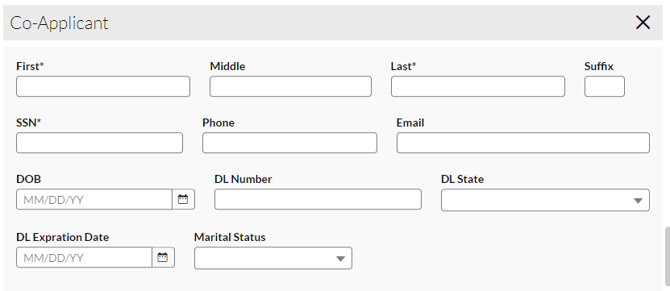
The X will delete the Co-applicant entry.

VUE Credit Application Details - Vehicle
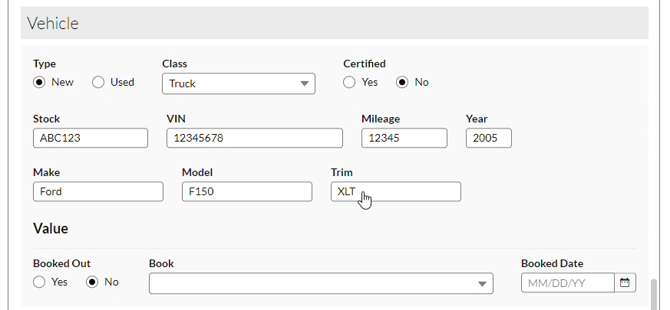
Vehicle data pre-populates from the Vehicle record, where available
- The Value area is relevant only if the vehicle is Used.
- This information must be entered manually.
- Available Books are NADA Book, Kelley Blue Book, and Black Book.
- Note: this Booked Date refers to the date of the appraisal, and is not the same as the accounting booked date.
VUE Credit Application Details - Trade
Trade data pre-populates from the Trades tab of the Prospect record, where available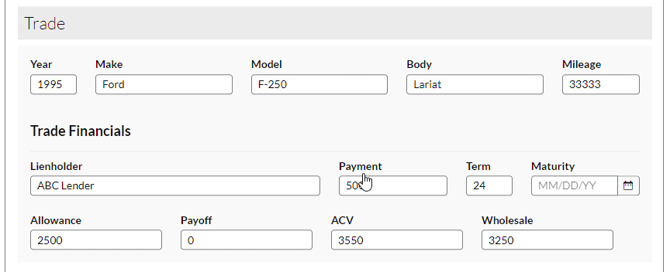
- Data here can be updated before submitting; however, any changes will not reflect in the trade vehicle record.
VUE Credit Application Details - Product
Data will populate based on information in the Desk.
Note: Changes made in the Product section do NOT update the deal. They are only used for the Credit application.
For a Finance Deal:
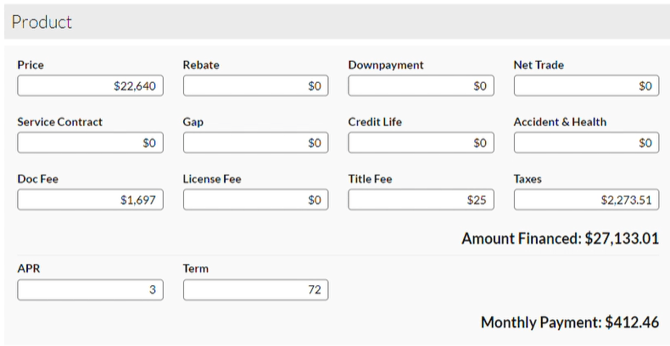
Amount Financed and Monthly Payment will update based on other values, but are not directly editable since they are calculated fields.
For a Lease Deal:
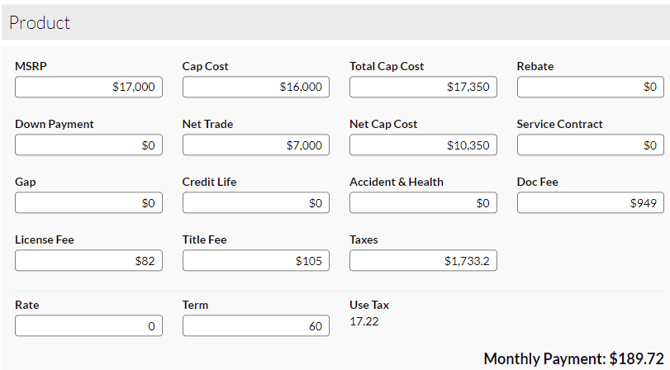
Monthly Payment will update based on other values, but is not directly editable since it is a calculated field.
Use Tax is not editable because it is a calculated field.
VUE Credit Application Details - Submitting the Application
Once all required information is entered, the Submit button will be available.
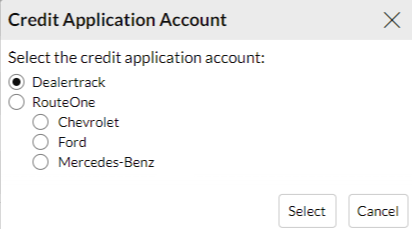
If more than one integration or account is used, an account selection window will be generated.
Credit Application - Within Dealertrack
Sign into Dealertrack (https://us.dealertrack.com) once the credit application has been sent from VUE.
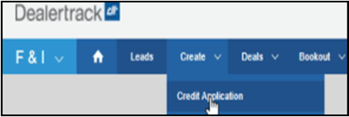
- Navigate to Create > Credit Application.
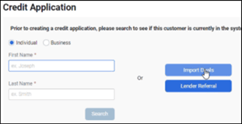
- Click on the [Import Deals] button.
- Select a customer to import and click on the [Continue] button.
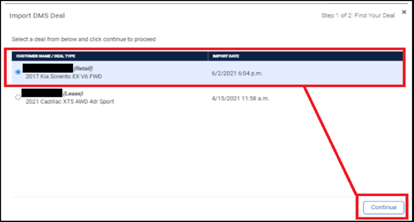
- Review your credit options and make a decision on the lender and credit terms.
eContracting: Within VUE
- Navigate to Sales > F&I > Sales Desk or Deals
- Filter/Sort the primary grid to locate the Sales Desk or Deal.
- Click to select the corresponding line for the Sales Desk or Deal.
- From a Desk update the Deal information.
→ Click [Make Deal]. - The Deal information will automatically be transmitted to Dealertrack via SIS.
eContracting: Within Dealertrack
- Navigate to Deals > Active and select an application.
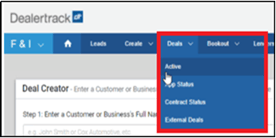
- Once the application and Credit Decision are made from either the Credit Decision or the Contracts tab, click on the [Import from DMS] button to import from SIS.
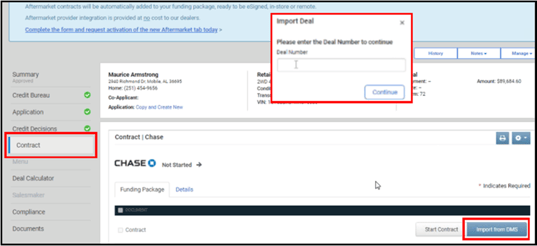
- Enter the VUE deal number.
- When the Deal is pulled in, verify all Deal information and make adjustments as needed. Once complete, you may select Submit for Verification.
NOTE: Clicking the [Import from DMS] button and selecting a Deal that has been previously imported updates the Deal with any changes that have been made in VUE. - Upload digital contracts to complete the eContracting process.
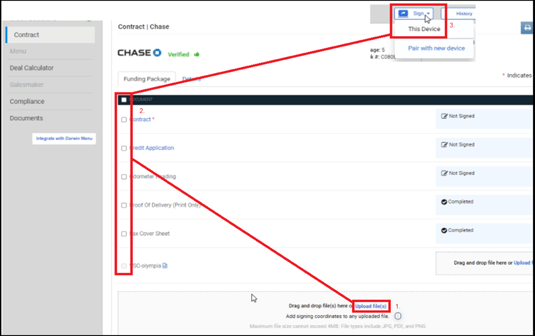
- Select the digital forms to be signed.
-
Go to [Sign] and select [This Device] when using with a tablet or a signature pad.