Learn to create dashboards before creating this report. See a short video and step-by-step instructions by searching Help for How to Create Dashboards.
Start by clicking on the Dominion VUE logo on your dashboard.
From the Home Page:
Select an existing Dashboard: Click on the far-right caret next to Unassigned Reports (or the current Dashboard name), or
Create a new Dashboard: Click [ New ] enter a name and click [ Create ]
Click the [Add Report] button in the Action Ribbon.
The Report Tab:
Report Basis - Select [ Service Repair Orders ]
Report Title - “Today’s Closed Repair Orders”
Default View - Number
- Set Background Color - Red
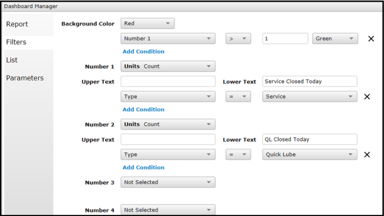 Click [ Add Condition ]
 - Set [Number 1] [ > ] [1 or amount] [Green]
- Specify Number 1 as [Units Count]
- Leave Upper Text Blank Lower Text “Service Closed Today”
- Click [ Add Condition ]
- [ Type ] [ = ] [ Service ]
- Specify Number 2 as [Units Count]
- Leave Upper Text Blank Lower Text “QL Closed Today”
- Click [ Add Condition ]
- [ Type ] [ = ] [ Quick Lube
The Parameters Tab:
- Report Title [ Today’s Closed Repair Orders ]
- Companies [ Select Companies to include ]
- Advisor [ All or select individual ]
- Open Status [ Closed ]
- Based On [ RO Status ]
- Date Type [ Preset Date Range ]
- Date Range [ Today ]
- Click [Save]
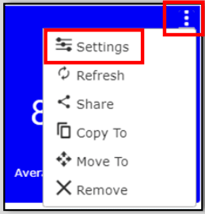
Each Dashboard Report may be edited by clicking on the three ellipses in the upper right
corner and clicking on Settings. Contact Customer Support for details on creating
personalized Dashboards