
Click on a TUNE UP image for a silent walk-through.
Be aware - If there is an Accounts Receivable balance on the customer you are merging, you will need to transfer funds accordingly.
Customer Merge - Avoid Duplicating Customers - Click on the PDF below to download the full document for greater detail.
Table of Contents
Overview
Permissions
Customer Merge Process - From Customer and Vendor Records
Customer Merge Process - From Customer Merge
What Happens to the Data
Avoiding Duplicating Customers
Overview
Customer Merge is a wizard to locate and merge Customer and Vendor records to eliminate duplicate records.
Permissions
Accounting > Maintenance > Employee
Within Global Permissions, you must have Read and Update access to:
• Override Credit Limit
• Edit Vendor A/P Account
• Edit Vendor P/O Account
• Edit Vendor Discount Account
• Edit Tax Exempt Status and Id
• Edit Non-Editable Customers to merge customers marked Do Not Edit.
Note: Users without this permission may still merge customers who are not marked Do Not Edit.
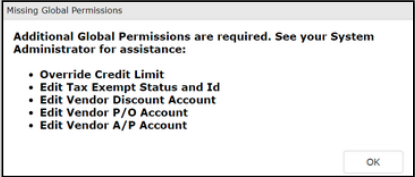
Each user must also have Read and Update access to the Customer Merge permission at Accounting > Miscellaneous > Customer Merge.
Customer Merge Process - From Customer and Vendor Records
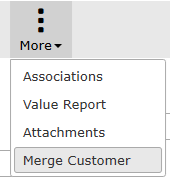
Customer Merges can be performed from within a Customer or Vendor record by hovering over the More button in a Customer/Vendor record and selecting Merge Customer.
A list of all customers will be presented. Use the search blocks to find the match.
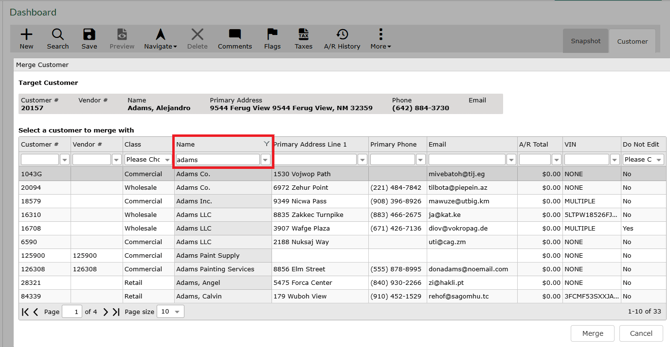
Click on the appropriate match from the search results and follow the steps below.
Customer Merge Process - From Customer Merge
Navigate to Accounting > Miscellaneous > Customer Merge
• Filter/sort and select two active customers from the Customer Merge grid. Use the Customize button in the Action Ribbon to optimize your search.
• Clicking on two records in the lower grid moves them to the upper grid to be merged.
• The “X” to the right may be used to remove the customer from the upper
grid and return them to the lower grid.
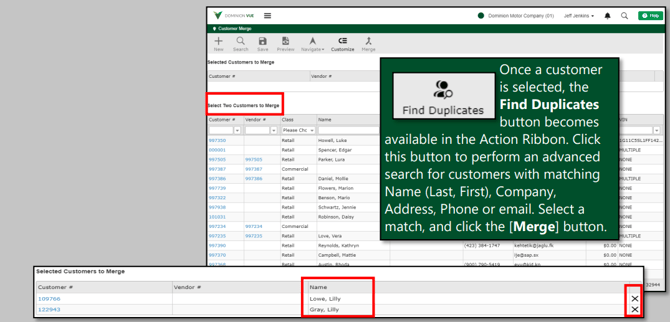
Click the Merge button in the Action Ribbon to open the Manual Customer Merge screen.

• The Show Exact Matches switch defaults to the OFF position. This setting hides all fields where both
customer records match exactly, allowing you to focus on the fields that do not match. Click the switch to ON to see all fields.

• The Manual Customer Merge screen includes a column for the two selected customers and a column for the data to be retained.
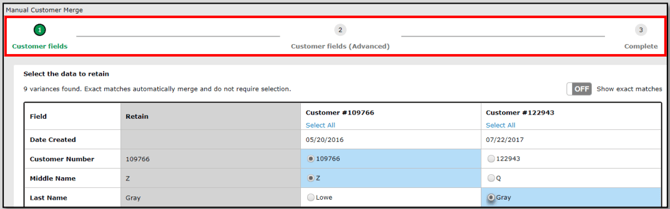
Notice the progress bar at the top of the screen.
• The first indicator on the progress bar is Customer fields. These are the one-to-one fields for merging one field with one field. For example, records in VUE can have only one Last name. If there is a different last name on each record, select the last name you want to retain. Continue through the column, and select the data to keep for each one-to-one field. The data highlighted in blue is marked for retention. Once all selections are made, click Next in the lower right.
• The Customer fields (Advanced) screen includes fields that are one-to-many fields, where multiple fields need to be merged into a single record. For example, you may have a home phone number in one record and a mobile number in another record, and you want to retain both numbers in the final merged record.
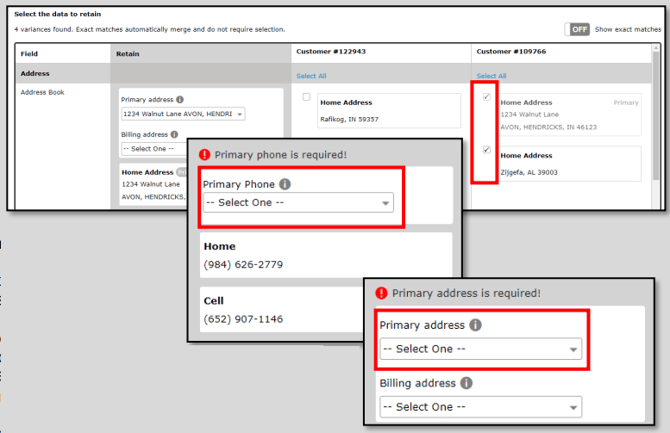
• Mark the checkbox of the data you want to retain in the merged record. In the Retain column, use
the dropdown to assign an address and a phone number to be primary. Once your selections are made, click Next.
When selecting addresses to mark as primary, the dropdown shows all addresses based on several possible scenarios :
• Both customer records have the same primary address. In this scenario the dropdown to select the primary address is hidden, and VUE will merge the fields.
• One customer does not have an address, and the other customer has a primary address. In this scenario, if the primary address is selected to be retained, the primary address in the dropdown is hidden.
• Each customer’s primary address is different, and both have been selected to be retained. In this scenario, a dropdown is displayed to select a primary address.
If you select an address as primary or billing and then deselect it, the primary address is removed from the dropdown and must be defined with another retained address.
When the address matches but the primary or billing indicator is different on both records, this is not considered an exact match and will be treated as “Not matched.”
Vendors
When a vendor is connected to either of the selected customers, Vendor specific steps 3 and 4 are added to the progress bar.

• Vendor fields includes only active vendors. Inactive vendors are treated as if they do not exist. Possible scenarios when selecting vendor record fields include:
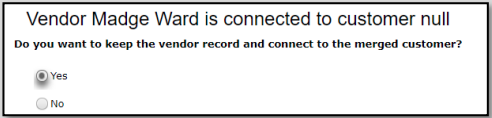
• When there is only one vendor associated, VUE prompts you, asking if you want to keep this
vendor.
• When there are two associated vendors, you will proceed to the Vendor Merge steps that mimic the Customer Merge process for one-to-one fields.
• Vendor fields (Advanced) function like advanced customer fields, with one-to-multi field data like
addresses and phone numbers. Scroll down to select primary address, phone number, and vendor type.
Completing Merges
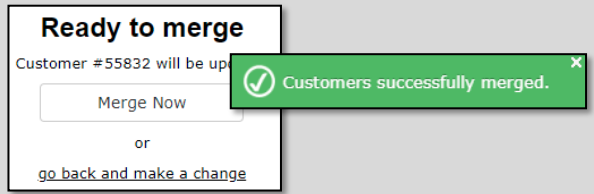
• Complete - Click “go back and make a change” to correct any data prior to finalizing. Clicking Merge
Now removes data from the retiring customer record and marks the record as inactive.
What Happens to the Data
The merged/retained customer record has its original history plus the history of the retired customer record. Even though the retiring customer record is inactive, transaction history continues to be drawn from that inactive record. The Snapshot of the merged customer includes all the history from the original transactions of the retired/inactive customer record, as well as the merged/retained records. Data removed from the retired/inactive record and moved to the merged/retained record includes:
• Vehicles
• Prospects
• Parent/child customer relationships
• Open ROs
• Open Appointments
• Open Parts Invoices
• Open Special Orders
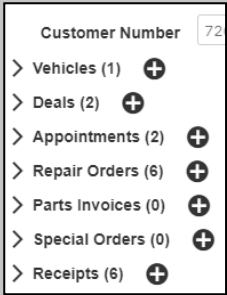
Parts Invoices, ROs, Printed and Posted Receipts, and Special Orders originally closed in the
retired/inactive customer record continue to show the Customer Number used when that
transaction was completed.
Reactivating a Retired/Inactive Customer
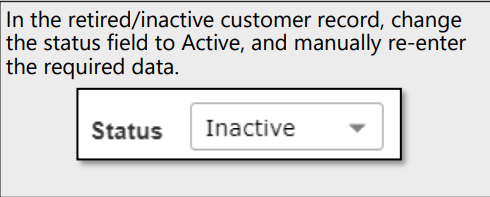
If you reactivate the retired/inactive customer, the closed merged records are no longer associated with the merged/retained customer, so the following data records that were removed from the retired/inactive customer may be may manually added back to the original customer record.
• Vehicles
• Prospects
• Parent/child customer relationships
• Open ROs
• Open Appointments
• Open Parts Invoices
• Open Special Orders
Avoiding Duplicating Customers
When creating a customer from the following screens, a search for potential matches among
the existing customer records is performed.
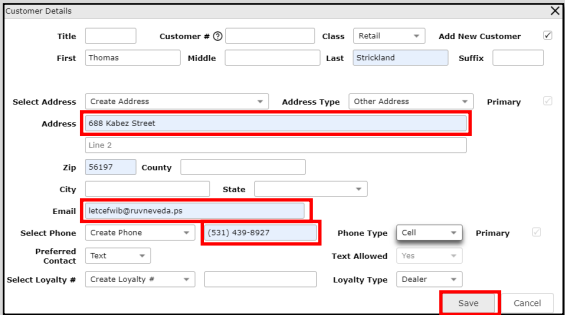
Clicking Save in the Customer Details window starts the search. The Similar Existing Customers
window opens when matches are found in the Email, Phone Number, or Address fields.
• Repair Orders
• Appointment
• Service Estimates
• Parts Desk
• Back Counter
• Special Orders
• Manual Checks
• Purchase Orders
• Accounts Payable
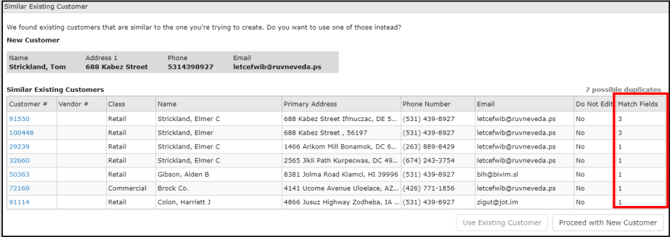
Within the Similar Existing Customers window:
• Review the grid of customers with the matching record(s).
• The Match Fields column indicates the number of fields that match.
• Links are provided to review the existing records.
• Click on the existing customer line to select it and click the [Use Existing Customer] button.
or
• Click the Proceed with New Customer button.