
Table of Contents
Overview
Basic Tab
FICA FUTA/SUI
Account Setup
Misc Other Pay
Print Setup
ACH Setup
Workers Comp
State Ded. Insurance
Department Position
ACA Setup
Overview
Maintain and update your Company Information in VUE Payroll to ensure your payroll runs are correct.
Navigate to Payroll>Maintenance> Company Information.
Select your dealership from the primary grid.
Navigate through the tabs to adjust Company Payroll information as needed.
Basic Tab
Your dealership company information will be displayed. Fields can be adjusted as necessary.
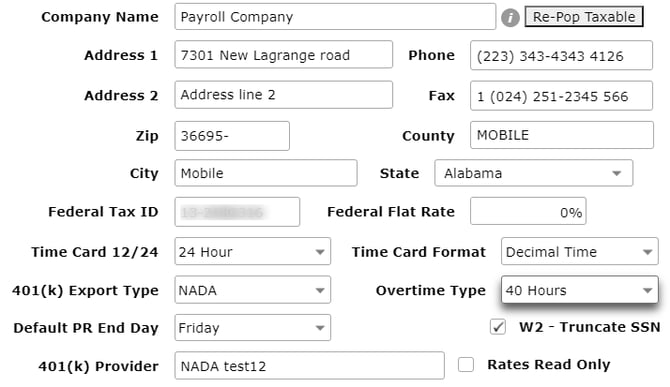
• Company Name as it will appear on Paychecks.
• Company Address, Phone, Fax, Fed Tax ID and Fed Flat Rate %.
• Time Card 12/24: Conventional or Military time in Time Card (12 or 24 Hours).
• 401k Export Type (determined by 401k provider),
• Overtime Type (how it is calculated at the dealership/state - 8+ hours per day or 40+ hours per week).
• Default Payroll End Day (day of the week),
• W2- truncate SSN: to show only last 4 SSN.
• 401k Provider.
• Marking Rates Read Only: to prevent editing employee rates when a user is performing payroll in Enter/Edit Payroll Entries.
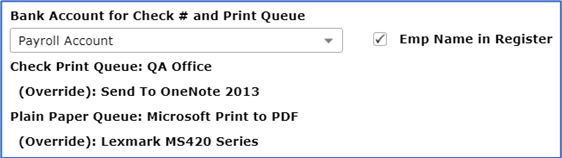
Print Queue section
• Bank account for check # and print Que – to change payroll bank account if necessary.
• Employee Name in Register- Mark this checkbox if you want the employee’s name to appear in the check register.
State Taxes
Highlight a state and click the Edit State Taxes button to edit. Adjust Tax Rate as necessary and Save.
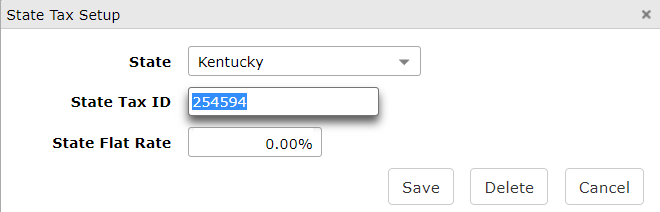
Or click Add State Tax to add a new state. Input State name, state ID, State Flat-Rate and Save.
Local Taxes
Highlight a Local tax and click the Edit Local Tax button to edit. Adjust the Tax Rate and Effective Date and Save.
In the Local Taxes Gross Pay calculation block– Use the scroll bar to mark checkboxes so that Taxable Gross Pay= Gross Pay minus selected items.
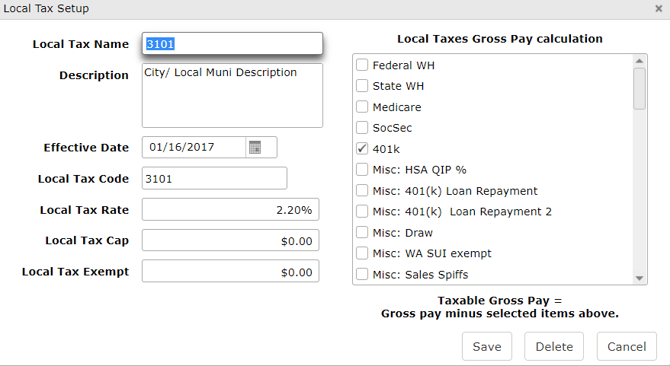
Or click Add Local Tax to add a new. Input the Local Tax Name, Description, Effective date, Local tax code, Local Tax Rate, Local Tax Cap, Local Tax Exempt and Save.
Multi-Rate
Applicable if your dealership pays Multi-Rate.
Select a letter from the Multi Rate Labor Type dropdown and input a Name and Description for each Multi Rate. (72 Character limit)
Examples: R=Regular, T=Training, U=Unapplied, B=Backflag
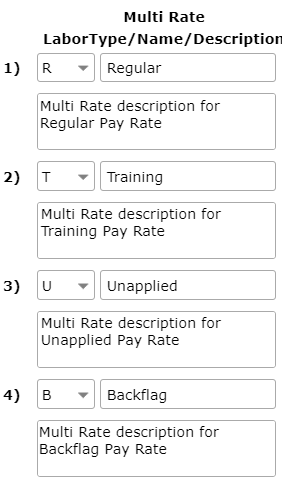
Click Save in the Action Ribbon
FICA FUTA/SUI
FICA information is grayed out. Dominion VUE maintains federal information for all US dealerships.
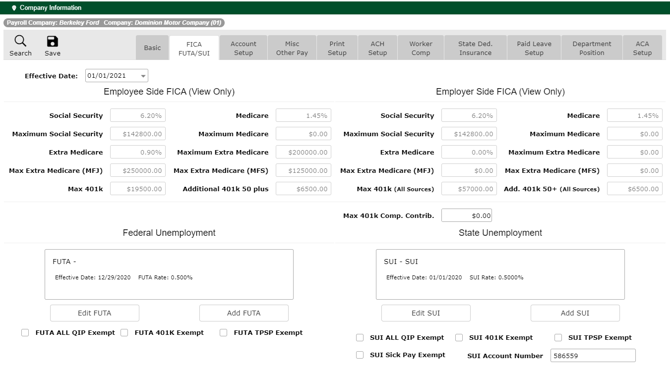
Fields which can be adjusted:
Max 401k Comp Contrib. - limit of how how much the company will match.
Federal Unemployment and State Unemployment.
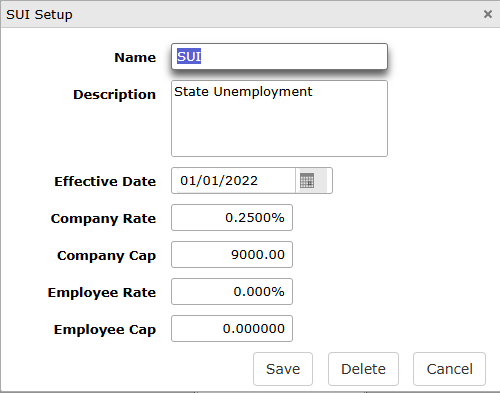
- Can be adjusted when new rates are received.
- Select an Unemployment facet which needs adjusted.
- Click Edit FUTA or Edit SUI.
- Adjust the Rate and/or Cap.
- Update Effective Date.
- Save.
Mark checkboxes for applicable EXEMPT facets: FUTA and SUI for ALL QIP- (Qualified Insurance Plan), FUTA 401K, FUTA TPSP- (Third Party Sick Pay), and SUI Sick Pay Exempt. Input the SUI Account Number.

Click Save in the Action Ribbon.
Account Setup
Search and select to input default General Ledger account numbers for all three sub-tabs across the top.
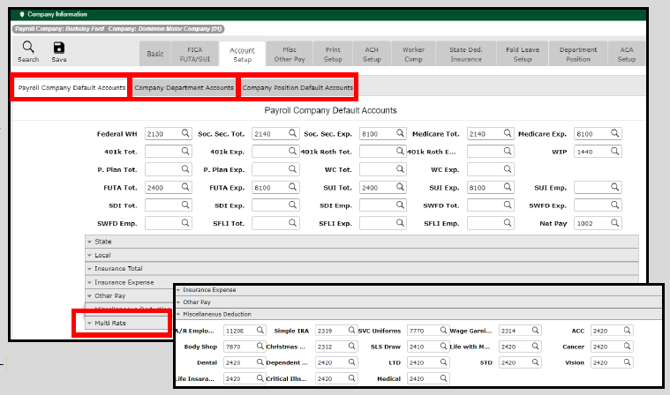
• Payroll Company Default Accounts - Click the Magnifying glass icon for each field and select/input GL account numbers only where applicable. (ie If you don’t use 401k, then no account number is required.)
- Horizontal tabs below- Open and fill in account numbers for State and Local Tax withholdings liability, Insurance withholdings liability and expense, Other Pay expense, Miscellaneous Deduction liabilities/Accts Rec./Paybacks, etc., Multi-Rate WIP/expense for Technicians.
• Company Department Accounts - Input any exceptions to the default account tabs selections.
- Horizontal tabs below- Each pay type that is set up on all other Company Information tabs, will be represented in these horizontal tabs. Open and fill in account numbers as required.
• Company Position Default Accounts - Assign pay by Positions. Split pay may be used and each column must total 100%.
• Click Save in the Action Ribbon
Misc Other Pay
Miscellaneous Deductions
- Highlight an existing Deduction and click Edit Misc to edit an existing Deduction.
- Or click the Add Misc to add a new deduction.
- Input Name, Description, W2 Box number, W2 Box Code, Taxed Code, Override % , Up to amount, and Override Pay Type.
- Checking the Mark as commonly used block shortens the list of Miscellaneous Deductions by only showing the marked deductions.
- Click Save.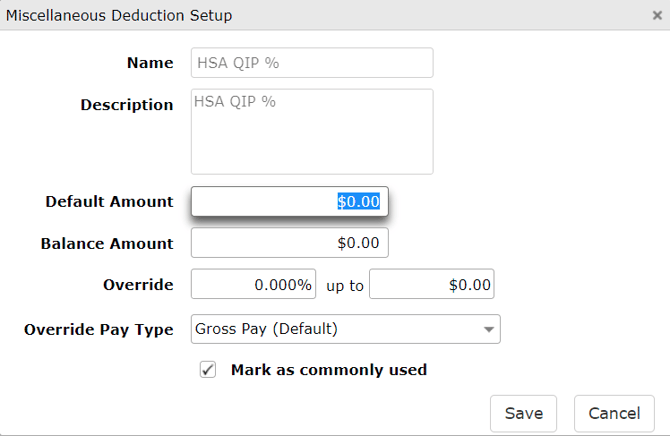
Disposable Earnings
Mark the checkboxes so that Disposable Earnings = Gross Pay minus selected items, as determined by the dealership’s CPA.
Other Pays
- Highlight existing Other Pay and click on Edit Other Pay to adjust.
- Or click Add Other Pay to create new.
- Input Name, Description, W2 Box Number, W2 Box Code, Taxed Code. Mark all checkboxes that apply.
- Checking the Mark as commonly used block shortens the list by only showing the marked Other Pays.
Click Save in the Action Ribbon.
Print Setup
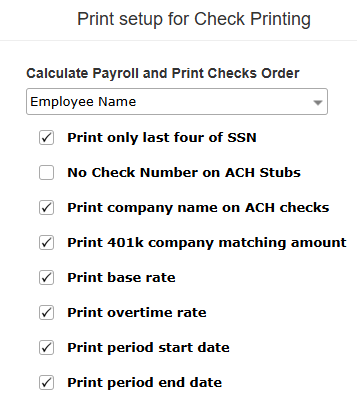
Use the Calculate Payroll and Print Checks Order menu to select in what order checks should print.
Check the appropriate fields for what should generate on checks or ACH stubs.

Check Print Queue (Override) and Plain Paper Queue (Override)
Allows you to assign a printer override.
Click the hyperlink to assign or re-assign print queues as necessary.
Click Save in the Action Ribbon.
ACH Setup
ACH (Automated Clearing House) Direct Deposit settings
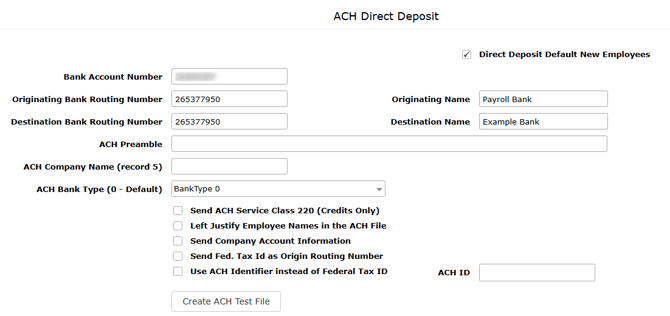
Mark the Direct Deposit Default New Employees checkbox to default to Direct Deposit when adding a new employee.
If necessary, update the payroll bank account and information (Provided by the bank).
Click Create ACH Test File to create a NACHA format file to send to the bank to prove the setup is correct before sending the actual Payroll file.
Click Save in the Action Ribbon.
Workers Comp
Highlight an existing Worker Compensation Code and click Edit Worker Comp Code to edit an existing setup.
- Adjust the Effective Date, Rate, Cap and/or Workers Comp Type as necessary.
- Click Save.
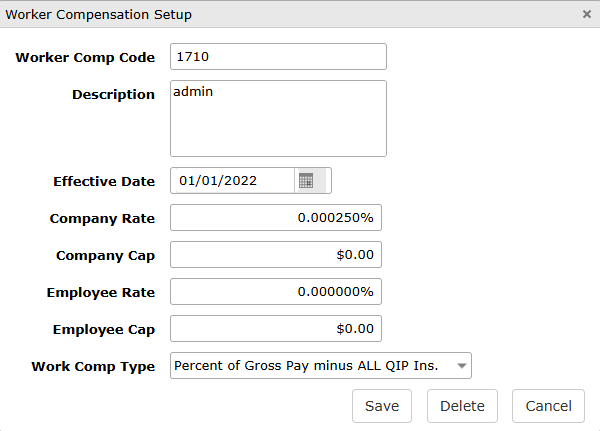
Or click Add Worker Comp Code to add a new code.
- Input Worker Comp Code, Description, Effective Date, Company Rate %, Company Cap $, Employee Rate %, and Employee Cap $. Select a Work Comp Type from the dropdown.
Click Save in the Action Ribbon.
State Ded. Insurance
Each block addresses the Employer and Employee info for Gross Wage Cap and Gross Wage Rate.
(Gross Wage Cap is the company cap; i.e. $80,000 company cap covering all employees, not $80,000 cap per employee.)
Adjust as necessary in:
State Disability Insurance
State Work Force Development
State Family Leave Insurance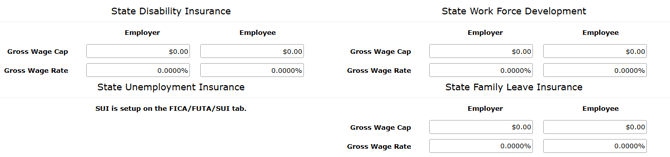
Insurances
Highlight existing insurance and click Edit Insurance button.
- In necessary, update Name, Description W2 Box Number, and W2 Box code.
- Mark the checkbox if this is a QIP (Qualified Insurance Plan).
- Save.
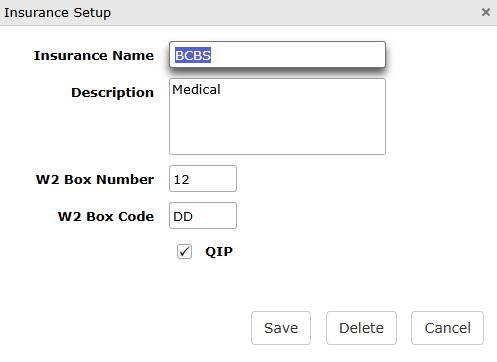
Or click Add Insurance to create new.
- Input Insurance Name, Description W2 Box Number, and W2 Box code.
- Mark the checkbox if this is a QIP (Qualified Insurance Plan).
- Save.
Click Save in the Action Ribbon.
Department Position
Use to set up the accounts associated with each department and position used during payroll.
NOTE: These are not the same as Positions setup in the Accounting > Maintenance > Employee record.
Departments
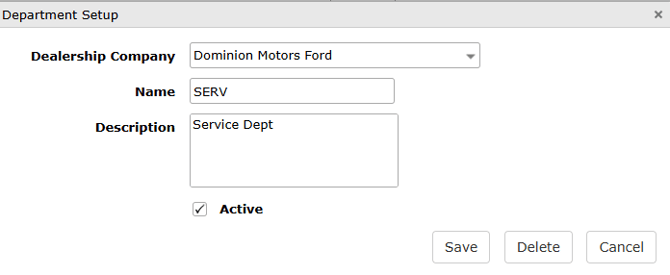
Highlight a department to edit and click Edit Department.
- Select a company from the dropdown (if applicable).
- Edit the department Name and description.
- Uncheck Active or click Delete if the department no longer exists.
- Click Save.
Or click Add Department to create new.
- Select a company from the dropdown (if applicable).
- Input the department Name and description.
- Mark the Active button.
- Click Save.
Positions
Highlight a position to edit and click Edit Position.
- Select a company from the dropdown (if applicable).
- Adjust Name and Description (if necessary).
- Adjust the SOC Code (if necessary).
- Hint: Click Find SOC Codes to find the correct SOC code for the position from the US Bureau of Labor Statistics website if the SOC Code is required in your state.
- Deselect Active if the position no longer exists.
- Save.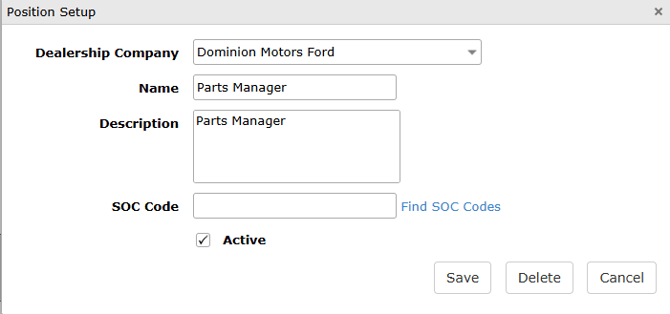
Or click Add Position to create new.
- Select a company from the dropdown (if applicable).
- Add a Name and Description.
- Add an SOC Code
- Hint: Click Find SOC Codes to find the correct SOC code for the position from the US Bureau of Labor Statistics website if the SOC Code is required in your state.
- Mark the Active button.
- Click Save.
Click Save in the Action Ribbon
ACA Setup
If required, ACA information updated here is reported to the employee on Form 1095-B. Information can be entered here and added to all employee records at once. Information may then be edited for individual employees, if necessary.
If required, review and update information in all the tabs:
- Form 1095-B Information
- Form 1094-C Parts I, II, and III
- Form 1094-C Part IV

Clicking Update Employee Records will update all payroll employee records with the 1095-B information entered.

Did this answer your question?