
Table of Contents
Maintenance of the Employee Payroll Records Company-Wide
Maintenance of the Individual Employee Payroll Records
Create an Original ACA Return Report
Generate and Submit Data
Update Status
Print Employee Forms
Create a Corrected ACA Return Report
⚠️ Permissions
Navigate to :Accounting > Maintenance > Employee > Permissions tab.
CREATE, READ and UPDATE permissions for Payroll > Reports > Year End > ACA > ACA Information Return.
Maintenance of the Employee Payroll Records Company-Wide
Navigate to: Payroll > Maintenance > Company Information.
- Select a Company from the grid.
- Click the ACA Setup tab.
- Edit all sub-tabs as needed.
- Clicking the [Update Employee Records] button applies the information to all Payroll employee records at once.
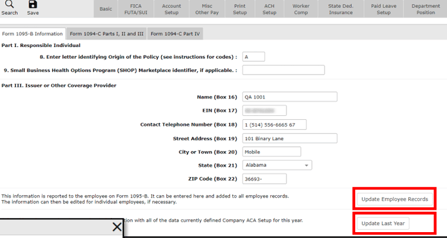
- Clicking the [Update Last Year] button updates the previous year's ACA information with the data currently defined in the company ACA Setup tab. You will find this button on all three pages of the ACA Setup tab, and all three serve the same function.
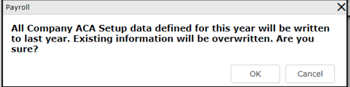
- You will be prompted to confirm that you want to overwrite last year's data.
- Click [OK] to confirm.
Maintenance of the Individual Employee Payroll Records
Navigate to: Payroll > Maintenance > Employee Information.
-
- Search and select the Employee record.
- Click the ACA Setup tab.
- Edit all sub-tabs as needed.
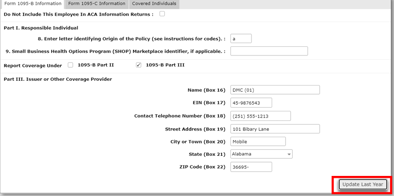
Each tab and sub-tab must be updated independently. Click the [Update Last Year] button on each sub-tab where changes have been made.
The employee’s Name, Address, and Social Security Number, as defined on the Employee record’s Basic tab in the current year, are used for the ACA forms.
2) Marking the Do Not Include this Employee In ACA Information Returns checkbox, will exclude that employee from the ACA submittal.

Create an Original ACA Return Report
Navigate to: Payroll > Reports > Year End > ACA > ACA Information Return
1) Click the [New] button in the Action Ribbon.
2) Select a Tax Year from the dropdown.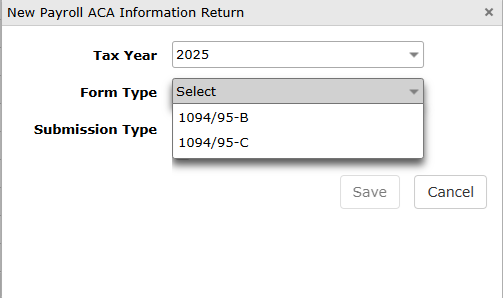
NOTE: The tax year must be closed (ie: Archived) to create an ACA report.
3) Select a Form Type based on your dealership’s needs.
4) Click [Save] to open the ACA Info Return screen.
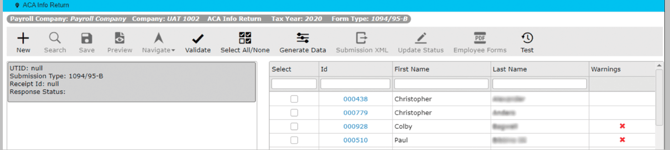
5) The left side of the screen displays the Report Status Tree.
6) The grid on the right side includes all Payroll Employees. Employees whose Payroll records have been marked Do Not Include This Employee In ACA Information Returns are listed with a red X in the Warnings column.
7) Click Validate button in the Action Ribbon.
8) A red ! icon warning symbol will be added to the grid for each record that did not validate. Hover over the warning symbol to see a ToolTip explaining the validation error.
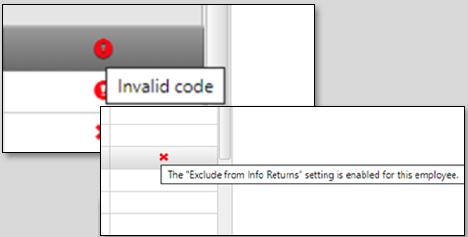
9) Click the blue hyperlink next to each record with a red ! icon, and address each warning. Employee records with a warning will be included in the ACA report and submitted to the IRS.

10) Click Select All/Select None in the Action Ribbon to select all payroll employee records to be included in the ACA Return Report.
11) Employee payroll records previously marked for exclusion are automatically deselected. Manually deselect any additional Employee Records to exclude them from the ACA submission.
Generate and Submit Data
1) Click the [Generate Data] button in the Action Ribbon. No changes are permitted to the report once the data has been generated. Employee records that were not marked in the Select column are removed from the list of employee records.

The IRS requires dealership to obtain a TCC code and submit a test prior to submitting the first ACA Report. Only perform this test if you have NEVER submitted before. The test confirms that subsequent submittals will succeed with properly prepared employee records.
• If you have not already, please contact VUE Support and provide them with your dealership TCC Code.
• To generate the test .xml files that you will send to the IRS, go to Payroll > Reports > Year End > ACA > ACA Information Return and click the [Test] button.
• Open a separate tab to manually upload both files to the IRS website: https://www.irs.gov/e-file-providers/affordable-care-act-information-returns-air.

2) Click [Submission XML] to generate the files that must be manually uploaded to the IRS. These files include the manifest and request files.
These files will download to your download folder on your computer.
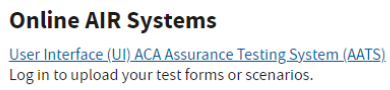
3) Open a separate tab to manually upload both files to the IRS: https://www.irs.gov/e-file-providers/affordable-care-act-information-returns-air.
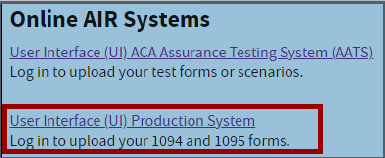
4) Click on the User Interface Production System link to upload the files.
Update Status
Navigate to: Payroll > Reports > Year End > ACA > ACA Information Return
Once the IRS has responded to your Return file submission, the next step is to indicate the return status.
1) Select the appropriate return.
2) Click the [Update Status] button in the Action Ribbon to open the ACA Info Return Status window.

3) Enter the Receipt ID number from the IRS response.
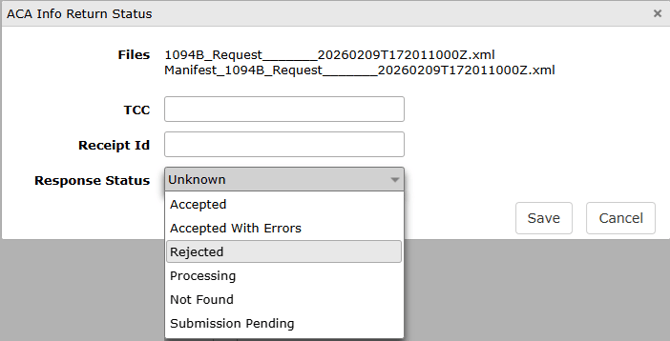
4) From the dropdown menu, select the Response Status that was provided in the IRS response.
5) Click the [Save] button.
If the submission is accepted, proceed to the Print Employee Forms procedure below.
If corrections are needed, proceed to the Create a Corrected ACA Return Report procedure below.
Print Employee Forms
Once the return has been Accepted, Employee Forms may be printed.
1) Navigate to Payroll > Reports > Year End > ACA > ACA Information Return.
2) Click the line with the accepted report to open the ACA Info Return screen.
3) Click the [Employee Forms] button to generate the forms. Both the 1095-B and 1095-C forms with instructions are configured to print on plain paper with two pages per employee.

Create a Corrected ACA Return Report
Corrections must be made to a submitted (original) return that was either Accepted With Errors or Rejected.
If a Return Is Accepted With Errors
1) Navigate to Payroll > Reports > Year End > ACA > ACA Information Return.
2) Select the originally submitted report to open the ACA Info Return screen.
3) Click the [New] button in the Action Ribbon.
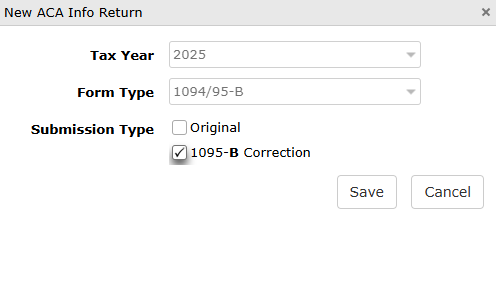
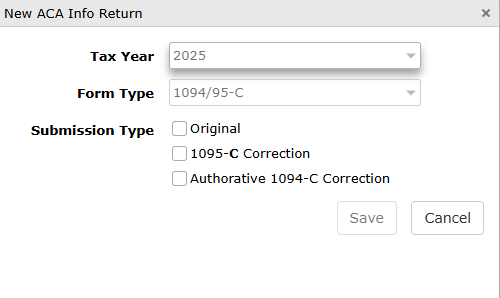
4) In the New ACA Info Return window:
|
• For 1095-B select 1095-B Correction and click Save.
|
|
• For 1095-C select either 1095-C Correction or Authoritative 1094-C Correction depending on what was returned to you by the IRS and click Save.
|
5) Repeat Steps 6-11 from the Create an Original ACA Return Report section .
6) Repeat the steps in Generate and Submit Data.
7) Once the IRS has responded to your Return file submission, repeat the steps in Update Status.
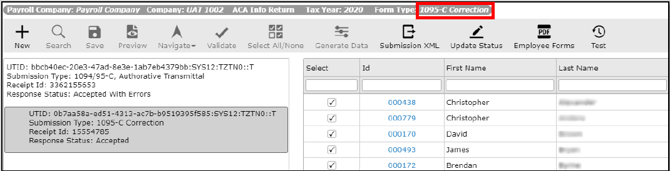
Note: When a return has had a corrected submission, the Payroll ACA Info Return screen will show an original and correction line for the return.

Corrected ACA reports will nest in the report status tree under the original submission. All files that were sent from the original report are included.
If a Return Is Rejected
Rejected Returns should not be resubmitted as a correction.
If a Return is rejected, begin anew with the steps from Create an Original ACA Return Report through Generate and Submit Data until the return is accepted by the IRS.