---
title: Ultimate Search
description: The Ultimate Search allows you to quickly find key information, such as customer profiles, VINs, repair orders, deals, and more
---
[Skip to content](https://help.dominiondms.com/en/knowledge/ultimate-search#main-content)
[Create a Support Ticket](https://help.dominiondms.com/en/knowledge/kb-tickets/new?hsLang=en) [View Your Tickets](https://help.dominiondms.com/tickets-view?hsLang=en)
[](https://vue.dominiondms.com/)
- [VUE Login](https://vue.dominiondms.com/)
Open main navigation
Close main navigation
- [VUE Login](https://vue.dominiondms.com/)
- [Create a Support Ticket](https://help.dominiondms.com/en/knowledge/kb-tickets/new)
- [View Your Tickets](https://help.dominiondms.com/tickets-view)
Welcome to the Dominion DMS Help Center
- There are no suggestions because the search field is empty.
1. [Dominion DMS Help Center](https://help.dominiondms.com/en/knowledge?hsLang=en)
2. [General Topics](https://help.dominiondms.com/en/knowledge/general-topics?hsLang=en)
March 24, 2026
# Ultimate Search
## The Ultimate Search allows you to quickly find key information throughout the VUE system
### Introduction
When using the Ultimate Search feature to look up information such as a customer profile, VIN, repair order, or deal, the system displays search results in a new window. This design allows you to access information without losing your place in the application, enabling easy data comparison and multitasking. This functionality enhances efficiency and streamlines your experience, allowing you to focus on providing exceptional customer service.
**Best Practices:**
- Use the "**All"** dropdown menu to refine your search when looking for specific information.
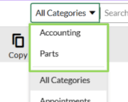
- To search within a specific area, such as **Accounting** or **Parts**,
select the appropriate category from the dropdown instead of using the general search option.
- If you frequently search within the same category, consider setting it as your default search option in **User Settings**.
#### **Performing a Search**
1. Navigate to the search bar at the top of your VUE screen.
2. By default, the filter to the left of the search bar is set to All.
1. This option searches the entire system and returns top results across all categories, excluding Accounting and Parts.
3. Enter your search criteria to view results.
****
Select and the filter on the left of the search bar will default to **All** 
This will search the entire system for the top results in every category, except Accounting and Parts.
**Refine your Search Results**
- Click on the **All** dropdown and select your desired category.
- After selecting a category, input the information you wish to search for in the search bar.
- This action will filter the results to display only those relevant to your chosen category.
---
#### **Configure your Default Search Category**
If you find you often search in the same category, you can easily update the default settings in your **User Settings.**
1. Select the drop-down arrow  at the top of your VUE dashboard next to your name.
2. Select \[**User Settings**\]
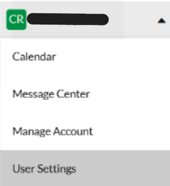
3. Locate the option titled **Quick Search Area** use the drop-down arrow to select from a list of available categories.

4. Click on your **preferred category** to designate it as your default setting.
5. Click\[**Save**\] before exiting the User Settings to ensure your preferences are applied.
---
#### **Accounting Module Search**
When the **Accounting** category is selected, authorized users can search within accounting-specific subcategories.
The system identifies matching records for:
- Unposted Accounts Payable
- Purchase Orders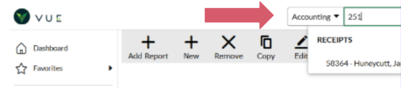
- Receipts
- Vehicle Sales
- Posted Journal Details
**Quick Search** displays qualifying records grouped by **Accounting** subcategory. When additional records are available, a “**See more…**” option allows access to expanded results.
##### **Exact Dollar Amount Search**
Authorized Accounting users can search for an exact dollar amount using both **Quick Search** and **Ultimate Search**. This capability is limited to users with **Accounting** permissions.
##### **Supported Subcategories**
Exact amount searches return results from:
- Accounts Payable
- Journals
- Purchase Orders
- Receipts
**Note:** Vehicle Sales may appear in Ultimate Search results but will not return matches for exact amount searches.
##### **Search Behavior**
Users can search for an exact dollar amount in the following ways:
- **Amount only** (e.g., `100.00`)
Returns both Debit and Credit entries.
- **Positive amount** (e.g., `+100.00`)
Returns only Debit entries.
- **Negative amount** (e.g., `-100.00`)
Returns only Credit entries.
Search is triggered only after the full decimal value (two digits) is entered.
##### **Search Initiation Rules**
An exact amount search is recognized when the search input:
- Begins with a **“+”** (Debit search), or
- Begins with a **“-”** (Credit search), or
- Contains a decimal value in the format **“.00”**
- If the search does **not** begin with “+” or “-”, the system waits until at least three characters are entered, then applies a short delay before initiating the search.
- If a decimal point is entered, the delay is canceled.
- No search is performed until the decimal portion is complete (two digits).
**Example:**
`43.0` → No search is triggered
---
#### **Parts Module Search**
When the **Parts** category is selected, authorized users can search within parts-specific subcategories and instantly retrieve matching records across all parts-related menus, such as:
- Back Counter RO#
- Parts Desk#
- Parts Inventory#
- Parts Invoice#
- Parts Order#
- Parts Return#
- Purchase Order#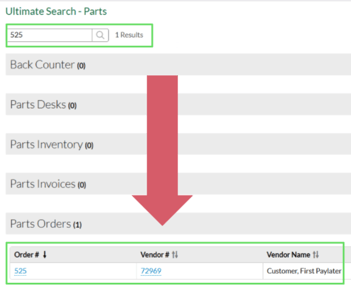
- Special Order#
- Customer#
- Vendor#
**Quick Search** displays up to the first three matching records per category.
**Ultimate Search** provides full results on a dedicated Ultimate Search – Parts page.
**Note:**
Once your default is set, the next time you use the Ultimate Search feature, the system automatically filters results by your selected category, streamlining your search and improving your overall efficiency in accessing relevant information.
Don’t forget to save your changes before exiting the User Settings to ensure your preferences are applied.
- [Client Support Options](https://help.dominiondms.com/en/knowledge/client-support-options?hsLang=en)
- [Accounting](https://help.dominiondms.com/en/knowledge/accounting?hsLang=en#main-content)
- [General Topics](https://help.dominiondms.com/en/knowledge/accounting?hsLang=en#general-topics)
- [General Ledger - Journals](https://help.dominiondms.com/en/knowledge/accounting?hsLang=en#general-ledger-journals)
- [General Ledger - Schedules](https://help.dominiondms.com/en/knowledge/accounting?hsLang=en#general-ledger-schedules)
- [Cash and Bank \> View Check Register](https://help.dominiondms.com/en/knowledge/accounting?hsLang=en#cash-and-bank-view-check-register)
- [General Ledger \> General Ledger](https://help.dominiondms.com/en/knowledge/accounting?hsLang=en#general-ledger-general-ledger)
- [Monthly \> Financial Statement](https://help.dominiondms.com/en/knowledge/accounting?hsLang=en#monthly-financial-statement)
- [General Ledger \> Post Vehicle Sales](https://help.dominiondms.com/en/knowledge/accounting?hsLang=en#general-ledger-post-vehicle-sales)
- [Accounts Payable \>Vendors](https://help.dominiondms.com/en/knowledge/accounting?hsLang=en#accounts-payable-vendors)
- [Maintenance \> Parts Account Codes](https://help.dominiondms.com/en/knowledge/accounting?hsLang=en#maintenance-parts-account-codes)
- [Maintenance \> Journal Maintenance](https://help.dominiondms.com/en/knowledge/accounting?hsLang=en#maintenance-journal-maintenance)
- [Monthly \> Post Automatic Entries](https://help.dominiondms.com/en/knowledge/accounting?hsLang=en#monthly-post-automatic-entries)
- [Miscellaneous \> Customer Merge](https://help.dominiondms.com/en/knowledge/accounting?hsLang=en#miscellaneous-customer-merge)
- [General Ledger \> Schedule Reconciliation](https://help.dominiondms.com/en/knowledge/accounting?hsLang=en#general-ledger-schedule-reconciliation)
- [Cash and Bank \> Check Register Report](https://help.dominiondms.com/en/knowledge/accounting?hsLang=en#cash-and-bank-check-register-report)
- [Accounts Payable \> Purchase Orders](https://help.dominiondms.com/en/knowledge/accounting?hsLang=en#accounts-payable-purchase-orders)
- [Accounts Receivable \> Customers](https://help.dominiondms.com/en/knowledge/accounting?hsLang=en#accounts-receivable-customers)
- [Cash and Bank \> Reconcile Checking Accounts](https://help.dominiondms.com/en/knowledge/accounting?hsLang=en#cash-and-bank-reconcile-checking-accounts)
- [Maintenance \> Service Account Codes](https://help.dominiondms.com/en/knowledge/accounting?hsLang=en#maintenance-service-account-codes)
- [Maintenance \> Financial Statement Maintenance](https://help.dominiondms.com/en/knowledge/accounting?hsLang=en#maintenance-financial-statement-maintenance)
- [Miscellaneous \> Title Tracking](https://help.dominiondms.com/en/knowledge/accounting?hsLang=en#miscellaneous-title-tracking)
- [Maintenance \> Daily Report Maintenance](https://help.dominiondms.com/en/knowledge/accounting?hsLang=en#maintenance-daily-report-maintenance)
- [General Ledger \> Manual GL Posting](https://help.dominiondms.com/en/knowledge/accounting?hsLang=en#general-ledger-manual-gl-posting)
- [Maintenance \> Employees](https://help.dominiondms.com/en/knowledge/accounting?hsLang=en#maintenance-employees)
- [Maintenance \> Payment Types](https://help.dominiondms.com/en/knowledge/accounting?hsLang=en#maintenance-payment-types)
- [Maintenance \> Schedule Maintenance](https://help.dominiondms.com/en/knowledge/accounting?hsLang=en#maintenance-schedule-maintenance)
- [Monthly \> Open/Close Periods](https://help.dominiondms.com/en/knowledge/accounting?hsLang=en#monthly-open-close-periods)
- [Maintenance \> Bank and Checking Maintenance](https://help.dominiondms.com/en/knowledge/accounting?hsLang=en#maintenance-bank-and-checking-maintenance)
- [Maintenance \> Roles](https://help.dominiondms.com/en/knowledge/accounting?hsLang=en#maintenance-roles)
- [Cash and Bank \> Manual Checks](https://help.dominiondms.com/en/knowledge/accounting?hsLang=en#cash-and-bank-manual-checks)
- [Accounts Receivable \> Receipt Book](https://help.dominiondms.com/en/knowledge/accounting?hsLang=en#accounts-receivable-receipt-book)
- [Maintenance \> Vehicle Sales Maintenance](https://help.dominiondms.com/en/knowledge/accounting?hsLang=en#maintenance-vehicle-sales-maintenance)
- [Accounts Payable \> Accounts Payable](https://help.dominiondms.com/en/knowledge/accounting?hsLang=en#accounts-payable-accounts-payable)
- [Maintenance \> Default Settings](https://help.dominiondms.com/en/knowledge/accounting?hsLang=en#maintenance-default-settings)
- [Monthly \> Statistical Data](https://help.dominiondms.com/en/knowledge/accounting?hsLang=en#monthly-statistical-data)
- [Miscellaneous \> Accessories Due](https://help.dominiondms.com/en/knowledge/accounting?hsLang=en#miscellaneous-accessories-due)
- [Accounts Receivable \> Calculate Finance Charges](https://help.dominiondms.com/en/knowledge/accounting?hsLang=en#accounts-receivable-calculate-finance-charges)
- [Reports \> Schedule Reports](https://help.dominiondms.com/en/knowledge/accounting?hsLang=en#reports-schedule-reports)
- [Monthly \> Reporting Account Setup](https://help.dominiondms.com/en/knowledge/accounting?hsLang=en#monthly-reporting-account-setup)
- [Miscellaneous \> Reopen Parts & Service Tickets](https://help.dominiondms.com/en/knowledge/accounting?hsLang=en#miscellaneous-reopen-parts-service-tickets)
- [Maintenance \> Automatic Entry Maintenance](https://help.dominiondms.com/en/knowledge/accounting?hsLang=en#maintenance-automatic-entry-maintenance)
- [Accounts Receivable \> Statements](https://help.dominiondms.com/en/knowledge/accounting?hsLang=en#accounts-receivable-statements)
- [Cash and Bank \> 1099s](https://help.dominiondms.com/en/knowledge/accounting?hsLang=en#cash-and-bank-1099s)
- [Reports - Chart of Accounts](https://help.dominiondms.com/en/knowledge/accounting?hsLang=en#reports-chart-of-accounts)
- [Accounts Receivable \> Aged Analysis Report](https://help.dominiondms.com/en/knowledge/accounting?hsLang=en#accounts-receivable-aged-analysis-report)
- [Reports \> Trial Balance](https://help.dominiondms.com/en/knowledge/accounting?hsLang=en#reports-trial-balance)
- [Reports \> Trend Analysis](https://help.dominiondms.com/en/knowledge/accounting?hsLang=en#reports-trend-analysis)
- [Reports \> Stock/Schedule Comparison](https://help.dominiondms.com/en/knowledge/accounting?hsLang=en#reports-stock-schedule-comparison)
- [Reports \> Journal Reports](https://help.dominiondms.com/en/knowledge/accounting?hsLang=en#reports-journal-reports)
- [Reports \> General Ledger](https://help.dominiondms.com/en/knowledge/accounting?hsLang=en#reports-general-ledger)
- [Reports \> Customer List](https://help.dominiondms.com/en/knowledge/accounting?hsLang=en#reports-customer-list)
- [Reports \> Employee](https://help.dominiondms.com/en/knowledge/accounting?hsLang=en#reports-employee)
- [Reports \> RO Invoice Location](https://help.dominiondms.com/en/knowledge/accounting?hsLang=en#reports-ro-invoice-location)
- [Reports \> Floorplan Rebate](https://help.dominiondms.com/en/knowledge/accounting?hsLang=en#reports-floorplan-rebate)
- [Reports \> Floorplan Report](https://help.dominiondms.com/en/knowledge/accounting?hsLang=en#reports-floorplan-report)
- [Reports \> Vendor List](https://help.dominiondms.com/en/knowledge/accounting?hsLang=en#reports-vendor-list)
- [End of Year](https://help.dominiondms.com/en/knowledge/accounting?hsLang=en#end-of-year)
- [Parts](https://help.dominiondms.com/en/knowledge/parts?hsLang=en#main-content)
- [Counter - Parts Inventory](https://help.dominiondms.com/en/knowledge/parts?hsLang=en#counter-parts-inventory)
- [Counter - Parts Desk](https://help.dominiondms.com/en/knowledge/parts?hsLang=en#counter-parts-desk)
- [Physical Inventory \> Physical Inventory](https://help.dominiondms.com/en/knowledge/parts?hsLang=en#physical-inventory-physical-inventory)
- [Management \> Parts Returns](https://help.dominiondms.com/en/knowledge/parts?hsLang=en#management-parts-returns)
- [Management \> Parts Orders](https://help.dominiondms.com/en/knowledge/parts?hsLang=en#management-parts-orders)
- [Management \> Purchase Orders](https://help.dominiondms.com/en/knowledge/parts?hsLang=en#management-purchase-orders)
- [Maintenance \> Order Sources](https://help.dominiondms.com/en/knowledge/parts?hsLang=en#maintenance-order-sources)
- [Management \> Parts Inventory Update](https://help.dominiondms.com/en/knowledge/parts?hsLang=en#management-parts-inventory-update)
- [Cashier \> Receipt Book](https://help.dominiondms.com/en/knowledge/parts?hsLang=en#cashier-receipt-book)
- [Cashier \> Parts Invoices](https://help.dominiondms.com/en/knowledge/parts?hsLang=en#cashier-parts-invoices)
- [Counter \> Parts Request Roster](https://help.dominiondms.com/en/knowledge/parts?hsLang=en#counter-parts-request-roster)
- [Miscellaneous \> All Vehicles](https://help.dominiondms.com/en/knowledge/parts?hsLang=en#miscellaneous-all-vehicles)
- [Maintenance \> Fees](https://help.dominiondms.com/en/knowledge/parts?hsLang=en#maintenance-fees)
- [Maintenance \> Price Codes](https://help.dominiondms.com/en/knowledge/parts?hsLang=en#maintenance-price-codes)
- [Counter \> Parts Invoices](https://help.dominiondms.com/en/knowledge/parts?hsLang=en#counter-parts-invoices)
- [Miscellaneous \> Vendors](https://help.dominiondms.com/en/knowledge/parts?hsLang=en#miscellaneous-vendors)
- [Counter \> Back Counter](https://help.dominiondms.com/en/knowledge/parts?hsLang=en#counter-back-counter)
- [Miscellaneous \> Customers](https://help.dominiondms.com/en/knowledge/parts?hsLang=en#miscellaneous-customers)
- [Counter \> Special Orders](https://help.dominiondms.com/en/knowledge/parts?hsLang=en#counter-special-orders)
- [Maintenance \> Order Groups](https://help.dominiondms.com/en/knowledge/parts?hsLang=en#maintenance-order-groups)
- [Maintenance \> Parts Inventory Parts Type](https://help.dominiondms.com/en/knowledge/parts?hsLang=en#maintenance-parts-inventory-parts-type)
- [Cashier \> Daily Close](https://help.dominiondms.com/en/knowledge/parts?hsLang=en#cashier-daily-close)
- [Maintenance \> Header Fees](https://help.dominiondms.com/en/knowledge/parts?hsLang=en#maintenance-header-fees)
- [Management \> Parts Phasing](https://help.dominiondms.com/en/knowledge/parts?hsLang=en#management-parts-phasing)
- [Reports \> Sales](https://help.dominiondms.com/en/knowledge/parts?hsLang=en#reports-sales)
- [Management \> Inventory Management Tool](https://help.dominiondms.com/en/knowledge/parts?hsLang=en#management-inventory-management-tool)
- [Reports \> Special Order](https://help.dominiondms.com/en/knowledge/parts?hsLang=en#reports-special-order)
- [Cashier Receipts Report](https://help.dominiondms.com/en/knowledge/parts?hsLang=en#cashier-receipts-report)
- [Reports \> Inventory](https://help.dominiondms.com/en/knowledge/parts?hsLang=en#reports-inventory)
- [Parts \> Reports](https://help.dominiondms.com/en/knowledge/parts?hsLang=en#parts-reports)
- [Service](https://help.dominiondms.com/en/knowledge/service?hsLang=en#main-content)
- [Maintenance \> Op Codes](https://help.dominiondms.com/en/knowledge/service?hsLang=en#maintenance-op-codes)
- [Advisor \> Repair Orders](https://help.dominiondms.com/en/knowledge/service?hsLang=en#advisor-repair-orders)
- [Maintenance \> Fees](https://help.dominiondms.com/en/knowledge/service?hsLang=en#maintenance-fees)
- [Reports \> Payroll \> Unpaid Technician Labor Report](https://help.dominiondms.com/en/knowledge/service?hsLang=en#reports-payroll-unpaid-technician-labor-report)
- [Advisor \> Appointment Schedule](https://help.dominiondms.com/en/knowledge/service?hsLang=en#advisor-appointment-schedule)
- [Advisor \> Appointments](https://help.dominiondms.com/en/knowledge/service?hsLang=en#advisor-appointments)
- [Maintenance \> Skill Sets](https://help.dominiondms.com/en/knowledge/service?hsLang=en#maintenance-skill-sets)
- [Technician \> Technician System](https://help.dominiondms.com/en/knowledge/service?hsLang=en#technician-technician-system)
- [Advisor \> Special Orders](https://help.dominiondms.com/en/knowledge/service?hsLang=en#advisor-special-orders)
- [Cashier \> Receipt Book](https://help.dominiondms.com/en/knowledge/service?hsLang=en#cashier-receipt-book)
- [Miscellaneous \> Customers](https://help.dominiondms.com/en/knowledge/service?hsLang=en#miscellaneous-customers)
- [Maintenance \> Header Fees](https://help.dominiondms.com/en/knowledge/service?hsLang=en#maintenance-header-fees)
- [Miscellaneous \> All Vehicles](https://help.dominiondms.com/en/knowledge/service?hsLang=en#miscellaneous-all-vehicles)
- [Advisor \> Appointment Calendar](https://help.dominiondms.com/en/knowledge/service?hsLang=en#advisor-appointment-calendar)
- [Advisor \> Purchase Orders](https://help.dominiondms.com/en/knowledge/service?hsLang=en#advisor-purchase-orders)
- [Advisor \> Route Sheet](https://help.dominiondms.com/en/knowledge/service?hsLang=en#advisor-route-sheet)
- [Miscellaneous \> Vendors](https://help.dominiondms.com/en/knowledge/service?hsLang=en#miscellaneous-vendors)
- [Maintenance \> Labor Rates](https://help.dominiondms.com/en/knowledge/service?hsLang=en#maintenance-labor-rates)
- [Advisor \> Parts Inventory](https://help.dominiondms.com/en/knowledge/service?hsLang=en#advisor-parts-inventory)
- [Reports \> Sales](https://help.dominiondms.com/en/knowledge/service?hsLang=en#reports-sales)
- [Reports \> Audit](https://help.dominiondms.com/en/knowledge/service?hsLang=en#reports-audit)
- [Maintenance \> Rate Levels](https://help.dominiondms.com/en/knowledge/service?hsLang=en#maintenance-rate-levels)
- [Maintenance \> Service Dispatch Configuration](https://help.dominiondms.com/en/knowledge/service?hsLang=en#maintenance-service-dispatch-configuration)
- [Maintenance \> Service Configurations](https://help.dominiondms.com/en/knowledge/service?hsLang=en#maintenance-service-configurations)
- [Maintenance \> Tech Management](https://help.dominiondms.com/en/knowledge/service?hsLang=en#maintenance-tech-management)
- [Maintenance \> Employees](https://help.dominiondms.com/en/knowledge/service?hsLang=en#maintenance-employees)
- [Reports](https://help.dominiondms.com/en/knowledge/service?hsLang=en#reports)
- [Reports \> Appointment](https://help.dominiondms.com/en/knowledge/service?hsLang=en#reports-appointment)
- [Dominion Dealer University](https://help.dominiondms.com/en/knowledge/dominion-dealer-university?hsLang=en)
- [Sales and F&I](https://help.dominiondms.com/en/knowledge/sales-and-fi?hsLang=en#main-content)
- [F&I \> Sales Desk](https://help.dominiondms.com/en/knowledge/sales-and-fi?hsLang=en#fi-sales-desk)
- [Miscellaneous \> Purchase Orders](https://help.dominiondms.com/en/knowledge/sales-and-fi?hsLang=en#miscellaneous-purchase-orders)
- [Reports \> Sales](https://help.dominiondms.com/en/knowledge/sales-and-fi?hsLang=en#reports-sales)
- [Vehicles \> Vehicle Inventory](https://help.dominiondms.com/en/knowledge/sales-and-fi?hsLang=en#vehicles-vehicle-inventory)
- [Maintenance \> Miscellaneous](https://help.dominiondms.com/en/knowledge/sales-and-fi?hsLang=en#maintenance-miscellaneous)
- [F&I \> Deals](https://help.dominiondms.com/en/knowledge/sales-and-fi?hsLang=en#fi-deals)
- [Maintenance \> Vehicles](https://help.dominiondms.com/en/knowledge/sales-and-fi?hsLang=en#maintenance-vehicles)
- [Vehicles \> All Vehicles](https://help.dominiondms.com/en/knowledge/sales-and-fi?hsLang=en#vehicles-all-vehicles)
- [F&I \> Prospects](https://help.dominiondms.com/en/knowledge/sales-and-fi?hsLang=en#fi-prospects)
- [F&I \> Outside Sales](https://help.dominiondms.com/en/knowledge/sales-and-fi?hsLang=en#fi-outside-sales)
- [Maintenance \> Sales](https://help.dominiondms.com/en/knowledge/sales-and-fi?hsLang=en#maintenance-sales)
- [Miscellaneous \> Vendors](https://help.dominiondms.com/en/knowledge/sales-and-fi?hsLang=en#miscellaneous-vendors)
- [Miscellaneous \> Customers](https://help.dominiondms.com/en/knowledge/sales-and-fi?hsLang=en#miscellaneous-customers)
- [Miscellaneous \> Receipt Book](https://help.dominiondms.com/en/knowledge/sales-and-fi?hsLang=en#miscellaneous-receipt-book)
- [Reports \> Commission](https://help.dominiondms.com/en/knowledge/sales-and-fi?hsLang=en#reports-commission)
- [Sales \> Reports](https://help.dominiondms.com/en/knowledge/sales-and-fi?hsLang=en#sales-reports)
- [Reports \> F&I](https://help.dominiondms.com/en/knowledge/sales-and-fi?hsLang=en#reports-fi)
- [Payroll](https://help.dominiondms.com/en/knowledge/payroll?hsLang=en#main-content)
- [Maintenance \> Company Information](https://help.dominiondms.com/en/knowledge/payroll?hsLang=en#maintenance-company-information)
- [Payroll Process \> Void Payroll Checks](https://help.dominiondms.com/en/knowledge/payroll?hsLang=en#payroll-process-void-payroll-checks)
- [Payroll Process \> Enter/Edit Payroll Entries](https://help.dominiondms.com/en/knowledge/payroll?hsLang=en#payroll-process-enter-edit-payroll-entries)
- [Reports \> Quarterly Reports](https://help.dominiondms.com/en/knowledge/payroll?hsLang=en#reports-quarterly-reports)
- [Maintenance \> Employee Information](https://help.dominiondms.com/en/knowledge/payroll?hsLang=en#maintenance-employee-information)
- [Payroll \> Reports](https://help.dominiondms.com/en/knowledge/payroll?hsLang=en#payroll-reports)
- [Maintenance \> Archive Current Year](https://help.dominiondms.com/en/knowledge/payroll?hsLang=en#maintenance-archive-current-year)
- [Payroll \> Processing](https://help.dominiondms.com/en/knowledge/payroll?hsLang=en#payroll-processing)
- [OEM DCS](https://help.dominiondms.com/en/knowledge/oem-dcs?hsLang=en#main-content)
- [GM](https://help.dominiondms.com/en/knowledge/oem-dcs?hsLang=en#gm)
- [Ford](https://help.dominiondms.com/en/knowledge/oem-dcs?hsLang=en#ford)
- [General Topics](https://help.dominiondms.com/en/knowledge/general-topics?hsLang=en#main-content)
- [Print](https://help.dominiondms.com/en/knowledge/general-topics?hsLang=en#print)
- [VUE](https://help.dominiondms.com/en/knowledge/general-topics?hsLang=en#vue)
- [VUE Training & User Guides](https://help.dominiondms.com/en/knowledge/vue-training-user-guides?hsLang=en#main-content)
- [User Guides](https://help.dominiondms.com/en/knowledge/vue-training-user-guides?hsLang=en#user-guides)
- [Podcasts and VideoCasts](https://help.dominiondms.com/en/knowledge/podcasts-and-videocasts?hsLang=en#main-content)
- [Service Management](https://help.dominiondms.com/en/knowledge/podcasts-and-videocasts?hsLang=en#service-management)
- [Collision Center/ Body Shop](https://help.dominiondms.com/en/knowledge/podcasts-and-videocasts?hsLang=en#collision-center-body-shop)
- [CRM](https://help.dominiondms.com/en/knowledge/podcasts-and-videocasts?hsLang=en#crm)
- [Document Management](https://help.dominiondms.com/en/knowledge/podcasts-and-videocasts?hsLang=en#document-management)
- [Vehicle Inventory Management](https://help.dominiondms.com/en/knowledge/podcasts-and-videocasts?hsLang=en#vehicle-inventory-management)
- [Accounting Processes](https://help.dominiondms.com/en/knowledge/podcasts-and-videocasts?hsLang=en#accounting-processes)
- [F&I Deal Process](https://help.dominiondms.com/en/knowledge/podcasts-and-videocasts?hsLang=en#fi-deal-process)
- [Payroll](https://help.dominiondms.com/en/knowledge/podcasts-and-videocasts?hsLang=en#payroll)
- [Retail and Fleet Management](https://help.dominiondms.com/en/knowledge/podcasts-and-videocasts?hsLang=en#retail-and-fleet-management)
- [Digital Retail](https://help.dominiondms.com/en/knowledge/podcasts-and-videocasts?hsLang=en#digital-retail)
- [Credit Bureaus](https://help.dominiondms.com/en/knowledge/podcasts-and-videocasts?hsLang=en#credit-bureaus)
- [eContracting](https://help.dominiondms.com/en/knowledge/podcasts-and-videocasts?hsLang=en#econtracting)
- [Marketing](https://help.dominiondms.com/en/knowledge/podcasts-and-videocasts?hsLang=en#marketing)
- [Payment Processing](https://help.dominiondms.com/en/knowledge/podcasts-and-videocasts?hsLang=en#payment-processing)
- [Registration and Titling](https://help.dominiondms.com/en/knowledge/podcasts-and-videocasts?hsLang=en#registration-and-titling)
- [Recent Enhancements](https://help.dominiondms.com/en/knowledge/recent-enhancements?hsLang=en#main-content)
- [VUE Software Updates](https://help.dominiondms.com/en/knowledge/recent-enhancements?hsLang=en#vue-software-updates)
[](https://www.dominiondms.com)
150 Granby St
Norfolk, VA 23510
[Copyright - Dominion DMS](https://forms.office.com/Pages/ResponsePage.aspx?id=6f83PexuWE-xqW9kLygglODQggSQzXZEttZ8lNAOypBUN1hUV0VUTlpXMzE5RVdOVEtVVU5CMlVROS4u)